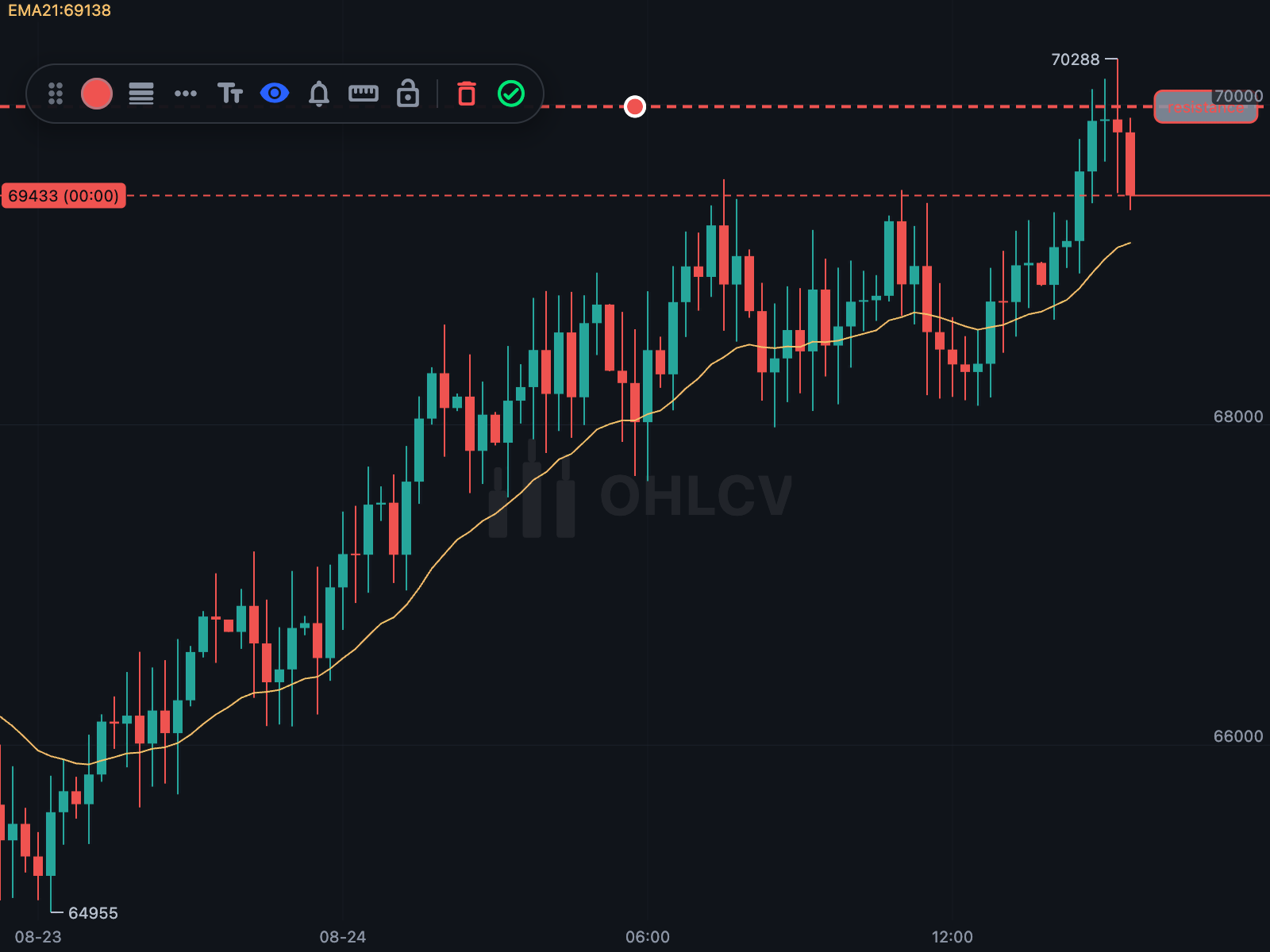
Selecting a drawing opens the editor, with controls for colour, thickness, line style, label text and visibility, lock and delete.
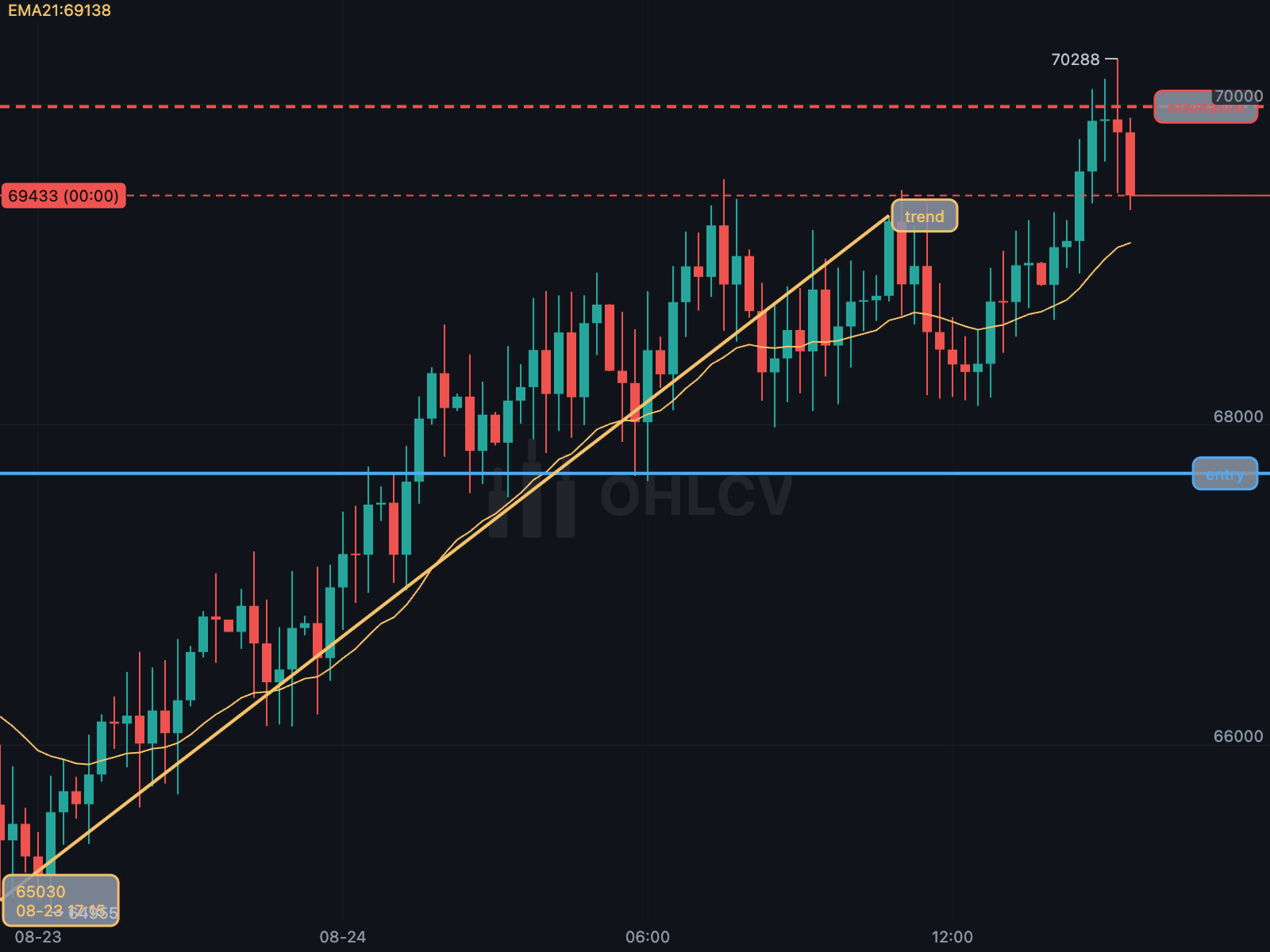
Set currentDrawingTool to enable placement mode, and handle the callbacks to
persist user drawings.
- The per-kind lists (
trendLines,horizontalLines, …) are the original API and remain supported. drawings:accepts drawings of any kind and is required for newer tools.- A
drawingControllercan manage the entire layout instead — see Undo, redo and the drawing controller.
KChartWidget(
  candles,
  ChartColors(),
  isTrendLine: true,
  timeFrame: const Duration(minutes: 15),
  currentDrawingTool: DrawingTool.trend,
  trendLines: savedTrendLines,
  horizontalLines: savedHorizontalLines,
  verticalLines: savedVerticalLines,
  rectangles: savedRectangles,
  fibRetracements: savedFibRetracements,
  drawings: savedMeasuresChannelsAndNotes,
  onAddTrendLine: repository.save,
  onRemoveTrendLine: repository.delete,
  // Fires for every kind, and is the only report for the later ones.
  onAddDrawing: repository.save,
  onRemoveDrawing: repository.delete,
);- Horizontal and vertical lines are placed with a single tap.
- Trend lines take one tap per end; the line follows the pointer between taps.
- Press and drag draws a two-point line in one gesture, on both touch and mouse.
- Cancel a partially placed drawing with Escape, by tapping outside the chart, or by switching tools.
- The line editor opens only after placement is complete.
With magnetMode: true, points snap to the nearest open, high, low or close
within DrawingStyle.magnetSnapDistance pixels. Snapping applies both when
placing and when dragging an anchor, so existing lines can be aligned precisely
to candle values.
Dragging an entire drawing is not snapped, so its shape is preserved.
DrawingTool |
Points | Description |
|---|---|---|
horizontal |
1 | Horizontal level across the chart |
horizontalRay |
1 | Horizontal level extending right from a candle |
vertical |
1 | Vertical line at a candle |
text |
1 | Text note at a point |
trend |
2 | Line segment between two points |
ray |
2 | Line extending beyond the second point |
extendedLine |
2 | Line extending beyond both points |
arrow |
2 | Line segment with an arrowhead |
rectangle |
2 | Rectangle defined by opposite corners |
ellipse |
2 | Ellipse inscribed in a rectangle |
fibRetracement |
2 | Fibonacci retracement levels with labels and bands |
measure |
2 | Measurement of price, percentage, candle count and time |
triangle |
3 | Triangle |
channel |
3 | Parallel channel through a third point |
position |
3 | Entry, target and stop, with risk-to-reward ratio |
brush |
drag | Freehand drawing |
flag |
1 | Flag marker on a candle |
gannFan |
2 | Gann fan angles, 1×1 through 1×8 and 8×1 |
gannBox |
2 | Gann box divided at ratio levels in price and time |
fibFan |
2 | Fibonacci fan |
fibTimeZones |
2 | Vertical lines at Fibonacci time intervals |
regressionTrend |
2 | Linear regression channel with deviation bands |
priceRange |
2 | Price range in absolute and percentage terms |
dateRange |
2 | Date range in candles and time |
callout |
2 | Text box with a pointer to a candle |
pitchfork |
3 | Pitchfork median line and parallels |
fibExtension |
3 | Trend-based Fibonacci extension |
xabcd |
5 | Harmonic pattern with retracement ratios |
path |
many | Multi-segment path |
- Trend line variants (
trend,ray,extendedLine,arrow) are allTrendLineinstances.extend(LineExtension.none,.right,.both) controls extension, andarrowadds an arrowhead, so layouts saved by older versions still load. - Horizontal rays are
HorizontalLines withstartTimeset. - Rectangles and retracements are
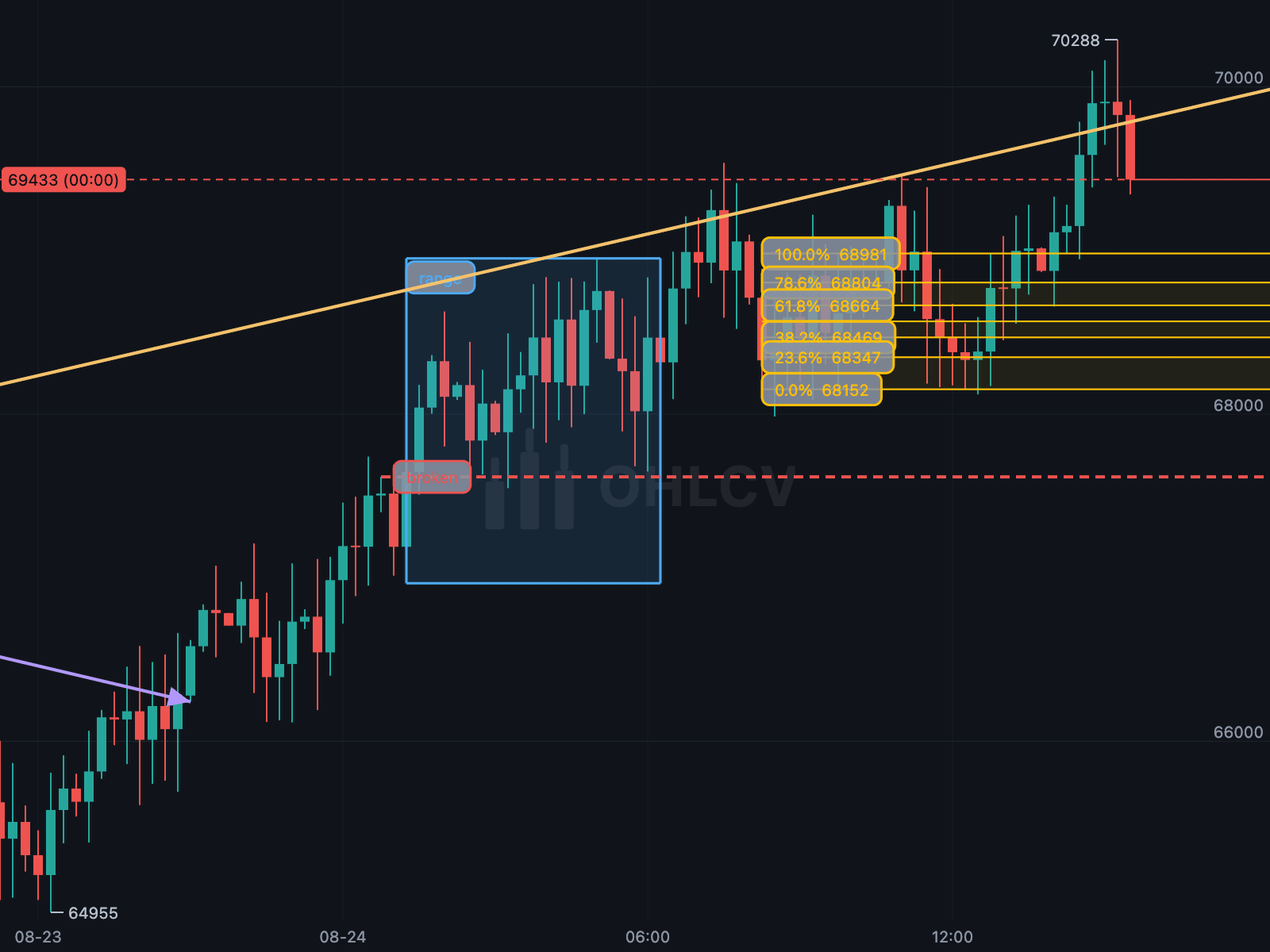
RectangleDrawingandFibRetracement, passed inrectanglesandfibRetracementsand reported throughonAddRectangle/onRemoveRectangleandonAddFibRetracement/onRemoveFibRetracement. - Two-point drawings extend
TwoPointDrawing: two (time, price) anchors, each draggable, andisComplete, which isfalsewhile the second point is being placed. - Multi-point drawings (
xabcd,path) extendMultiPointDrawingand store anchors in apointslist. Each tap adds a point. An XABCD pattern completes after five points; a path completes when you tap the same point twice or switch tools (which finishes rather than discards it).
GannFan — the second anchor defines the 1×1 angle (one unit of price per
unit of time). ratios multiply that slope: 2 is 1×2 and 0.5 is 2×1.
GannBox — ratios are fractions of the box in both directions, dividing
the price range horizontally and the time span vertically.
FibFan — rays between the horizontal 0 and the diagonal 1 of a swing,
producing sloping support and resistance.
FibTimeZones — the two anchors define one time unit, and lines are drawn at
Fibonacci multiples of it. A 10-candle swing projects lines at 10, 20, 30, 50 and
80 candles.
FibExtension — the first two anchors define the impulse and the third the
end of the retracement; levels are projected from the third point.
PitchforkDrawing — takes a pivot and two swing points. The median line runs
through the midpoint of the swing, and each level draws a parallel line (0 is
the median, 1 passes through the anchors).
PitchforkKind |
Handle position |
|---|---|
andrews |
At the pivot |
schiff |
Moved halfway to the median in price |
modifiedSchiff |
Moved halfway in both price and time |
RegressionChannel — the only drawing that reads candle data.
fitRegression computes a least-squares fit through the closes between the two
anchors, and deviations adds bands at that many standard deviations. The fit
updates when an anchor moves.
KChartWidget(
  data,
  ChartColors(),
  isTrendLine: true,
  currentDrawingTool: DrawingTool.pitchfork,
  drawings: [
    RegressionChannel(
      time1: candles[20].dateTime!, price1: candles[20].close,
      time2: candles[60].dateTime!, price2: candles[60].close,
      deviations: 2,
    ),
    XabcdDrawing(points: [
      for (final i in [10, 20, 30, 40, 50])
        (time: candles[i].dateTime!, price: candles[i].close),
    ]),
  ],
);RectangleDrawing(
time1: candles[20].dateTime!, price1: candles[20].high,
time2: candles[30].dateTime!, price2: candles[30].low,
fillOpacity: 0.12,
);
FibRetracement(
time1: swingLow.dateTime!, price1: swingLow.low,
time2: swingHigh.dateTime!, price2: swingHigh.high,
levels: [0, 0.382, 0.5, 0.618, 1], // defaults to the usual seven
);Retracement levels extend from the drawing to the right edge of the chart.
DrawingStyle sets default geometry for new drawings: arrowHeadLength,
rectangleFillOpacity, shapeFillOpacity, measureFillOpacity,
channelFillOpacity, positionFillOpacity, fibLevels and fibFillOpacity.
TriangleDrawing, ParallelChannel and PositionDrawing extend
ThreePointDrawing, which adds time3 and price3 and is complete once the
third point is placed.
- A channel's parallel line passes through the third point.
- A position uses the first point as entry, the second as target and the third
as stop, and calculates
reward,riskandriskReward:
final plan = PositionDrawing(
  time1: entry.dateTime!, price1: entry.close,
  time2: candles.last.dateTime!, price2: entry.close * 1.06,
  time3: candles.last.dateTime!, price3: entry.close * 0.98,
);
plan.isLong;       // true — the target is above the entry
plan.riskReward;   // 3.0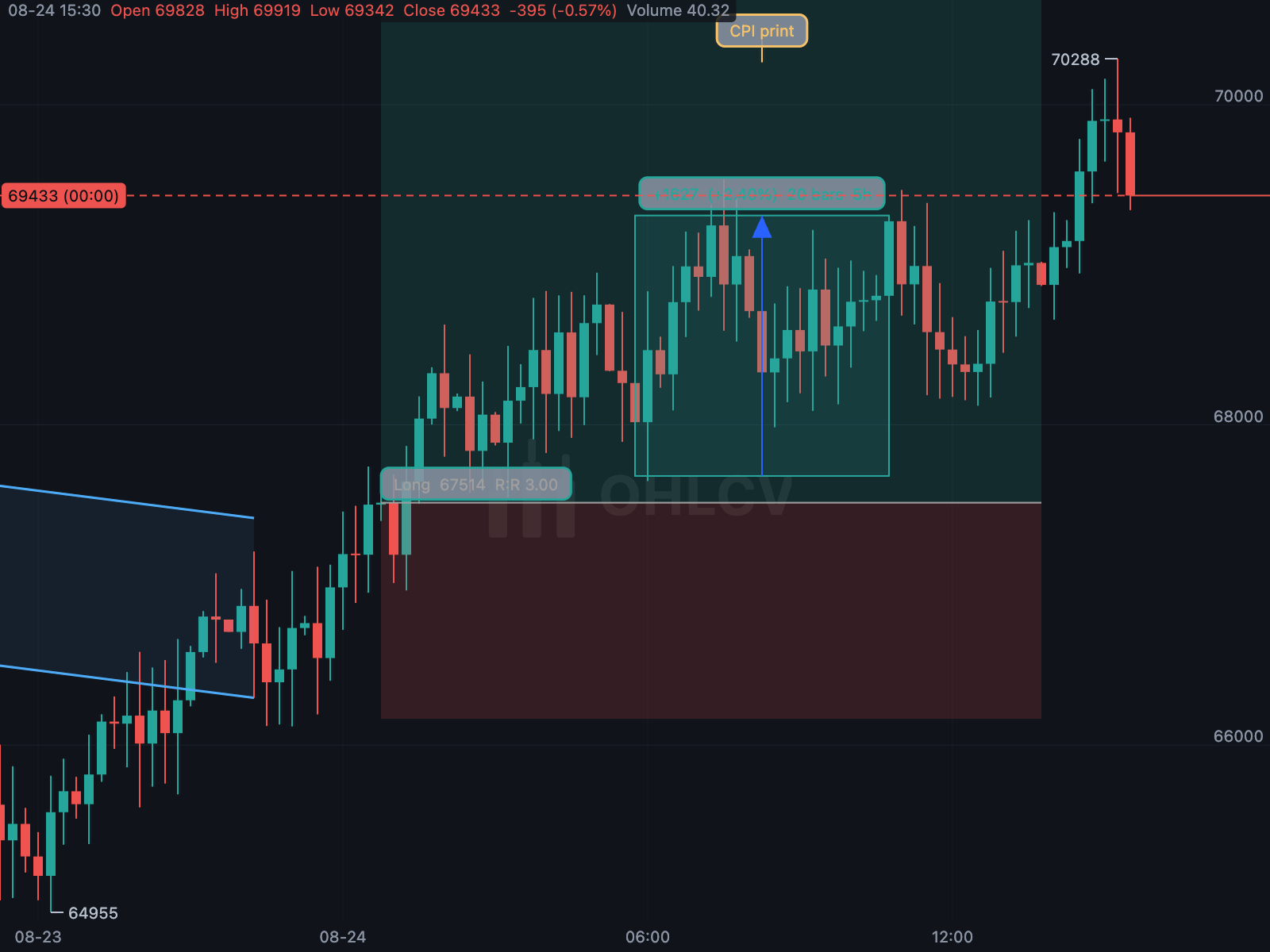
- Measurements (
MeasureDrawing) exposepriceMove,ratioandspan, and the label also shows the candle count. - Text notes (
TextAnnotation) are edited through the editor's label field. - Freehand drawings (
FreehandDrawing) store a list of (time, price) points, so they stay aligned with the candles.
- The chart never changes
currentDrawingTool, so keeping a tool active after placement is up to your app. SetselectAfterDrawing: falseto avoid opening the editor after each placement when drawing several in a row. - Tap a drawing to select it and open the editor.
- Drag an anchor to move that point; drag the stroke, outline or a level to move the entire drawing.
- Every edit — colour, thickness, position or label — fires the matching
onAdd*callback with the updated drawing, so saving edits uses the same code as saving new drawings.
All drawings serialise to JSON, and drawingFromJson restores them:
final drawings = ChartDrawings([
  HorizontalLine(price: 42_000, title: 'entry'),
  TrendLine(time1: a, price1: 1, time2: b, price2: 2),
]);

await prefs.setString('layout', jsonEncode(drawings.toJson()));

final saved = prefs.getString('layout');
final restored = saved == null
    ? ChartDrawings()
: ChartDrawings.fromJson(jsonDecode(saved) as Map<String, dynamic>);ChartDrawingsis an ordered collection with typed views (horizontalLines,trendLines,positions, …) and can be passed to the chart asdrawings:.- Unknown drawing kinds are skipped rather than throwing, so layouts from newer versions still load.
copyDrawingcreates a deep copy via JSON.
A ChartDrawingController manages all drawings. Every add, style change, move
and deletion goes through the controller, which enables undo and redo.
final drawings = ChartDrawingController();

KChartWidget(
  candles,
  ChartColors(),
  isTrendLine: true,
  timeFrame: const Duration(minutes: 15),
  drawingController: drawings,
);

drawings.undo();       // ⌘Z on the chart does the same
drawings.redo();       // ⇧⌘Z, or Ctrl+Y
drawings.clear();      // one undoable step
drawings.select(line); // opens the chart's editor on that drawing
jsonEncode(drawings.toJson());- Each edit is one undo step, so undoing a style change restores the previous style. The controller keeps a deep copy of the last committed state.
historyLimit(default 50) sets the maximum number of steps.clearHistoryremoves undo history while keeping drawings — useful when switching symbols.- Delete removes the selection, and Escape cancels placement. Disable keyboard
shortcuts with
enableKeyboardShortcuts: false. - Without a controller, the per-kind lists and callbacks work as before, without undo support.
Shift- or ⌘-click adds a drawing to the selection, and ⌘A selects all drawings. With multiple drawings selected:
- Dragging moves all of them.
- Delete removes all of them in a single undo step.
- Editor changes (colour, thickness, line style, fill, label visibility) apply to all of them.
- The editor shows the number of selected drawings.
drawings.selection;               // every selected drawing, primary last
drawings.selected;                // the one the editor is open on
drawings.addToSelection(line);
drawings.toggleSelection(line);
drawings.selectAll();
drawings.clearSelection();
drawings.removeAll(drawings.selection); // one step⌘C copies, ⌘V pastes and ⌘D duplicates. Pasted and duplicated drawings are offset by a few candles so they do not overlap the original. The clipboard stores independent copies, so later changes to the originals do not affect them.
drawings.copyToClipboard(drawings.selection);
drawings.canPaste;
drawings.paste();                  // returns what it added, and selects it
drawings.duplicate(drawings.selection);⌘] and ⌘[ move the selection one level up or down; ⇧⌘] and ⇧⌘[ move it to the front or back. Later drawings are drawn on top and receive taps first where drawings overlap. Editing a drawing does not change its position in the stack.
drawings.bringToFront(line);
drawings.sendToBack(line);
drawings.bringForward(line);
drawings.sendBackward(line);
drawings.indexOf(line); // -1 when it is not thereDrawingTemplate stores the common style properties of a drawing — colour,
thickness, line style, fill opacity and label visibility — so they can be
applied to other drawings of any type.
final house = DrawingTemplate.of(drawings.selected!);
house.applyTo(otherLine);

// Or keep them on the controller, by name:
drawings.saveTemplate('house', drawings.selected!);
drawings.applyTemplate('house', drawings.selection);   // one undoable step
drawings.templates;                                    // by name
jsonEncode(drawings.templatesToJson());
Templates are serialised separately from layouts (templatesToJson and
loadTemplates rather than toJson), since they are typically shared across
charts.
For precise placement, the editor's ruler button opens a dialog listing every
anchor (named Start, End, X through D, Point 3 and so on), where price
and candle can be entered exactly. Set showDrawingCoordinates: false to hide
the button.
Anchors can also be read and set from code for any drawing type:
for (final anchor in drawingAnchors(line)) {
  print('${anchor.name}: ${anchor.price} at ${anchor.time}');
}
setDrawingAnchor(line, 1, price: 42_000);   // leaves the time alone
Freehand drawings consist of many points, so only their endpoints are listed
and drawingAnchorsAreEditable returns false.
Right-clicking opens a context menu:
- On a drawing: coordinates, duplicate, copy, stacking order, lock, hide, alert (where supported) and delete. Actions apply to the whole selection. Right-clicking a drawing selects it first.
- On the chart: paste, select all, fit price scale, scroll to latest, undo, redo and clear.
Set showContextMenu: false to disable it. contextMenuBuilder receives the
clicked drawing, candle, price and default entries, so custom items can be
added easily:
KChartWidget(
  candles,
  ChartColors(),
  isTrendLine: true,
  timeFrame: const Duration(minutes: 15),
  contextMenuBuilder: (request) => [
    ...request.defaults,
    const ChartMenuDivider(),
    ChartMenuItem(
      label: 'Buy at ${request.price?.toStringAsFixed(2)}',
      icon: Icons.shopping_cart_outlined,
      onSelected: () => orders.buy(request.price!),
    ),
  ],
);- Returning a custom list replaces the menu; an empty list shows no menu.
ChartMenuItemsupportsicon,enabled,checked(for toggles) anddestructive(for destructive actions).ChartMenuDividerseparates groups.showChartMenuopens the menu from your own UI.
DrawingManager is a widget that lists all drawings from a controller, with
show/hide, lock, delete, undo, redo and clear actions.
Row(
  children: [
    Expanded(child: KChartWidget(candles, colors, drawingController: drawings, /* … */)),
    SizedBox(width: 260, child: DrawingManager(controller: drawings)),
  ],
);- Tapping a row selects the drawing on the chart, and chart selection highlights the corresponding row.
- Hiding a drawing sets
ChartLine.hidden, keeping it in the layout without rendering it. - All labels, including drawing type names, come from
DrawingTranslations.
A HorizontalLine with alert: true triggers onAlertCrossed when the latest
candle closes across it:
KChartWidget(
  candles,
  ChartColors(),
  isTrendLine: true,
  timeFrame: const Duration(minutes: 15),
  drawings: [HorizontalLine(price: 42_000, alert: true)],
  onAlertCrossed: (line, candle) => notifier.push('crossed ${line.price}'),
);
The alert fires once per crossing and re-arms after price crosses back. Users can enable alerts with the editor's alert button.
Drawings that mix in AlertingDrawing — HorizontalLine, TrendLine,
ParallelChannel and FibRetracement — report through onDrawingAlert, which
includes the crossed price in addition to the drawing and candle, since a
drawing can have multiple levels:
KChartWidget(
  candles,
  ChartColors(),
  isTrendLine: true,
  timeFrame: const Duration(minutes: 15),
  drawings: [
    TrendLine(
      time1: candles[10].dateTime!, price1: candles[10].low,
      time2: candles[40].dateTime!, price2: candles[40].low,
      extend: LineExtension.right,
      alert: true,
    ),
  ],
  onDrawingAlert: (line, candle, level) =>
      notifier.push('crossed ${level.toStringAsFixed(2)}'),
);- Each drawing provides its levels through
alertLevelsAtat the latest candle's time, so sloping lines are evaluated at their current price. - Segments trigger only between their anchors; rays also trigger beyond the second anchor, and extended lines trigger anywhere.
- Horizontal lines report through both callbacks, so existing
onAlertCrossedcode continues to work.