The Gleap SDK for iOS is the easiest way to integrate Gleap into your apps!
You have two ways to set up the Gleap SDK for iOS. The easiest way ist to install and link the SDK with CocoaPods. If you haven't heard about CocoaPods yet, we strongly encourage you to check out their getting started here (it's super easy to get started & worth using 😍)
Checkout our documentation for full reference.
The Swift Package Manager is a tool for automating the distribution of Swift code and is integrated into the swift compiler. It is in early development, but Gleap does support its use on supported platforms.
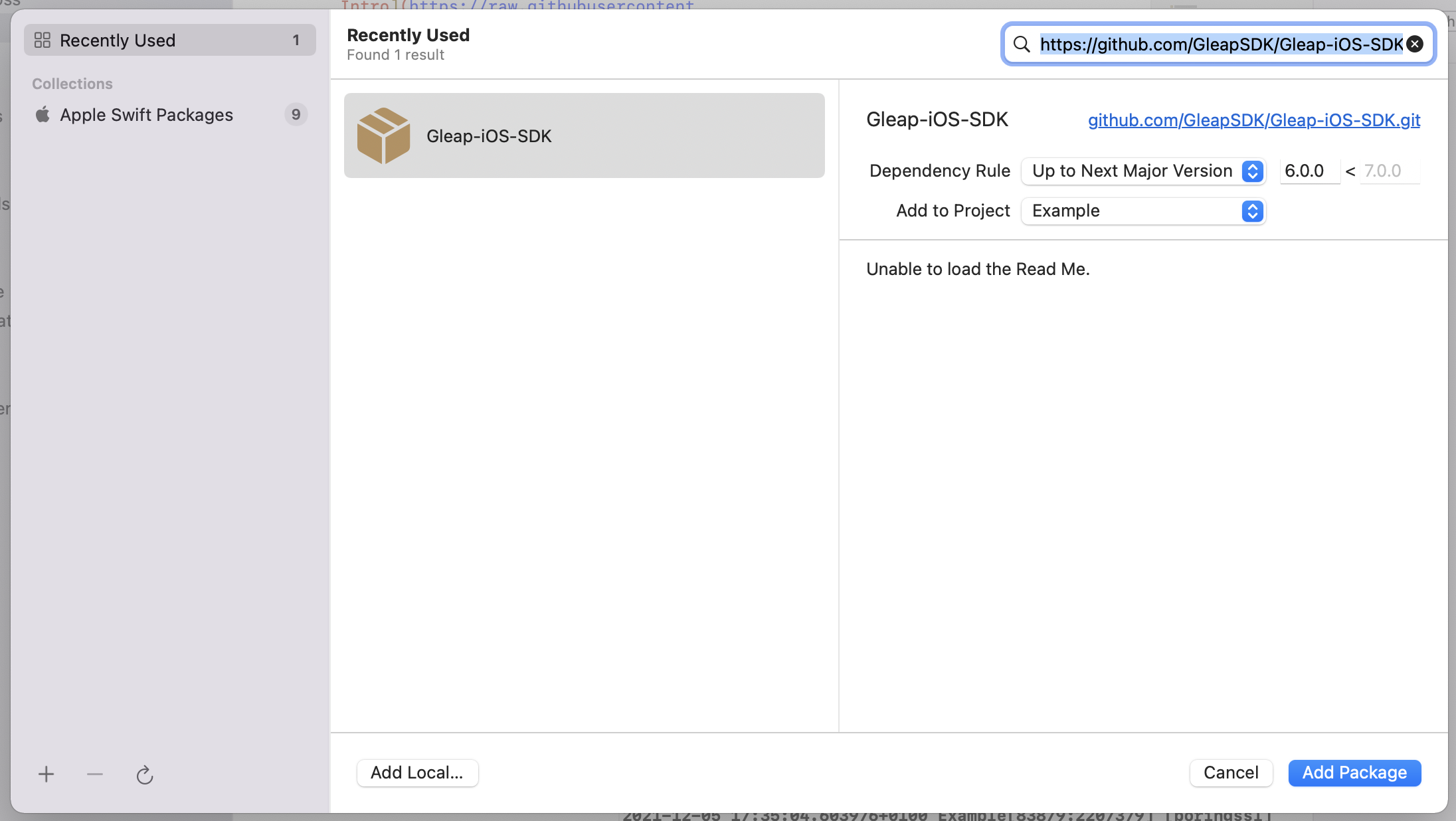
To get started, open your Xcode project and select File > Add packages...
Now you need to paste the following Package URL to the search bar in the top right corner. Hit enter to confirm.
Package URL:
https://github.com/GleapSDK/Gleap-iOS-SDK
Now confirm with add package. The Gleap SDK is almost installed successfully. Let's carry on with the initialization 🎉
Open a terminal window and navigate to the location of the Xcode project for your app.
Create a Podfile if you don't have one:
$ pod init
Open your Podfile and add:
pod 'Gleap'
Save the file and run:
$ pod install
This creates an .xcworkspace file for your app. Use this file for all future development on your application.
The Gleap SDK is almost installed successfully. Let's carry on with the initialization 🎉
Open your XCode project (.xcworkspace) and open your App Delegate (AppDelegate.swift)
Import the Gleap SDK
Import the Gleap SDK by adding the following import below your other imports.
import Gleap
Initialize the SDK
The last step is to initialize the Gleap SDK by adding the following Code to the end of the applicationDidFinishLaunchingWithOptions delegate:
Gleap.initialize(withToken: "YOUR_API_KEY")
(Your API key can be found in the project settings within Gleap)
Gleap projects are hosted in the EU by default. If your project lives in the US data region, set the region before initializing the SDK:
Swift
Gleap.setRegion("us")
Gleap.initialize(withToken: "YOUR_API_KEY")
Objective-C
[Gleap setRegion: @"us"];
[Gleap initializeWithToken: @"YOUR_API_KEY"];
setRegion accepts "eu" (default) or "us" (case-insensitive) and sets all regional hosts at once. Unknown regions are ignored.
| Region | API url | WebSocket api url | Realtime host |
|---|---|---|---|
eu (default) |
https://api.eu.gleap.ai |
wss://ws.eu.gleap.ai |
sockets.eu.gleap.ai |
us |
https://api.us.gleap.ai |
wss://ws.us.gleap.ai |
sockets.us.gleap.ai |
Order matters: call setRegion first, then any manual setter (setApiUrl, setWSApiUrl, setRealtimeHost), then initialize. A manual setter called after setRegion overrides that single host.
The static widget hosts are global and are not changed by setRegion: the frame url (messenger-app.gleap.io/appnew), the banner & modal urls (outboundmedia.gleap.io). They can be customized with setFrameUrl, setBannerUrl and setModalUrl.