This document shows how to deploy the server using Red Hat OpenShift.
You will need a running OpenShift cluster, or OKD cluster. You can provision OpenShift on the IBM Cloud.
- Create Watson services on IBM Cloud
- Create an OpenShift project
- Create the config map
- Get a secure endpoint
- Run the web app
Use the following links to create the Watson services on IBM Cloud. Copy/paste the API Key and URL or keep the browser tabs open. You'll need these later.
-
Using the OpenShift web console, select the
Application Consoleview.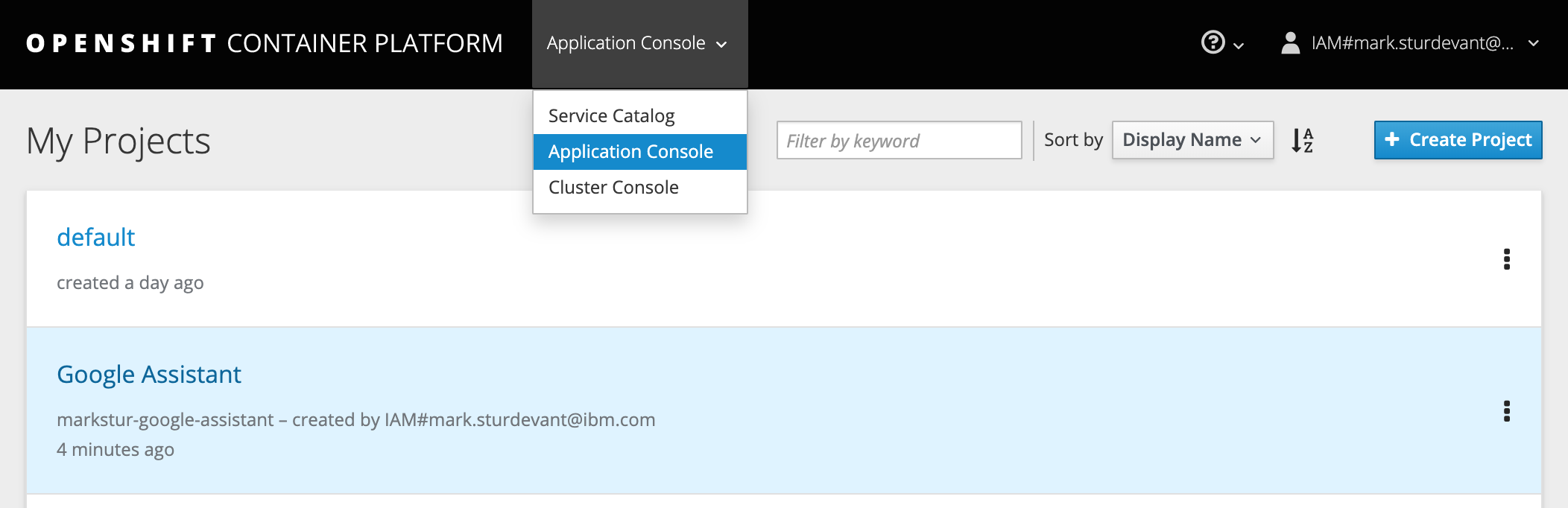
-
Use the
+Create Projectbutton to create a new project, then click on your project to open it. -
In the
Overviewtab, click onBrowse Catalog.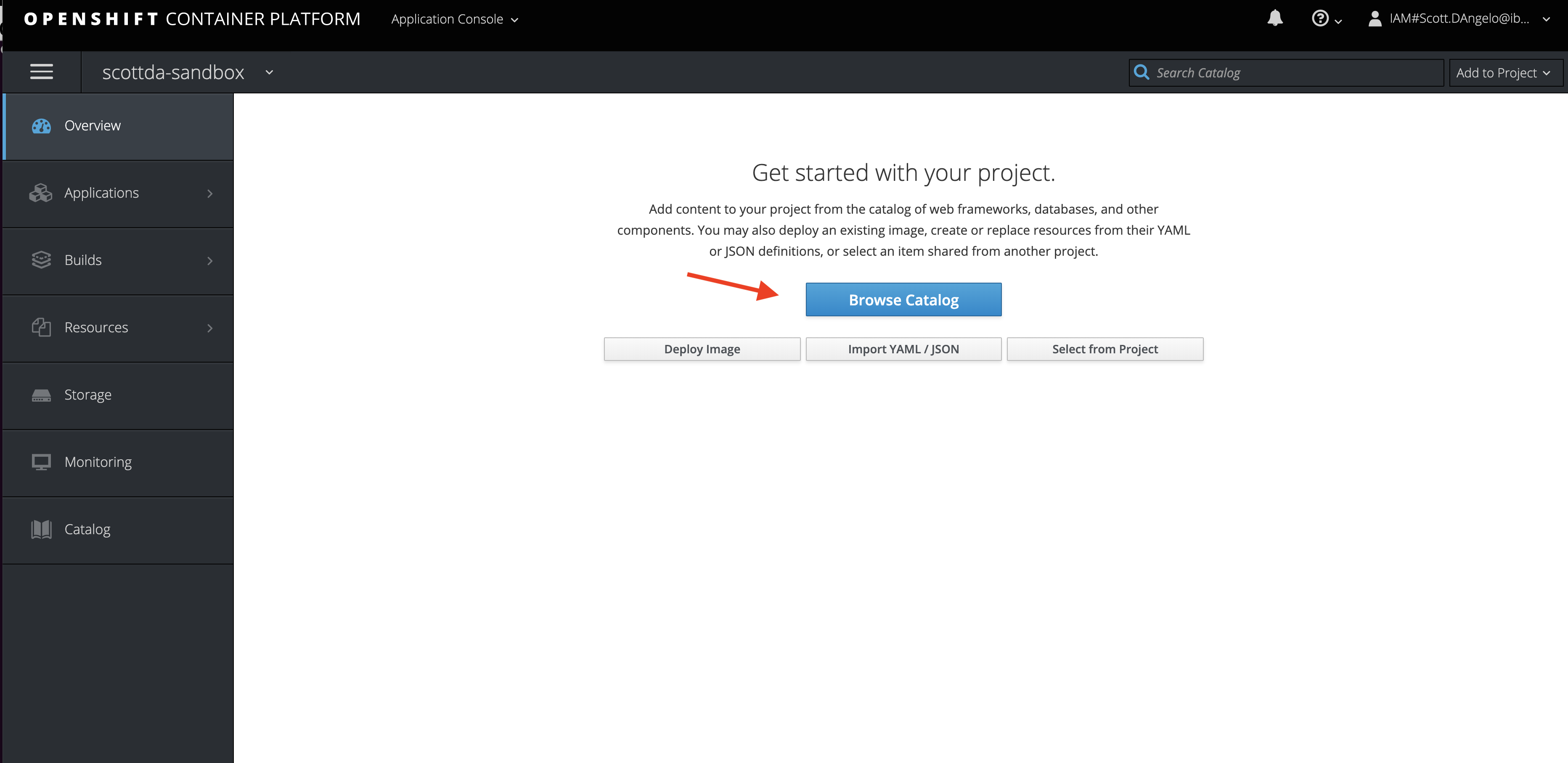
-
Choose the
Pythonapp container and clickNext.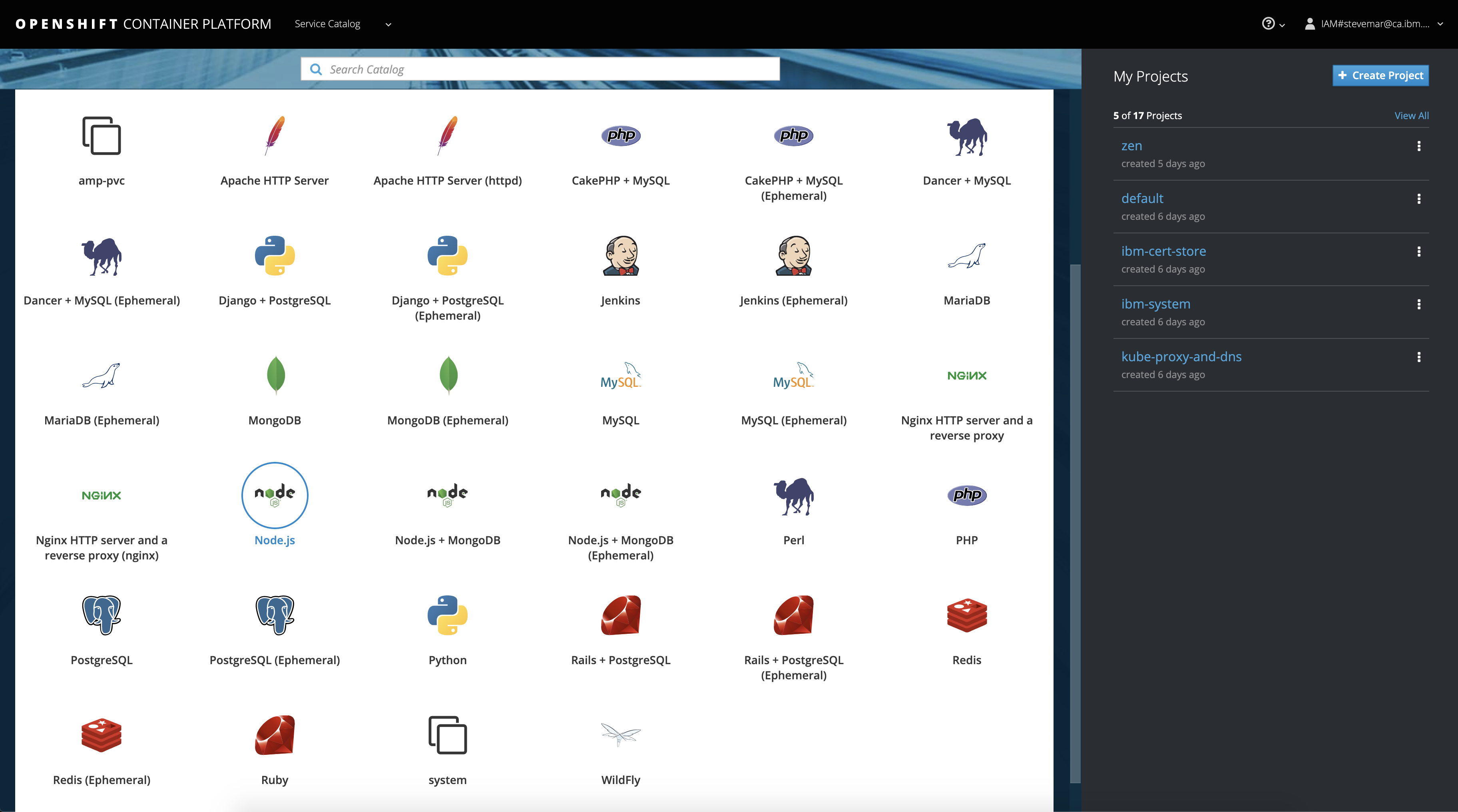
-
Give your app a name and add
https://github.com/IBM/watson-voice-botfor the github repo, then clickCreate.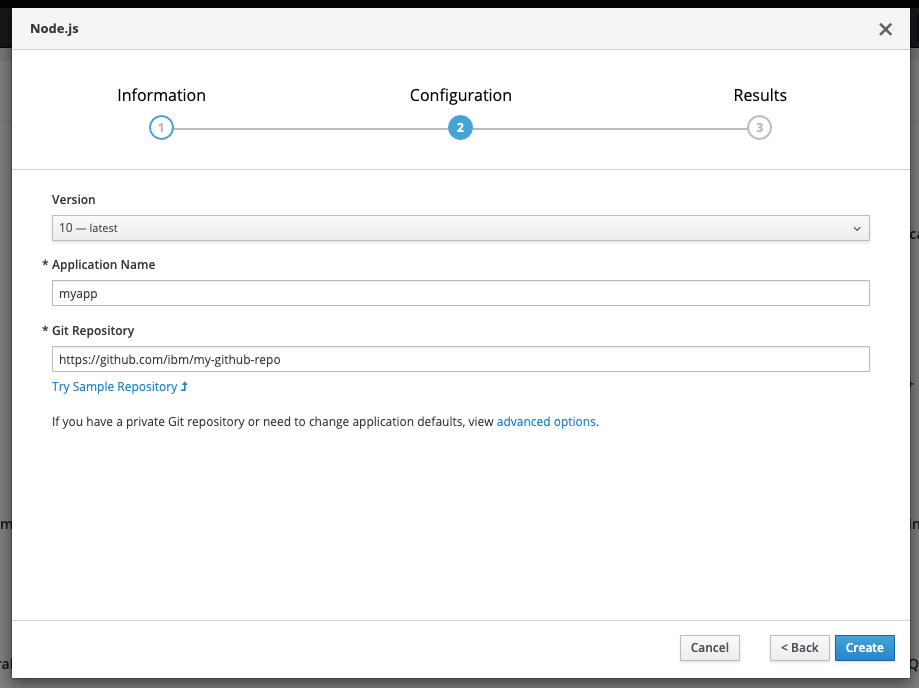
-
Click on the
Resourcestab and chooseConfig Mapsand then click theCreate Config Mapbutton.- Provide a
Namefor the config map. - Add a key named
PORTand paste in the8080underEnter a value.... - Click
Add Itemand add a key namedASSISTANT_APIKEYand paste in the API Key from step 1 underEnter a value..... - Click
Add Itemand add a key namedASSISTANT_URLand paste in the URL from step 1 underEnter a value..... - Click
Add Itemand add a key namedSPEECH_TO_TEXT_APIKEYand paste in the API Key from step 1 underEnter a value..... - Click
Add Itemand add a key namedSPEECH_TO_TEXT_URLand paste in the URL from step 1 underEnter a value..... - Click
Add Itemand add a key namedTEXT_TO_SPEECH_APIKEYand paste in the API Key from step 1 underEnter a value..... - Click
Add Itemand add a key namedTEXT_TO_SPEECH_URLand paste in the URL from step 1 underEnter a value..... - Hit the
Createbutton. - Click on your new Config Map's name.
- Click the
Add to Applicationbutton. - Select your application from the pulldown.
- Click
Save.

- Provide a
-
Go to the
Applicationstab, chooseDeploymentsto view the status of your application.

- From the OpenShift or OKD UI, under
Applications▷Routesyou will see your app.- Click on the application
Name. - Under
TLS Settings, click onEdit. - Under
Security, check the box forSecure route. - Hit
Save.
- Click on the application
- Go back to
Applications▷Routes. You will see your app. - Click your app's
Hostname. This will open the Watson Voice Bot web app in your browser. - Go back to the README to see an example using the default insurance bot dialog.