Dowload Chatbot
Chatbot Discord
Changelog
Suggest new Features
Streamlabs Website
Documentation:
Twitch | YouTube | Mixer
You most likely connected the bot to the wrong channel.
- Go to connections 👤
- Go into bot connection (mixer or twitch bot)
- Make sure Streamer Channel is the same as your actual stream name
- To enable this feature go into the
Songrequesttab in the bot then press the ⚙️ in the top right corner and changemodefrom$idto either of the two other options
- You can disable this in Spotify under
edit->preferences->Advanced settings->Autoplay->Autoplay similar songs when your music ends
Songrequests not responding could be a few possible reasons, please check the following reasons first.
- Songrequests are disabled in the songrequest tab (top left corner)
- Songrequests have a cost that's higher than the users current currencyamount
- Songrequests are set to work in discord/whispers only.
settings⚙️ ->usage->songrequests
If none of the options above explained your issue you can try resetting songqueue and songrequest settings by following these steps:
- press the
?in the bot's top right corner - press
open install directory - close the bot
- go into
servicesfolder - go into
twitchfolder (replace with youtube or mixer if you stream there) - go into
settingsfolder - delete
SongQueue.binandsongrequestsettings.bin - start up the bot
- Enable songrequests
If preview works you can skip these
- Wrong
audio outputis selected insettings⚙️ ->general audio engingis set to waveout insettings⚙️ ->general- File/filepath doesn't exist
- Soundfile format isn't supported (.mp3 only)
- The Chatbot is muted in windows audio mixer
Preview working but not commands
Only play Sound Files when stream is liveis checked inCommands tab->settings⚙️- Global sound file user cooldown is in minutes
commands tab->settings⚙️ Restart the Chatbot to clear cooldowns - Numbers of votes set is too high, the bot doesn't announce each vote
Most likely you don't have microsoft visual c++ redistributables 2013 installed, note that both x64 and x86 needs to be installed. If you have both installed you can still visit this link to download and repair them both. If you need a step to step tutorial for this you can find that here.
Running as admin
- It's always a good option to run the bot as admin to make sure it got all permissions needed. In order to do that you right click your Chatbot Shortcut ->
run as administrator
If all else failed it might be MSI afterburner
- First check if the bot does launch with MSI turned off (If it does not it is a different problem and this solution is not for you) With the bot closed and afterburner open, go into afterburner
settings->User Interfaceand make sureSingle tray icon modeisOFF. Then go to your tray, right clickRivaTunerStatisticsServer, and clickshow. ClickAdd, then find the StreamlabsChatbot.exe. Making sure the Streamlabs Chatbot profile is selected, turn Application Detection Level to None. Open the chatbot and it should work fine now.
There are three tabs that can be hidden in the chatbot.
Discord tabis hidden for YouTube and Mixer since they do not support discord integrationScripts tabis hidden until you connect streamer and bot account underconnectionsto the streamer's channelSubscribers tabis hidden for YouTube and Mixer
There are no default scripts with the bot currently so in order for them to install they must have been imported manually.
Importing scripts
- Download a .zip file containging the script (preferably from chatbot discord)
- Go into the scripts tab and press
importin the top right corner - Select the .zip file you downloaded in
step 1 - Hit
openand after a short time it should pop up a message confirming that it was a successful import.
When troubleshooting scripts your best help is the error view. You can find it in the top right corner of the scripts tab.
Troubleshooting scripts
- No module named
os/json- Make sure python 2.7.13 x86 is installed. Don't use newer versions of python or x64
- Make sure the lib folder path found in
scripts tab->settings⚙️ leads to the lib folder located inside the python folder that was created when installing python.
- Unexpected token
from/:- Make sure you installed python 2.7.13 x86 and NOT python 3.X
Minigames require you to enable currency before they can be used, this still applies even if the cost is 0.
Heist (Click to expand)
- Command needs to be followed by a value (!heist 10)
- Heist will show a message saying that it's open and people can join
- People joining won't get a message unless enabled in heist message settings
- Start delay needs to be at least 1 to give users the time to join in
- If not enough people (lower than min entries) enters it get cancelled
Duel (Click to expand)
- Command needs to be followed by a target (!challenge must13)
- Users competing in a duel need to have enough currency (same or above the cost)
- A message will be triggered and the target must answer with the original user (!challenge castorr91)
- Expiry time needs to be at least 1 or the target got 0 minutes to accept the challenge
Free For All (Click to expand)
- Only the first one starting the game will get a response
- Users competing in the Free for All need to have enough currency (same or above the cost)
- Start delay needs to be at least 1 to give users the time to join in
- If not enough people (lower than min entries) enters it get cancelled
Boss (Click to expand)
- Only the first one starting the game will get a response
- Users competing in a duel need to have enough currency (same or above the cost)
- Start delay needs to be at least 1 to give users the time to join in
- When the timer runs out the needs to be a boss that got the interval as the amount of praticipants. If no boss is found for the group size it gets cancelled.
If minigames still aren't working make sure that settings ⚙️ -> usage -> minigames are set to match where you try to use them. Minigames can only be either discord or stream chat and not both.
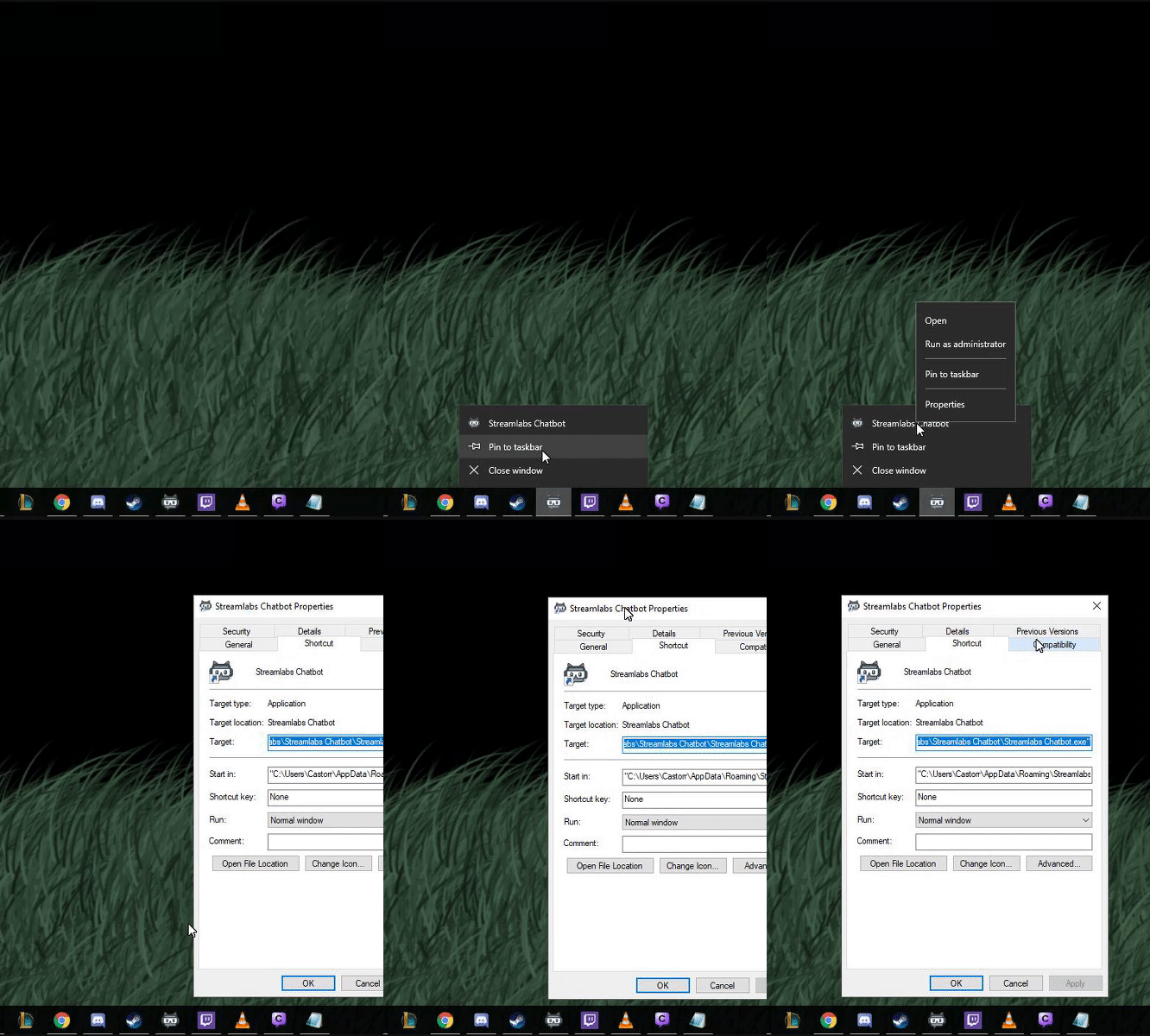
right click the chatbot shortcut -> go to the compability tab -> change scaling option to system "Override high DPI scaling behavior. Scaling performed by:" -> select system.
If your shortcut is in the task bar you have to right click the icon -> right click where it says "Streamlabs Chatbot" and then you go to the compability tab. Example
Click the 👤 in the bottom left corner of the bot and go to streamlabs
- Disconnect from streamlabs
- Generate token (make sure it's using the streamer account)
- Connect to streamlabs
Note that you also need to have any widget open. Alert box/event list/ chat box/streamlabels/ Streamlabs OBS
This is due to a connection issue between the bot and the site it needs to generate the token.
- Make sure there's an expcetion for the bot in your firewall
- Make sure there's an exception for the bot in your antivirus/windows defender
- Disabling ipv6 have resolved the issue for some users Guide Here
- Use a VPN to get around recaptcha to generate tokens.
If nothing else work you can manually generate some tokens through these links
Twitch Bot Token |
Twitch Streamer Token |
Spotify Token |
Streamlabs Token |
Gamewisp Token |