
🌐 日本語版紹介
💡🐞 You're welcome to post your suggestions and bug reports here. Including a screen recording or screenshot is strongly recommended.
Make Firefox support multiple rows of tabs.

Check out the introduction page to explore the highlights with screenshots and detailed descriptions.
-
Firefox 157 - 159, ESR (115, 140, 153)
-
Windows, Ubuntu
-
Supports general userChrome.js script loaders, such as:
🚨 Please read the following notes carefully before using this script:
-
This script is developed for Windows 7 to 11 and tested on Ubuntu 26 (Linux). Minor compatibility issues on macOS have been addressed and will be resolved in the upcoming release. Other Firefox-based derivative browsers are not supported.
-
Since this script contains many sensitive layout calculations designed for native Firefox, any tab-related legacy extensions (e.g. Tab Mix Plus), user scripts (
*.uc.js) or customized styles (userChrome.css) can cause weird glitches and bugs.⚠️ Please follow the installation steps below carefully. -
This is an unofficial and complex script maintained solely by me. It may contain unforeseen bugs, and if unexpected issues occur, restarting Firefox may be required. In extreme cases — especially when using an outdated version of the script with a newly updated Firefox — the browser may become unusable, potentially resulting in the permanent loss of your previous browsing session. You may need to disable the script in such situations. Please use this script only if you are capable of and prepared to handle these risks.
-
This script is more like a meticulous tab extension than a simple multi-row tweak. It consolidates thousands of lines of logic and styling into a single file, yet remains as manageable as a typical script. It is a hardcore implementation built with perfection and performance in mind. The number of lines is never a concern during development — just as Tab Mix Plus could never be achieved with only a few hundred lines of half-baked code. However, if you prefer something simple and fully understandable in coding — providing a stronger sense of safety and allowing you to easily make changes at will — this may not be your favorite choice.
-
Always use scripts and files from sources you trust. Malicious code can cause severe damage, such as corrupting your files, hacking into your accounts, or stealing sensitive information like bank and credit card details — and all of this can happen without you even noticing.
-
Please ensure you are using a Firefox version listed in the compatibility list above. Other Firefox versions and systems may potentially not be supported.
-
Install the script loader (userChrome.js). Skip to step 3 if you already have one in use. There are several script loaders available:
- onemen/firefox-scripts (with installer and updater developed with vibe-coding)
Installation Steps (Installer)
📝 These steps are provided as a simple reference. For complete and accurate instructions, please consult the official page above.
Download the installer for your OS from the official page or from the direct links below:
- Windows —
installer_win.exe - macOS —
installer_mac - Linux —
installer_linux - Linux ARM64 —
installer_linux_aarch64
- Windows —
Run the installer while Firefox is running.
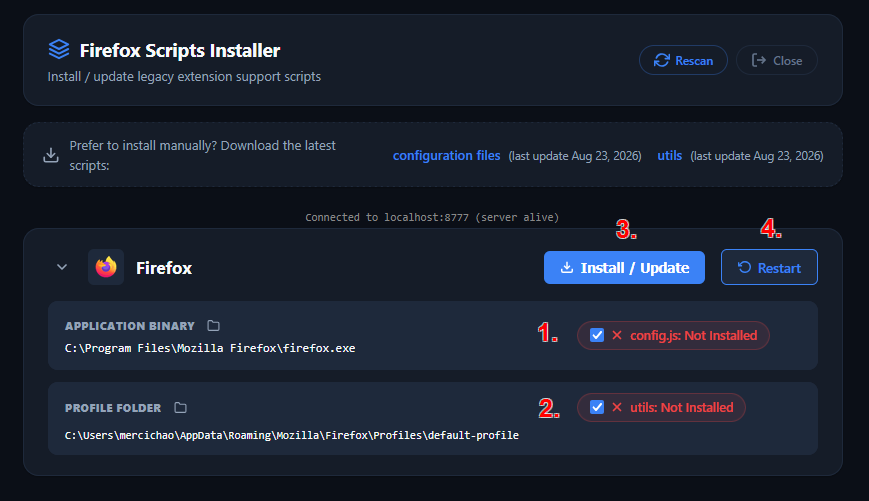
In the installation page shown in Firefox, install the required components (admin rights may be needed):
Verify that the installation works properly:
- Paste
chrome://firefox-scripts/content/ui/updater.htmlinto the address bar and pressEnter. - Confirm that the page is displayed and all items are green in state.
- Paste
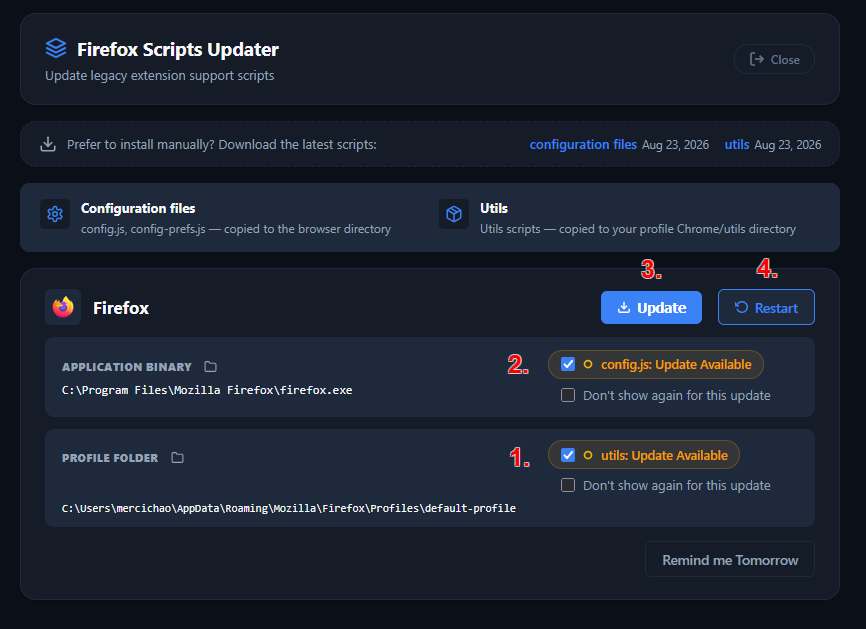
When an update is released, update the components in the updater page shown in Firefox:
Installation Steps (Manual)
📝 These steps are provided as a simple reference. For complete and accurate instructions, please consult the official page above.
Get the source files needed for setup from the official page, or from the following direct links:
Open about:support in Firefox to locate the program folder and the profile folder:
Under Application Binary, find the path of the program folder. For example:
- Windows —
C:\Program Files\Mozilla Firefox - macOS —
/Applications/Firefox.app/Contents/Resources - Linux —
/opt/firefoxor/usr/lib/firefox(use/etc/firefoxinstead if the path starts with/snap/firefox, and create the folder if it does not exist)
- Windows —
Under Profile Folder, click Open Folder to access it.
Extract the required files into the correct folders:
- Open the
fx-folder.zipfile and from thefx-folderfolder, extract theconfig.jsfile and thedefaultsfolder directly into the program folder (admin rights may be needed). - Create the
chromefolder in the profile folder if it does not exist. - Create the
utilsfolder in thechromefolder if it does not exist. - Open the
utils.zipfile, extract all files directly into theutilsfolder.
- Open the
Click the Clear startup cache… button at the top right of about:support to restart Firefox.
Verify that the installation works properly:
Open about:config, search for
extensions.firefox-scripts.lastScriptsCheckDateand verify that the preference exists.
When an update is released, update the components in the updater page shown in Firefox:
- MrOtherGuy/fx-autoconfig (with update-checking feature)
Installation Steps
📝 These steps are provided as a simple reference. For complete and accurate instructions, please consult the official page above.
Get the
fx-autoconfig-master.zipfile from the direct link, or from the official page:- Click the green Code button.
- Select Download ZIP.
Open about:support in Firefox to locate the program folder and the profile folder:
Under Application Binary, find the path of the program folder. For example:
- Windows —
C:\Program Files\Mozilla Firefox - macOS —
/Applications/Firefox.app/Contents/Resources - Linux —
/opt/firefoxor/usr/lib/firefox(use/etc/firefoxinstead if the path starts with/snap/firefox, and create the folder if it does not exist)
- Windows —
Under Profile Folder, click Open Folder to access it.
Extract the
fx-autoconfig-master.zipfile and place the contents into the correct folders:- From the
fx-autoconfig-master\programfolder, place theconfig.jsfile and thedefaultsfolder directly into the program folder (admin rights may be needed). - From the
fx-autoconfig-master\profilefolder, place thechromefolder directly into the profile folder.
- From the
If you already have scripts in use:
- Option A: Move all
*.uc.jsfiles from thechromefolder into thechrome\JSsub-folder. - Option B: Edit the
chrome\utils\chrome.manifestfile and changecontent userscripts ../JS/tocontent userscripts ../. This will load scripts directly from thechromefolder.
- Option A: Move all
Click the Clear startup cache… button at the top right of about:support to restart Firefox.
Verify that the installation works properly:
- Check that a new menu item userScripts appears under the Tools menu (
Alt+T).
- Check that a new menu item userScripts appears under the Tools menu (
Additionally, enable the automatic update checking feature:
- Open about:config, paste
userChromeJS.updates.update-check.enabledinto the search box, and click the Add button (✚) to create a boolean preference set totrue.
- Open about:config, paste
- alice0775/userChrome.js
Installation Steps
📝 These steps are provided as a simple reference. For complete and accurate instructions, please consult the official page above (Japanese).
Open about:support in Firefox to locate the program folder and the profile folder:
Under Application Binary, find the path of the program folder. For example:
- Windows —
C:\Program Files\Mozilla Firefox - macOS —
/Applications/Firefox.app/Contents/Resources - Linux —
/opt/firefoxor/usr/lib/firefox(use/etc/firefoxinstead if the path starts with/snap/firefox, and create the folder if it does not exist)
- Windows —
Under Profile Folder, click Open Folder to access it.
Go to the official page, find the Go to file search box on the left of the green Code button, or simply press the
Tkey to focus it:- Type
userChrome.jsand choose the latest version, typically calledxxx/userChrome.js. Click the download button to save the file. - Type
install_folderand choose the latest version, typically calledxxx/install_folder. Download both theconfig.jsanddefaults/pref/config-prefs.jsfiles.
⚠️ Creating the files by copy-paste or other methods may cause incorrect encoding.- Type
Place the required files into the program folder:
- Place the
config.jsfile into the program folder (admin rights may be needed). - Place the
config-prefs.jsfile into thedefaults\prefsub-folder under the program folder.
- Place the
Place the required file into the profile folder:
- Create the
chromefolder in the profile folder if it does not exist. - Place the
userChrome.jsfile into thechromefolder.
- Create the
Click the Clear startup cache… button at the top right of about:support to restart Firefox.
Verify that the installation works properly:
Press
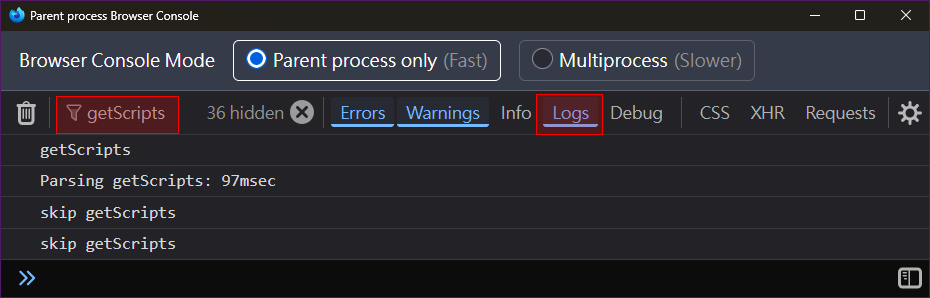
Ctrl+Shift+Jto open the Browser Console. Enable the Logs and the Browser filters, entergetScriptsin the Filter Output, and verify that the related logs appear.
- BSTweaker/UserChromeJS
Installation Steps
📝 These steps are provided as a simple reference. For complete and accurate instructions, please consult the official page above (Japanese).
Open about:support in Firefox to locate the program folder and the profile folder:
Under Application Binary, find the path of the program folder. For example:
- Windows —
C:\Program Files\Mozilla Firefox - macOS —
/Applications/Firefox.app/Contents/Resources - Linux —
/opt/firefoxor/usr/lib/firefox(use/etc/firefoxinstead if the path starts with/snap/firefox, and create the folder if it does not exist)
- Windows —
Under Profile Folder, click Open Folder to access it.
Prepare the required files:
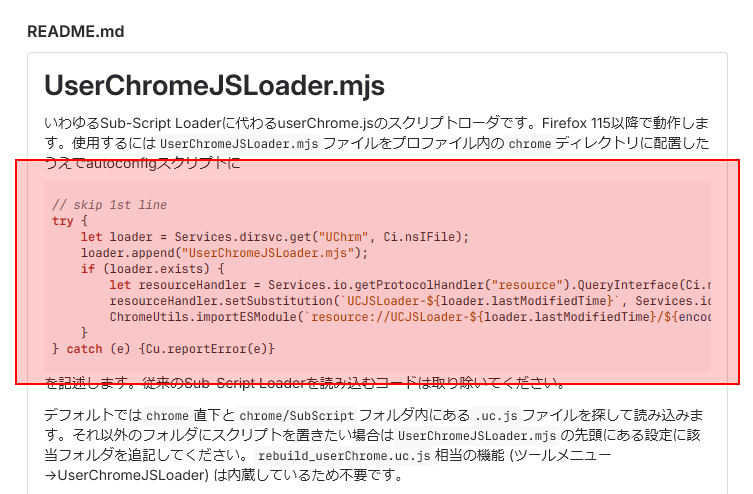
Go to the official page, copy the source code shown there, and save it as a file named
config.jsusing UTF-8 encoding without BOM.Create a file named
config-prefs.jswith the following content, also saved in UTF-8 encoding without BOM:pref("general.config.obscure_value", 0);
pref("general.config.filename", "config.js");
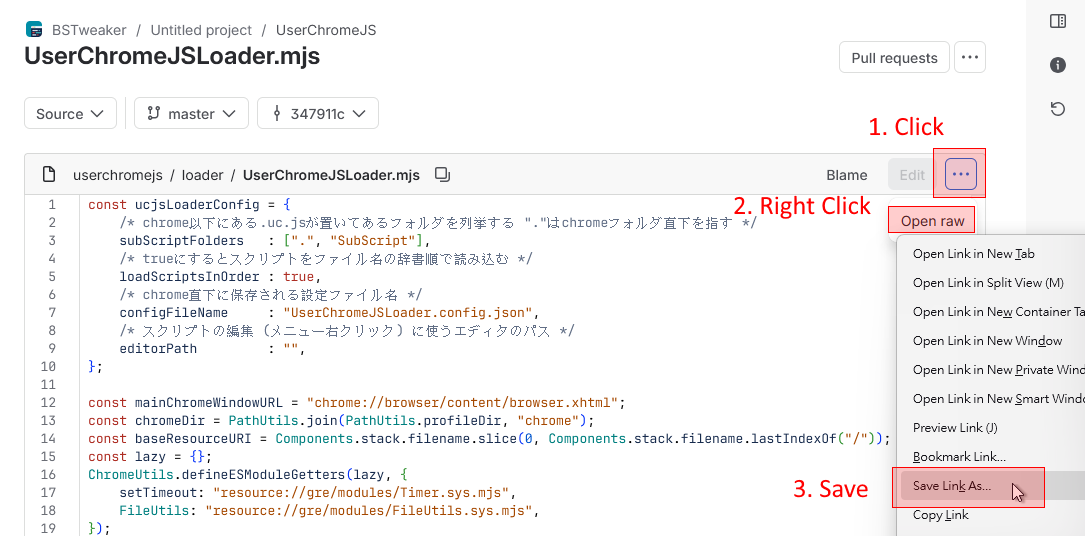
pref("general.config.sandbox_enabled", false);Download the
UserChromeJSLoader.mjsfile:
Place the required files into the program folder:
- Place the
config.jsfile into the program folder (admin rights may be needed). - Place the
config-prefs.jsfile into thedefaults\prefsub-folder under the program folder.
- Place the
Place the required file into the profile folder:
- Create the
chromefolder in the profile folder if it does not exist. - Place the
UserChromeJSLoader.mjsfile into thechromefolder.
- Create the
Click the Clear startup cache… button at the top right of about:support to restart Firefox.
Verify that the installation works properly:
- Check that a new menu item UserChromeJSLoader appears under the Tools menu (
Alt+T).
- Check that a new menu item UserChromeJSLoader appears under the Tools menu (
- Endor8/userChrome.js
Installation Steps
📝 These steps are provided as a simple reference. For complete and accurate instructions, please consult the official page above (German).
Get the
Firefox-anpassungen.zipfile from the direct link, or from the official page.Open about:support in Firefox to locate the program folder and the profile folder:
Under Application Binary, find the path of the program folder. For example:
- Windows —
C:\Program Files\Mozilla Firefox - macOS —
/Applications/Firefox.app/Contents/Resources - Linux —
/opt/firefoxor/usr/lib/firefox(use/etc/firefoxinstead if the path starts with/snap/firefox, and create the folder if it does not exist)
- Windows —
Under Profile Folder, click Open Folder to access it.
Extract the
Firefox-anpassungen.zipfile and place the contents into the correct folders:- Place the
userChromeJSfolder and theconfig.jsfile into the program folder (admin rights may be needed). - Place the
config-prefs.jsfile into thedefaults\prefsub-folder under the program folder. - Place the
chromefolder into the profile folder.
- Place the
Click the Clear startup cache… button at the top right of about:support to restart Firefox.
There is no difference among them for applying this script, so simply choose the one you prefer.
🚨 It is very common for script loaders to stop working after a Firefox update. Please check the pages above for the new version of your script loader if this happens.
- onemen/firefox-scripts (with installer and updater developed with vibe-coding)
-
Make sure that no other tab-related scripts and customized styles are currently in use. Just in case, temporarily move all other
*.uc.jsanduserChrome.cssfiles out of thechromefolder.🚨 There are many reports of issues caused by conflicts with customized styles in
userChrome.css. It is highly recommended to remove all styles related to tabs or the tab bar first, then rewrite afterward if the settings below do not cover.📝 Depends on your OS settings, file extensions may be hidden by default. For example,
*.uc.jsanduserChrome.csswill be displayed as*.ucanduserChromeonly. You can right-click on the file and select Properties to check its file type and extension. -
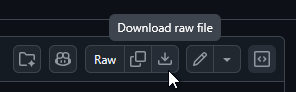
Download the 📥 script file (right-click and save as) and place it in the
chromefolder (or in thechrome\JSsub-folder if you are using MrOtherGuy/fx-autoconfig).⚠️ Creating the file by copy & paste or other methods may cause incorrect encoding.⛔ DO NOT modify the file name during or after saving.
-
Restart Firefox to apply.
-
If you moved some files out of the
chromefolder in step 3, please confirm that this script works as expected. Once verified, you can move the files back. If any conflicts arise, modify the scripts and the style rules inuserChrome.cssaccordingly. If you need help, please provide the information 🛟 here.
Open about:config and search for the prefix userChromeJS.multiTabRows@Merci.chao.. Settings shown in gray are disabled due to dependency on other preferences.
If configuring via user.js (not recommended), be sure to include the prefix userChromeJS.multiTabRows@Merci.chao.. Example:
user_pref("userChromeJS.multiTabRows@Merci.chao.maxTabRows", 5);| Name (w/ prefix) | Description |
|---|---|
animateTabMoveShiftKeyToPause |
🔸 Pause Drag Animation with Shift Key When pressing |
animateTabMoveUnderLimit |
🔸 Drag Animation Limit When the number of visible tabs reaches this amount, disable the drag & drop animation and show the drop indicator instead. If dragging becomes sluggish with many tabs, consider lowering this value. If you prefer to always use the indicator for moving tabs, set the value below |
animationDuration |
🔸 Animation Duration Duration of animations in milliseconds, valid range: 📝 Lengthy animations could strain system performance. 📝 Animations may be disabled due to Firefox or OS settings, see |
dragStackPreceding |
🔸 Stack Preceding Tabs on Drag Stack the preceding selected tabs of the dragged one (see |
dynamicMoveOverThreshold |
🔸 Smooth Dragging Make tab-dragging movement smoother in certain scenarios, e.g. dragging pinned or grouped tabs. Not available on Firefox 115, or |
hideDragPreview |
🔸 Hide Drag Preview Hide the drag preview that appears next to the cursor during dragging:
|
hidePinnedDropIndicator |
🔸 Hide Pinned Drop Indicator Hide the indicator that appears when dragging a tab to pin it, if there are no existing pinned tabs. Not available on Firefox 115 and 140. |
hideScrollButtonsWhenDragging |
🔸 Hide Scroll Buttons on Drag Visually hide the up/down scroll buttons when dragging. |
linesToDragScroll |
🔸 Drag Scroll Rows How many rows to scroll when dragging tabs to top/bottom edge. Minimum: |
linesToScroll |
🔸 Wheel Scroll Rows How many rows to scroll when using the mouse wheel. Minimum: |
previewPanelNoteEditable |
🔸 Editable Notes in Preview Panel Allow the tab preview panel to be hovered and the note inside to be editable when the tab note feature of Firefox is enabled. Not available on Firefox 115, 140 and 160+. |
previewPanelShifted |
🔸 Shift Preview Panel Shift the preview panel when there are multiple rows, reducing the effect of the panel blocking items in the rows underneath. Affects tabs only when
|
previewPanelShiftedAlways |
🔸 Always Shift Preview Panel Shift the preview panel even when there is only one row. |
scrollButtonsSize |
🔸 Scroll Button Height The height (in pixels) of the scroll buttons during dragging. Minimum: |
| Name (w/ prefix) | Description |
|---|---|
autoCollapse |
🔸 Auto Collapse Tabs Tabs will collapse to a single row when the cursor is not hovering. Enabling this feature will forcibly disable 🧪 Experimental feature. |
autoCollapseDelayCollapsing |
🔸 Collapse Delay Delay before collapsing the tabs when the cursor moves away (in milliseconds). Minimum: |
autoCollapseDelayExpanding |
🔸 Expand Delay Delay before expanding the tabs when the cursor hovers over them (in milliseconds). Minimum: |
compactControlButtons |
🔸 Compact Control Buttons Display the window control buttons to a compact size. Not available on Windows 7 and 8, or when the title bar is showing. Affects only web apps when the menu bar is displayed. |
controlButtonsAutoHide |
🔸 Auto-Hide Control Buttons Hide the window control buttons and show them when the cursor enters the top corner or leaves the window from the top corner:
Not available on Windows 7 and 8, or when the title bar is showing. Affects only web apps when the menu bar is displayed. |
controlButtonsAutoHideOnTriggerExit |
🔸 Hide on Leaving Trigger On maximized windows, control buttons hide when the cursor leaves the trigger area; when set to |
controlButtonsAutoHideTriggerHeight |
🔸 Trigger Height for Showing Control Buttons The height of the trigger area. |
hamburgerMenuOnTabBar |
🔸 Menu Button on Tab Bar (Smart Windows) Setting it to |
hideAllTabs |
🔸 Hide All Tabs Button Hide the List all tabs button. Only available on Firefox 115. On newer versions of Firefox, remove it by right-clicking on it and choosing Remove from Toolbar. |
hideEmptyPlaceholderWhenScrolling |
🔸 Hide Empty Floating Area when Scrolling If there is no item in the upper corner, hide the empty area in that corner when the tab bar is scrollable, available when |
justifyCenter |
🔸 Center Justify Tabs Justify tabs to the center horizontally:
|
maxTabRows |
🔸 Maximum Tab Rows Maximum number of rows to display at once. Minimum: 📝 The actual count depends on the window width, refer to |
newTabButtonAfterLastTab |
🔸 New Tab Button after Last Tab Place the New Tab button after the last tab. When disabled, the button follows the position specified in toolbar customization. 📝 The New Tab button stays after the last tab only when it is placed directly after the tabs. |
positionPinnedTabs |
🔸 Pinned Tabs Fixed Position Position pinned tabs as a fixed grid before normal tabs when the tab bar is scrollable. |
privateBrowsingIconOnNavBar |
🔸 Private Browsing Icon on Navigation Toolbar Move the private window icon to the navigation toolbar. Not available on Firefox 115. Forcibly activated when |
rowIncreaseEvery |
🔸 Row Increase per Width Each time the window width increases by this amount, one more row is allowed to be displayed. A narrower window will therefore show fewer rows at once. When set to the minimum value |
rowStartIncreaseFrom |
🔸 Row Increase Start Width When the window width is larger than this number plus |
smartWindowButtonOnNavBar |
🔸 Smart Window Button on Navigation Toolbar On classic windows, move the Firefox Smart Window switching button to the navigation toolbar. Forcibly activated when |
spaceAfterTabs |
🔸 Top-Right Space Empty space before the window control buttons. Minimum: 📝 Starting with Firefox 155, a blank space called Flexible Space is added to the right end of the tab bar by default. If you do not want this space, right-click the toolbar to enter the customization mode then remove it. |
spaceAfterTabsOnMaximizedWindow |
🔸 Top-Right Space (Maximized) Empty space before the window control buttons, when maximized. Minimum: |
spaceBeforeTabs |
🔸 Top-Left Space Empty space on the top left corner of the window. Minimum: |
spaceBeforeTabsOnMaximizedWindow |
🔸 Top-Left Space (Maximized) Empty space on the top left corner of the window, when maximized. Minimum: |
tabsAtBottom |
🔸 Tab Bar Position Position the tab bar beneath:
Not available on Firefox 115. 📝 Starting with Firefox 155, a blank space called Flexible Space is added to the right end of the tab bar by default. If you do not want this space, right-click the toolbar to enter the customization mode then remove it. |
tabsbarItemsAlign |
🔸 Tab Bar Items Alignment Alignment of the items (mainly buttons) in the tab bar when there are multiple rows:
tabsUnderControlButtons is 0, or 1 with the tab bar is scrollable. |
tabsUnderControlButtons |
🔸 Full-Width Tab Bar Usage Tabs starting from the second row use the full width of the tab bar:
|
thinScrollbar |
🔸 Thin Scrollbar Use a thin scrollbar without up and down buttons when the tab bar is scrollable. |
📝 Not recommended to set narrower than the default value, as Firefox is not designed to be more compact than the default options and unexpected glitches may occur. These settings may be overridden by rules in userChrome.css and have no effect.
| Name (w/ prefix) | Description |
|---|---|
gapAfterPinned |
🔸 Gap After Pinned Tabs Empty space between the pinned tabs and normal tabs. Minimum: |
lastRowTabsFlexible |
🔸 Flexible Width for Last Row Tabs Tabs in the last row have flexible width when multiple rows are present. Forcibly activated when |
pinnedTabsFlexWidth |
🔸 Pinned Tabs Flexible Width Make pinned tab sizing behave like normal tabs. Enabling this feature will forcibly disable |
pinnedTabsFlexWidthIndicator |
🔸 Pinned Tabs Background Show a light background on pinned tabs when |
tabContentHeight |
🔸 Tab Content Height Height of tab content. Minimum: |
tabContentHeightCompact |
🔸 Tab Content Height in Auto-Compact Compact mode size when Nova automatic window density is enabled in Firefox 154+. The value is capped to the standard mode value. |
tabCornerRadius |
🔸 Tab Corner Radius The radius of the rounded corners of tabs. Set to |
tabHorizontalMargin |
🔸 Tab Horizontal Margin Horizontal space around tab. Minimum: |
tabHorizontalPadding |
🔸 Tab Horizontal Padding Horizontal padding of tab. Minimum: |
tabHorizontalPaddingCompact |
🔸 Tab Horizontal Padding in Auto-Compact Compact mode size when Nova automatic window density is enabled in Firefox 154+. The value is capped to the standard mode value. |
tabMaxWidth |
🔸 Tab Maximum Width Maximum width of tabs, including the surrounding white space. Use |
tabVerticalMargin |
🔸 Tab Vertical Margin Vertical space around tab. Minimum: |
tabVerticalMarginCompact |
🔸 Tab Vertical Margin in Auto-Compact Compact mode size when Nova automatic window density is enabled in Firefox 154+. The value is capped to the standard mode value. |
| Name (w/ prefix) | Description |
|---|---|
floatingBackdropBlurriness |
🔸 Floating Area Background Blurriness How blurry the background of the floating blocks is when the tab bar is scrollable, available when |
floatingBackdropClip |
🔸 Floating Area Clip Behind Clip the area covered by the floating blocks when the tab bar is scrollable, available when |
floatingBackdropOpacity |
🔸 Floating Area Background Opacity How opaque the background of the floating blocks is when the tab bar is scrollable, available when |
nativeWindowStyle |
🔸 Native Window Style Remove the background and display the native system style of windows, e.g. transparency effects of Windows 11 and effects from tools like DWMBlurGlass. To achieve the full visual effect on Windows 11, you may also need to enable 📝 Enabling this setting on Windows 7 and 8 when using themes may cause the window control buttons to be covered by the theme background image. |
scrollbarThumbColor |
🔸 Scrollbar Thumb Color Color of the scrollbar thumb, must be a valid CSS color, variable, or the keyword |
scrollbarTrackColor |
🔸 Scrollbar Track Color Color of the scrollbar track, must be a valid CSS color, variable, or the keyword |
showScrollShadow |
🔸 Show Scroll Shadow Show shadow on the top and bottom edges when the tab bar is scrollable. |
themeGradientOpacity |
🔸 Theme Gradient Opacity Opacity of the theme's gradient image, valid range: |
themeImageSize |
🔸 Theme Image Size When using themes with background images, size the image according to:
The best choice depends on your preference and the design of the theme. No difference when the image height is large enough to support the number of rows. |
toolbarColorOpacity |
🔸 Toolbar Color Opacity Opacity of the background color of toolbars, and the dividing line between the navigation toolbar and the tab bar, valid range: |
urlBarColorOpacity |
🔸 Address Bar Color Opacity Opacity of the background color of the address bar and the search bar, valid range: |
| Name (w/ prefix) | Description |
|---|---|
checkUpdate |
🔸 Check for Updates Check for a new version of this script when Firefox starts up or opens new windows. Set to 💡 Enabling it is strongly recommended, as outdated scripts are unlikely to function properly on newer versions of Firefox. 📝 Updates for this script will not be notified when using older versions of Firefox (except ESR versions). |
checkUpdateAutoApply |
🔸 Auto Apply Updates Update the script file automatically when there is a new version:
|
checkUpdateFrequency |
🔸 Update Check Frequency How often to check for new versions (days). Minimum: |
currentVersion |
🔸 Current Version The version number you are currently using. |
debugMode |
🔸 Debug Mode ⛔ Not for general use. |
incompatible |
🔸 Incompatible Info This item only appears when you are running an incompatible version of Firefox. Modifying it will cause the compatibility alert to show up again when Firefox starts up. |
| Name (w/o prefix) | Description |
|---|---|
browser.compactmode.auto.threshold |
🔸 Auto Compact Threshold Switch to compact mode if the ratio of the tab height in compact mode to the window content height exceeds this value. Effective only when Nova automatic window density is enabled in Firefox 154+. 📝 Other factors besides height can also trigger the switch. |
browser.nova.enabled |
🔸 Nova Design Apply the Nova design. Available on Firefox 152+. |
browser.tabs.dragDrop.createGroup.delayMS |
🔸 Drag to Create Tab Group Delay Time to wait (in milliseconds) before starting to group tabs during dragging. Not available on Firefox 115. |
browser.tabs.dragDrop.createGroup.enabled |
🔸 Drag to Create Tab Group Drag tabs together to create tab groups. On Firefox 140, create a new boolean preference with this name to toggle. Not available on Firefox 115. |
browser.tabs.dragDrop.dragToPin.enabled |
🔸 Drag to Pin Tabs Enable tab pinning/unpinning via drag & drop in the same window, e.g. whether dropping tabs onto the pinned tabs will pin them. Create a new boolean preference with this name to toggle. |
browser.tabs.dragDrop.moveOverThresholdPercent |
🔸 Drag Overlap Threshold Percentage of overlap required when dragging to move.
|
browser.tabs.dragDrop.multiselectStacking |
🔸 Tab Stacking Enable tab stacking when dragging tabs. Create a new boolean preference with this name to toggle. |
browser.tabs.dragDrop.pinInteractionCue.delayMS |
🔸 Pinned Drop Indicator Delay Time to wait (in milliseconds) before showing the pinned drop indicator. Not available on Firefox 115 and 140. |
browser.tabs.tabClipWidth |
🔸 Close Button Display Width Close buttons will show on the tabs that are wider than this size. Takes effect in new windows after changing. When the value is:
|
browser.tabs.tabMinWidth |
🔸 Tab Minimum Width Minimum width of normal tabs, including the white space around. Minimum: |
browser.theme.windows.accent-color-in-tabs.enabled |
🔸 Accent Color in Tabs Apply the system accent color on the tab bar (Windows 10). |
ui.prefersReducedMotion |
🔸 Reduce Motion Disable most animations:
|
widget.windows.mica |
🔸 Mica Style Apply the native window style (Windows 11). |
widget.windows.mica.toplevel-backdrop |
🔸 Mica Backdrop Effect Choose the effect of the window backdrop (Windows 11):
|
📥 Download the Latest Version (right-click and save as)
- Improvements
- Auto-Hide Control Buttons related:
- Window control buttons will temporarily appear when the cursor leaves the window from the top corner.
controlButtonsAutoHideOnTriggerExitnow only applies to maximized windows and is enabled by default on Windows.
- Updated for Firefox 159.
- Auto-Hide Control Buttons related:
- Fixes
hideDragPreviewdid not work as expected on Linux.- Minor layout issues.
- Change
- Dropped support for Nova on Firefox versions below 156.
- Improvements
- Updates for Firefox 158.
- Minor code refactoring.
- Fixes
- Visual glitch that occurred when moving multiple tabs near the edges to scroll up or down.
- Tabs scrolled unexpectedly after expansion with
autoCollapseenabled.
Old Versions
- Fixed a regression that caused drag‑to‑scroll to not function properly.
- Fixes
- Temporary layout misalignment when closing a tab in a split view on the first row.
- The gradient opacity not applying properly when switching between default themes and installed Nova themes.
- New
- Adds
controlButtonsAutoHideOnTriggerExitfor the auto-hide control buttons feature: Control buttons hide when the cursor leaves the trigger area.
- Adds
- Changes
- Renamed
nativeWindowStyleToolbarColorOpacity,nativeWindowStyleURLBarColorOpacity, andnativeWindowStyleToolboxGradientOpacitytotoolbarColorOpacity,urlBarColorOpacity, andthemeGradientOpacity, removing the dependency onnativeWindowStyle. - The background color of toolbars can now be recovered by setting
toolbarColorOpacityto100when usingtabsAtBottomwith Nova disabled. tabHorizontalMarginnow no longer affects the vertical margin of tabs in split views.- Adjusted update checking mechanism to be based on calendar date instead of a 24-hour interval.
- Renamed
- Improvements
- Updates for Firefox 156 and 157.
- Using an old version of this script with update checking disabled on a new version of Firefox now shows a compatibility alert.
- Fixes
- Issues when scrolling and using drag & drop on touch devices.
- Updates for Firefox 156.
- Fixed a minor visual defect when using the indicator to move tabs.
- Fixed a regression where incorrect behavior occurred when
rowIncreaseEverywas set to0and the window was narrower thanrowStartIncreaseFrom. - Updates for Firefox 156.
- New
- Adds
nativeWindowStyleToolboxGradientOpacity: Opacity of the theme's gradient image. Available when using themes that apply a gradient image in the toolbar area (e.g. Nova themes for Firefox 155+). - Allows using
nativeWindowStyleon Windows 7 and 8.
- Adds
- Improvements
- Updates for Firefox 155.
- Better behavior when dragging tabs up to the first of the previous row in special case.
- Refactored code of animation.
- Fixes
- The size of pinned tabs differed from the official design in some cases.
- The tab bar might remain scrollable unintentionally even after closing the only overflowed tab.
- When closing the last tab, the preceding tabs might not resize correctly to keep the close button under the cursor if
prefs.tabsUnderControlButtonswas not set to2. - The corner radius of the new tab button was restricted and stopped matching the tabs beyond a certain point.
- The Add Note button in the preview panel was difficult to interact with when placing the tab bar below the browser content.
- Minor animation glitches.
- Regression Fix
- Tabs might not release their locked size after closing tabs when the cursor moved out of the tab bar.
- Handle the case where Error.stackTraceLimit is read-only.
- New
- Adds
tabCornerRadius: adjust the radius of the rounded corners of tabs. Set to-1to apply the default value. - Adds
tabContentHeightCompact,tabHorizontalPaddingCompactandtabVerticalMarginCompactfor Firefox 154+ Nova automatic window density feature support.
- Adds
- Changes
pinnedTabsFlexWidthIndicatornow is default astrue, and matches the style of vertical-tabs mode to show light background on tabs instead of pin icon.- Setting
hamburgerMenuOnTabBartofalsenow forces the Firefox menu button to stay in the navigation toolbar on smart windows. - Default values of
autoCollapseDelayCollapsing,floatingBackdropOpacityandscrollButtonsSizehave been tuned. - Allows disabling
hideEmptyPlaceholderWhenScrollingwhentabsAtBottomis enabled.
- Improvements
- The floating blocks now have rounded corner when
floatingBackdropClipis enabled (Firefox 148+). - Updates for Nova.
- Updates for Firefox 153 and 154.
- Improves the interaction when closing tab or collapsing group in certain situations.
- Tabs now collapse into a single row during toolbar customization for better operation.
- Adds animation for the "move tab to start/end" shortcuts.
- Pinned tabs can now be unpinned by dragging them to the right space.
- The floating blocks now have rounded corner when
- Fixes
- Dragging multiple tabs out of the window but not dropping them to another window caused the tabs to disappear.
- The distance required for dragging tabs vertically out of the tab bar to detach did not behave as official designed.
- White space appeared below a full-screen video when placing the tab bar under the browser content.
- Position of container lines was incorrect on old versions of Firefox.
autoCollapserelated:- The address bar covered the expanded tab bar on Firefox 140.
- Tabs could not be fully displayed when placed under browser content in full screen.
- Minor layout, animation and drag-and-drop issues.
- Regression Fixes
- Theme background image displayed incorrectly in full screen.
- Some themes displayed incorrectly when the tab bar showed beneath the browser content.
- Audio buttons related:
- Incorrect position on pinned tabs when enabling
pinnedTabsFlexWidth. - Missing background color when enabling
nativeWindowStylewith themes.
- Incorrect position on pinned tabs when enabling
- Improvements
- Improved compatibility with theme customizing extensions.
- Updates for Nova.
- Regression Fixes:
- Could not drop links or bookmarks onto the tab bar to open tabs.
- The tab bar had an opaque background on Windows 7 and 8.
- New
- Adds new sub-settings for
nativeWindowStyle:nativeWindowStyleToolbarColorOpacity: The opacity of the background color of toolbars, and the dividing line between the navigation toolbar and the tab bar. Available when the tab bar is at the top or Firefox Nova is enabled.nativeWindowStyleURLBarColorOpacity: The opacity of the background color of the address bar and the search bar.
- Adds
hamburgerMenuOnTabBar(Firefox 153+): Setting it tofalsemoves the Firefox menu button (☰) back to the navigation toolbar when Firefox Smart Window is available.
- Adds new sub-settings for
- Improvements
- Improved theme support and compatibility:
themeImageSizeis now available for themes that have repeated background images, and no more reserving size for the hidden menu bar.nativeWindowStyleis now available for themes that have background images, which allows you to remove the background color on themes designed with patterns with transparency.- Supports themes that have multiple layers of images.
- Some themes now have a better presentation when the tab bar is showing beneath the browser content.
- Updates for Nova UI design of Firefox 152+.
- Shows alert when running on an incompatible version of Firefox.
- Improved theme support and compatibility:
- Fixes
- Animation glitches in special cases and when dragging multiple tabs.
- Minor visual issues.
- Supports Firefox ESR version (140).
- Adds
currentVersionto display the current version number.
- New
- Adds
controlButtonsAutoHideand related setting: hide the window control buttons and show them when the cursor enters the top right corner.
- Adds
- Change
- No longer relies on
security.allow_unsafe_dangerous_privileged_evil_evalbeing enabled. Please reset it tofalseif it is not needed for other scripts.
- No longer relies on
- Improvements
- Supports Nova UI design of Firefox 152.
- For
tabsAtBottomset to-1:- Supports hiding the tab bar in full screen mode.
- Menus of the items in tab bar open upward by default.
- Updates for Firefox 152.
- Minor layout refinements for media buttons.
- Fixes
- A potential memory leak issue.
- Incorrect background and icon color in the sidebar when
tabsAtBottomwas enabled. - Animation issues in special cases.
- Visual issue where stacking tabs looked messy during dragging on some themes.
- Minor visual and layout issues.
- Fixed an issue that could cause the "Reopen Closed Tab" to stop functioning.
- Fixed an issue when switching between a tab and a tab inside a collapsed tab group, where one of them belonged to a split view.
- The New Tab button now has an animation when the tab bar switches between scrollable and non-scrollable.
- Improvement
- Dragging to group tabs is now supported when using the indicator to move. Modify
browser.tabs.dragDrop.createGroup.enabledorbrowser.tabs.dragDrop.createGroup.delayMSto adjust the behavior.
- Dragging to group tabs is now supported when using the indicator to move. Modify
- Change
- Replaced
animateTabMoveMaxCountwithanimateTabMoveUnderLimit: use the indicator to move when the number of visible tabs reaches the specified amount.
- Replaced
- Fixes
- Could not apply updates directly when using some script loaders.
- Issues related to web apps when
tabsAtBottomwas enabled. - When using the indicator to move:
- Tabs might jitter in special cases.
- The New Tab button was not hidden when the tab bar was scrollable.
- Minor visual issues in special cases.
Minor Update
- Updates for Firefox 151.
- Fixed the issue where the "Add Note" item did not display when tab notes had just been enabled.
- Adds new option for
themeImageSize:-1- the original size of the image.
- New
- Supports placing the tab bar at the bottom of browser (by setting
tabsAtBottomto-1). - Replaces
dynamicThemeImageSizewiththemeImageSize, which provides a new option.
- Supports placing the tab bar at the bottom of browser (by setting
- Improvements
- Using the indicator to move tabs no longer relies on Firefox native functions and now produces correct results (related to
animateTabMoveMaxCountandanimateTabMoveShiftKeyToPause). - Reduces some unnecessary animation to improve performance.
- Refines the behavior when closing the only tab in the last row.
- Updates for Firefox 150 and 151.
- Update-checking will retry tomorrow if a network error occurs.
- Using the indicator to move tabs no longer relies on Firefox native functions and now produces correct results (related to
- Fixes
- Issues when only one row was allowed.
- Issues when using the indicator to move tabs.
- Themes with repeated background image did not behave correctly.
- Potential freeze when the tab bar was extremely narrow.
gapAfterPinneddid not work in some cases.- Minor layout and visual issues in special cases.
- Improvements
- The roundness of the corners of buttons and tabs in the tab bar begins to decrease once the tab content height and horizontal padding are reduced beyond a certain point.
- Updates for Firefox 150.
- Fine-tunes the divider in split views.
- Fixes
- Tab preview panel was wrongly shifted when the tab note feature was disabled.
- Audio icons and close buttons did not update after dragging tabs.
- Minor layout issue occurred when start up in special case.
- Changes
- Removes
disableDragToPinOrUnpinand use the built-in preferencebrowser.tabs.dragDrop.dragToPin.enabledas a replacement. - Removes
dragToGroupTabsand use the built-in preferencebrowser.tabs.dragDrop.createGroup.enabledas a replacement.
- Removes
- Improvements
- Improved performance while dragging.
- Updates for Firefox 149 and 150.
- Minor adjustments to drag & drop behavior of tab groups.
- Adjusts the width of scroll buttons and shadow.
- Fixes
- Dragging to move multiple tabs together might result in incorrect order.
- Did not scroll to the selected tab when resizing window.
- Minor bugs in the auto-collapse feature.
- Minor issue that occurred when scrolling during dragging.
showScrollShadowdid not work on Firefox 115.- Minor visual bugs in special cases.
- New
- Adds
showScrollShadow: Show shadow on the top and bottom edges when the tab bar is scrollable, to align with the interface design of Firefox. - Adds
animateTabMoveShiftKeyToPause: When pressingShiftkey, pause the drag & drop animation and show the drop indicator instead. Note: Drop position may not behave as expected in certain scenarios due to Firefox bugs. - Adds
smartWindowButtonOnNavBar(Firefox 149+): Move the Firefox Smart Window switching button to the navigation toolbar. Forcibly activated whentabsAtBottomis enabled.
- Adds
- Improvements
- Adds extra dragging space above the tab bar for easier scrolling and dragging (only when the tab bar is not the topmost).
- Updates compatibility with:
- Firefox Smart Window feature;
- Firefox 149.
- When
tabsAtBottomis enabled:- The extra dragging space below the tab bar is ensured;
- Moves the DLP button to the navigation toolbar.
- Fix
- Drag & drop problems in special cases.
- Improvements
- Displays a pin/unpin icon next to the drop indicator to identify dragging to pin/unpin.
- Updates for Firefox 149.
- Fixes
- Firefox might freeze after drag-and-drop in special case of having many pinned tabs and the window was narrow.
- Could not rearrange pinned tabs in some cases when the tab bar was scrollable.
- Some layout update was performed unnecessarily.
- Minor visual issues when drag-and-drop in special cases.
- Minor appearance issues in special cases.
- New
- Adds
lastRowTabsFlexible: Tabs in the last row have flexible width when multiple rows are present. Forcibly activated whenjustifyCenteris2. - Adds
positionPinnedTabs: Position pinned tabs as a fixed grid before normal tabs when the tab bar is scrollable. - Adds
newTabButtonAfterLastTab: Place the New Tab button after the last tab. When disabled, the button follows the position specified in toolbar customization. Note: The New Tab button stays after the last tab only when it is placed directly after the tabs. - Adds
previewPanelShiftedAlways: Shift the preview panel even when there is only one row.
- Adds
- Improvements
- Supports locking tab size when closing tabs or collapsing a group when
justifyCenteris1. - Refines animations for tab group.
- Fine-tuning of some minor operational details.
- Updates for Firefox 149.
- Updates features related to tab notes.
- Supports locking tab size when closing tabs or collapsing a group when
- Fixes
- Temporary layout issues occurring when:
- Dragging a group that was not fully collapsed out of the window;
- Closing the first tab in a row or the last tab;
- Grouping tabs by dragging.
- Minor issues in special-case dragging and animation.
- Temporary layout issues occurring when:
- New
- Adds
previewPanelShifted: Shifts the preview panel when there are multiple rows, reducing the effect of the panel blocking items in the rows underneath. Affects tabs only whenpreviewPanelNoteEditableistrue. Not available on Firefox 115.0- never1- for groups2- for tabs3- for both
- Adds
previewPanelNoteEditable(for Firefox 148+): Allows the tab preview panel to be hovered, and the note inside to be editable.
- Adds
- Fixes
- Continuously and rapidly closing tabs could result in the window being maximized/restored.
- Issue that occurred when dragging the audio button of a non-selected tab.
- Tab size locking issue when closing the last tab in certain cases.
- Adjust the appearance of split view to match the original design.
- Incorrect tab moved when dragging a non-selected tab from the tab list and drop it onto the tab strip.
- Issue that occurred when pressing Ctrl to start dragging a split view.
- Layout issue of tab group labels on older versions of Firefox.
- Minor layout and visual issues.
- Fixes
- Firefox could freeze in certain cases when pinned tabs were present and the tab bar became scrollable.
tabHorizontalMargindid not apply correctly to pinned tabs in Firefox 115.- Layout issue occurred in specific cases when modifying
tabContentHeight. tabVerticalMarginmight be missing in about:config in certain cases.
Minor Updates
- Adjusts margin of mini-audio button to prevent overlap with tab label.
- Fixed the layout issue that occurred when moving pinned tabs to another window while the tab bar is scrollable.
- Fixed the visual issue when closing pinned tabs.
- Hides secondary tab label when
tabContentHeightis below30(compact mode). - Adjusts the tab height in split view when it is too compact.
- The default value of
checkUpdateAutoApplyhas been changed to1, which has the same effect as0.
- Fixed the visual issue of audio button on Firefox 115 since the last version.
- Fixed a visual bug that occurs when a tab in a split view is closing and the
tabMaxWidthis smaller than a certain amount. - Updates for the tab note icon in Firefox 147+.
- Fix
tabMaxWidthdid not work on Firefox 146+.
- Improvement
- Updates for Firefox 148.
- Fix
- Padding issue for pinned tabs when enabling
pinnedTabsFlexWidthsince v4.1.
- Padding issue for pinned tabs when enabling
Minor Updates
- Fixed an issue that may conflict with other scripts since v4.1.
- Handles the case where
security.allow_unsafe_dangerous_privileged_evil_evalis locked by the script loader.
- Tunes the sizing of group lines to achieve a better look with different values of
tabVerticalMargin.
- New
- Adds
tabContentHeight,tabVerticalMargin,tabHorizontalPaddingandtabHorizontalMarginto control tab height and spacing. Not recommended to set narrower than the default value, as Firefox is not designed to be compact and unexpected glitches may occur. These settings may be overridden by rules inuserChrome.cssand have no effect.
- Adds
- Improvements
- Tunes the tab bar layout when it is too compact.
- Refines update notification UI.
- Fix
- Notification bar was placed incorrectly when was enabled.
Minor Updates
- Updates the dependencies of settings in about:config.
- Refines some minor animation related to tab group.
- Follows up with the fix of Firefox bug #1997096.
- Fix
- Layout problem that could occur when there were tabs with audio buttons since v4.0.
- Fixes
- Script was failed when newly installed.
- Could not move tabs between windows since v4.0.
- New
- Supports the split view feature introduced in Firefox 146, which can be enabled by setting
browser.tabs.splitView.enabledtotrue. - Supports for tab stacking when dragging multiple tabs. On Firefox 146, it can be enabled by setting
browser.tabs.dragDrop.multiselectStackingtotrue. For Firefox 145 and below (including 115), a new boolean preference with that name needs to be created manually. - Adds
dragStackPreceding: stack the preceding selected tabs of the dragged one. When dragging the middle tab among selected ones, the following ones of the selected tabs may move forward undesirably. Disabling this setting can avoid the issue. - Supports drag to pin/unpin on Firefox 115. Set
disableDragToPinOrUnpintofalseto enable. - Adds
privateBrowsingIconOnNavBar: move the private window icon to the navigation toolbar. Not available on Firefox 115. Forcibly activated whentabsAtBottomis enabled.
- Supports the split view feature introduced in Firefox 146, which can be enabled by setting
- Changes
- In keeping with the original design of Firefox,
spaceAfterTabs,spaceAfterTabsOnMaximizedWindow,spaceBeforeTabsandspaceBeforeTabsOnMaximizedWindownow affect the spacing at the edges of the navigation toolbar whentabsAtBottomis enabled. - In keeping with the original design of Firefox,
gapAfterPinnednow defaults to0on Firefox 143 and above. - Fixes the size of New Tab button to prevent layout glitches.
- In keeping with the original design of Firefox,
- Improvements
- Refines the behavior of tab size locking when closing tabs or collapsing tab groups.
- Refines the dragging behavior to avoid the difficulty of moving items to the row edge in certain scenarios.
- Updates for Firefox 147.
- Hides the group hover preview panel when scrolling.
- Supports
toolkit.tabbox.switchByScrolling.
- Fixes
- The group hover preview panel might incorrectly display when collapsing the group.
- Scrolling was not smooth when expanding a group and the tab bar started to scroll.
- The animation of drag-and-drop with drop indicator was missing from v3.5.
- The tab bar could not be scrolled after using the horizontal wheel.
- Audio button did not have a consistent appearance on pinned tabs when
pinnedTabsFlexWidthwas enabled. - Incorrect minimum tab width and layout glitches when setting UI density to Touch.
- Various minor bugs and issues.
Minor Update
- Bug fix: tab sizes were unlocked unexpectedly when rows were reduced, since version 3.6.0.1.
- Updates for
autoCollapse:- The tab bar will now only expand for the current window.
- Prevent the tab bar expand when the address bar is focused.
- Clicking or pressing
Escwill now help to collapse the tab bar if it is not doing so in some rare cases. - Bug fix: issuse when dragging tab when there is only one row.
- Bug fix: part of group line disappears when the tab bar is expanding.
- Fixed a minor Firefox visual bug #1995909.
Minor Updates
- Reversed some code change for the scrollbar in the previous minor update.
- Bug fix: resizing the window immediately after closing a tab might result in an empty row temporarily.
- Adds
pinnedTabsFlexWidthIndicator: display an icon on pinned tabs whenpinnedTabsFlexWidthis enabled. - Changes the "Stop checking" option in the update notification to "Update script file directly".
- Refines the behavior of dragging a tab and pressing it to the edge of a row, to group with others on another row, or detach from a group.
- Refines the behavior of dragging tabs into or out of groups when
dragToGroupTabsisfalse. - Refines animations when pinned tabs are present and the tab bar is scrollable.
- Refines animations for dragging tabs while pressing them against the edge of row.
- Pauses the dragging animation when attempting to pin or unpin tabs.
- Workaround for Firefox bug #1994643, which is amplified by this script.
- Bug fix: issues when enabling
pinnedTabsFlexWidthand the pinned tab has no page icon. - Fixed minor visual bugs.
- Bug fix: dragged tabs might not be moved to the intended position if it is pressed against to the edge.
- Adds
disableDragToPinOrUnpin: Disable tab pinning/unpinning via drag-and-drop in the same window (not available on Firefox 115). This setting will be removed if an official one is introduced. - Prevents window dragging during tab drop animation.
- Updates for Firefox 145.
- Adds animation when tabs are moved to another window.
- Themes without background images can now use
nativeWindowStyle. - Adjust CSS variables: add
--group-label-max-widthand--group-line-paddingon#tabbrowser-tabsto control the size of group label. - Always close the menu when dragging an item from it onto the tab strip, if the menu overlaps the tab strip.
- Bug fix: background image issues when using
tabsAtBottom. - Bug fix: certain settings were unexpectedly disabled under specific conditions.
- Bug fix: issue occured after dragging tabs to pin or unpin them.
- Bug fix: issue occured after dragging tabs to copy them to another window.
- Bug fix: issue occured after dragging a tab group out of the window so fast.
- Minor bug fixes.
- Refined code style for better readability.
- Bug fix: Could not drag and drop tabs when enabling
hidePinnedDropIndicator. - Bug fix: Tabs might have a weird jump on a newly opened window
- Bug fix: Tab close buttons did not always display or hide correctly.
- Bug fix: Layout issues with
tabsUnderControlButtonsin special cases. - Updates for this script will no longer be notified when using older versions of Firefox (except 115).
Minor Updates
- Drag-and-drop with a drop indicator now animate.
- Bug fix: Drop indicator is positioned incorrectly when dragging non-tab items onto the pinned tabs.
- Bug fix: Dropping non-tab items onto the tab bar causes issues.
- Bug fix:
hideEmptyPlaceholderWhenScrollingmay not work on private windows. - With
checkUpdateAutoApplyset to3, it will now also receive updates for minor changes and fixes that do not trigger notifications.
- Add
animateTabMoveMaxCount: When the number of dragged tabs exceeds this value, drag animations are disabled and a drop indicator is shown instead. Minimum:0. If dragging too many tabs causes lag, consider lowering this value. Note: Some tab grouping operations may be unavailable, and the final drop position is determined by Firefox's native behavior, which may not behave as expected in certain scenarios. - Add
hidePinnedDropIndicator: Hide the indicator that appears when dragging a tab to pin it, if there are no existing pinned tabs (not available on Firefox 115). - Streamline and improve the animation logic.
- The tab bar will appear below the bookmarks toolbar when
tabsAtBottomis set to2, even if the bookmarks toolbar is set as "Only Show on New Tab". - Improve
autoCollapse: the tab strip now remains open while a context menu is displayed. - Increase the default values for two delay settings for
autoCollapse. - Bug fix: When tab group spans multiple rows, collapsing or dragging it could be buggy in certain cases.
- Bug fix: Pressing the Esc key while dragging could cause issue.
- Bug fix: Copying multiple tabs with Ctrl key does not work reliably (Firefox bug #1987160).
- Bug fix: Tabs may scroll up when closing the last tab with keyboard shortcut.
- The script will never apply on popup windows.
- Update for Firefox 143 and 144.
- Multiple minor bug fixes.
- Add
pinnedTabsFlexWidth: Make pinned tab sizing behave like normal tabs. Pinned tabs will no longer be fixed in position when the tab bar is scrollable (experimental). - Add
checkUpdateAutoApply: Update the script file automatically when there is a new version.0- never,1- ask,2- always,3- always and silently. - Fix a bug where reopening a closed pinned tab causes tab functions to not work normally on Firefox 142.
- Fix minor bugs related to full screen.
nativeWindowStylewill also apply on full screen.- Refine the behavior for locking the size of the tab bar.
- Minor bug fix.
- Bug fix: Tabs occasionally exhibit strange jittering during animation.
- Bug fix: "Drag to create group" sometimes doesn't behave smoothly.
- Bug fix: Dragging an open group doesn't behave smoothly since the previous version.
- Update for Firefox 143.
- Add
justifyCenter: Justify tabs to the center horizontally:0- never,1- when there is only one row,2- always. Behaviors such as closing tabs and collapsing tab groups may differ slightly when tabs are centered. - Add
scrollButtonsSize: The size (in pixels) of the scroll buttons during dragging. Minimum:2; the maximum is limited to half the tab height. - Update for Firefox 143.
- Fix the problem that cannot drag tabs onto the bookmarks toolbar in some cases.
- Bug fixes.
- Add
autoCollapseand related settings: tabs will collapse to a single row when the cursor is not hovering. On Firefox 115,layout.css.has-selector.enabledis required. (experimental) - Add
tabsAtBottom: position the tab bar beneath1- the navigation toolbar,2- the bookmarks toolbar. Not available on Firefox 115. - Add
hideDragPreview: hide the drag preview during a drag interaction. Valid values are:0(never),1(tab groups only),2(tabs only),3(both). - Add
animationDuration: duration in milliseconds (valid range:0-1000). Note: Lengthy animations could strain system performance. - Add
tabMaxWidth: max width of tabs. Please usebrowser.tabs.tabMinWidthfor the min width. - Display the scroll up/down buttons when dragging, set
hideScrollButtonsWhenDraggingtotrueto hide it. - When all tabs in a tab group are dragged, the group now remains until the tabs are dropped.
- Update for Firefox 142.
- Fix a glitch when dragging tab to the top/bottom edge to scroll.
- Fix display issue with some themes.
compactControlButtonsis always available on Windows 11 now.- Minor bug-fixes.
- Add full support for tab groups.
- Introduce animations for various tab-related actions.
- Add the
dragToGroupTabsoption to enable or disable tab grouping when dragging tabs over another. - Add the
dynamicMoveOverThresholdoption to make tab-dragging movement smoother in certain scenarios. - Add the
nativeWindowStyleoption to display the system-native theme style on the tab bar (e.g. effects from DWM tools). - Update for Firefox 141.
- Bug fixes and improvements.
- Fix layout problem when there are some audio playing/blocked/muted tabs.
- Fix layout problem when UI density is
Touch.
- Fix a bug that can't drop non-tab things onto the tab bar since the previous version.
- Improve the experience of dragging non-adjacent tabs.
- Add check-update feature. Change
checkUpdateFrequencyto how often (days) you want, disable it by settingcheckUpdateto0.
- Update for Firefox 138.
- Improvements and bug-fixings for tab dragging animation.
- Bug fix: not working on Firefox 115
- Update for Firefox 137.
- Bug fix: tabs cannot be dragged to the first row in a special case.
- Fix several bugs that occur when the window is too narrow and only one scrolling row is allowed to show.
- Update for Firefox 136.
- Update for the native tab groups feature.
- Fix a visual glitch when moving the selected pinned tabs together and the tab bar is scrollable.
- Update the appearance of the scrollbar on Windows 11.
- Bug fix: layout may break when the display scaling is not 100%.
- Bug fix: tabs keep bouncing in some circumstances.
- Bug fix: tabs keep bouncing in some spacial cases, typically happens when there are many pinned tabs.
tabsUnderControlButtonsis forced to be0now when tab groups is enabled (browser.tabs.groups.enabledistrue).
- Fix a bug since version 2.1: buttons before tabs cannot be clicked when there is only one row.
- Fixed a bug where tabs kept bouncing in some cases.
- Improve the behavior when closing tabs.
- Bug fix: Changing settings or theme when there are multiple windows could cause Firefox to lag or freeze.
- Implement
tabsUnderControlButtons = 2(default). - Add new settings:
floatingBackdropClip,floatingBackdropBlurriness,floatingBackdropOpacity,hideEmptyPlaceholderWhenScrolling. - Change
scrollbarTrackColorandscrollbarThumbColordefault value toauto. - Settings are applied immediately.
- Better scrolling experience on tabs.
- Support Firefox 134.
- Various improvements and bug fixes.
- First release.
If the script does not run as expected, please check the following points:
-
Make sure you are using the latest version of Firefox:
- Click the Firefox menu (☰);
- Choose Help and Report → About Firefox;
- Ensure the version number matches the latest one.
- If not, install the latest version.
-
Make sure you are using the latest version of the script loader and that it is working properly:
- If unsure, follow the installation steps to install/re-install the latest version.
- If you don't know which loader you are using, just choose your preferred one to overwrite and install.
-
Make sure you are using the latest version of Multi Tab Rows and that it is loaded properly:
- Open about:config, search
userChromeJS.multiTabRows@Merci.chao.currentVersion; - Ensure the version number matches the latest one.
- If not, update to the latest version (right-click and save as);
- Open about:config, search
-
Check for conflicts:
- If updating everything still doesn't work, install the script loader and script on a new clean Firefox profile.
- If the script works fine in a new profile, check if there are any
*.uc.jsor styles inuserChrome.csscausing the problem.
📝 Depends on your OS settings, file extensions may be hidden by default. For example,
*.uc.jsanduserChrome.csswill be displayed as*.ucanduserChromeonly. You can right-click on the file and select Properties to check its file type and extension. -
If it still does not work:
- Take a screen recording (recommended) or screenshot of the problem in the new clean profile, and provide the steps of reproduction here.
- Other tab related scripts, styles, and legacy extensions (e.g. Tab Mix Plus)
- Firefox Nightly
- Previous versions of Firefox (excluding ESR versions)
- Other Firefox-based derivative browsers
- Vertical tabs, obviously
Add sub-menus to History Menu for previous days' history. Add-on Page (web archive)


There is no setting panel and you need to open about:config and search for the prefix extensions.HistorySubmenus2@Merci.chao..
| Name | Description |
|---|---|
checkUpdate |
Check for a new version of this script when Firefox starts up or opens new windows. Set it to 1 or larger to enable or 0 to disable. The value will be updated with the last checking time. 💡 Enabling it is strongly recommended, as outdated scripts are unlikely to function properly on newer versions of Firefox. |
checkUpdateAutoApply |
Update the script file automatically when there is a new version:
|
checkUpdateFrequency |
How often to check for new versions (days). Minimum: 1. |
dateFormat |
The format of the name of sub-menus. |
submenuCount |
Count of sub-menus. |
historyCount |
Count of items listing directly in the History menu. |
📥 Download the Latest Version (right-click and save as)
- Settings changes now take effect immediately.
- No longer relies on
security.allow_unsafe_dangerous_privileged_evil_evalbeing enabled. Please reset it tofalseif it is not needed for other scripts.
- Update for Firefox 152.
- Improve compatibility with some script loaders.
- Update for Firefox 143.
- Add check update feature.
Show page title in the address bar. Add-on Page (web archive)

Open about:config and search for the prefix extensions.PageTitle@Merci.chao..
📝 Settings will apply to new windows.
| Name | Description |
|---|---|
checkUpdate |
Check for a new version of this script when Firefox starts up or opens new windows. Set it to 1 or larger to enable or 0 to disable. The value will be updated with the last checking time. 💡 Enabling it is strongly recommended, as outdated scripts are unlikely to function properly on newer versions of Firefox. |
checkUpdateAutoApply |
Update the script file automatically when there is a new version:
|
checkUpdateFrequency |
How often to check for new versions (days). Minimum: 1. |
decodeHashAndSearch |
Decode the hash and the query part, e.g. /index.html#hello%20world to /index.html#hello world. |
formattingEnabled |
Highlight the domain (only when showDomain is false). |
hideWww |
Hide the www sub-domain. |
highlightIdentityBox |
Add a background for identity box (only when showDomain is true). |
showDomain |
Display the domain nearby the lock icon. |
showSubTitle |
Display the URL path after the page title. |
showUnicodeDomain |
Display the Unicode characters in domain. |
showUriOnHover |
Display the URL temporarily when mouse hovering. |
📥 Download the Latest Version (right-click and save as)
- Update for Firefox 160.
- Fixed a bug where the search bar might be wrongly targeted.
- Update for Firefox 154.
- Fixed an issue where the corners of text were cut off.
- Update for Firefox 153.
- Update for Firefox 152.
- Improve compatibility with some script loaders.
- Update for Firefox 151.
- Fix minor layout issues according to the Trust Panel.
- Add
showUnicodeDomain: display the Unicode characters in domain.
- Support Trust Panel feature.
- Update the update-checking feature.
- Add
checkUpdateAutoApply: update the script file automatically when there is a new version,1- never,2- always,3- always and silently.
- Update for Firefox 147.
- Update for Firefox 147.
- Add check update feature.
Full screen with keeping your task bar visible, or hide the toolbars when not maximized. Add-on Page (web archive)
Warning
This version of Semi-Full Screen is not tested on Mac OS and Ubuntu (Linux). It is probably glitchy or simply doesn't work at all.

| Hotkey ( ⤢ - Full Screen Button) |
Function |
|---|---|
F11 or ⤢ |
Hide the toolbars and enter picture-in-picture mode. |
Ctrl+F11 or Ctrl+⤢ |
Maximize the window and enter semi-full screen mode, taskbar and sidebar (if any) will keep visible. |
Shift+F11 or Shift+⤢ |
Enter normal full screen mode. |
Open about:config and search for the prefix extensions.SemiFullScreen@Merci.chao..
Note
Settings will apply to new windows.
| Name | Description |
|---|---|
autoHideToolbarDelay |
The delay (in milliseconds) before auto-hiding the toolbar when the mouse has left the window edge and hasn't re-entered. |
checkUpdate |
Check for a new version of this script when Firefox starts up or opens new windows. Set it to 1 or larger to enable or 0 to disable. The value will be updated with the last checking time. 💡 Enabling it is strongly recommended, as outdated scripts are unlikely to function properly on newer versions of Firefox. |
checkUpdateAutoApply |
Update the script file automatically when there is a new version:
|
checkUpdateFrequency |
How often to check for new versions (days). Minimum: 1. |
reverse |
Use F11 for semi-full screen and Ctrl + F11 for picture-in-picture. |
📥 Download the Latest Version (right-click and save as)
Version 2026-07-15
- Update for Firefox 154.
Version 2026-05-04
- Improve compatibility with some script loaders.
Version 2025-08-24
- Restore missing window border on Windows 7 and 8.
- Add
autoHideToolbarDelay: The delay (in milliseconds) before auto-hiding the toolbar when the mouse has left the window edge and hasn't re-entered.
Version 2025-08-20
- Not hiding the dragging spaces on no-tab bar mode.
Version 2025-08-16
- Fix unintentional space on the tab bar.
- Add check update feature.
Float the toolbars over the page in full screen mode, instead of making the web page jumpy when the toolbars showing / hiding. Add-on Page (web achive)
CAUTION: This version of Float Toolbars in Full Screen is not tested on Mac OS and Ubuntu (Linux). It is probably glitchy or simply doesn't work at all.

Open about:config and search for the prefix FloatToolbarsInFullScreen@Merci.chao..
Note
Settings will apply to new windows.
| Name | Description |
|---|---|
checkUpdate |
Check for a new version of this script when Firefox starts up or opens new windows. Set it to 1 or larger to enable or 0 to disable. The value will be updated with the last checking time. 💡 Enabling it is strongly recommended, as outdated scripts are unlikely to function properly on newer versions of Firefox. |
checkUpdateAutoApply |
Update the script file automatically when there is a new version:
|
checkUpdateFrequency |
How often to check for new versions (days). Minimum: 1. |
📥 Download the Latest Version (right-click and save as)
Version 2026-10-05
- Update for Nova.
Version 2026-07-29
- Fixes
- Could not exit full screen mode through the Firefox menu.
- Missing theme background image when enabling Nova.
- Toolbars might not hide when the cursor hovered over the browser content.
Version 2026-05-04
- Improve compatibility with some script loaders.
Version 2025-08-16
- Now the tab bar will show the native window style in full screen.
- Add check update feature.
Display the Undo Close Tabs, Recently Closed Tabs, Recently Closed Windows and Restore Previous Session at the tab bar right-click menu.
Lock the location of newly added bookmarks, preventing it from being changed by Firefox.
Before applying this script, click the Star button in the address bar to create a new bookmark, and set the folder as the default location.
Restart Firefox by middle-clicking on the Exit button in Application menu.
Display the title bar on mouseover at the top edge; hide it when hovering over page content.
Display scrollbar for long menus (Bookmarks menu, for instance), instead of arrows at the top and bottom.
Clicking the bookmark icon in the Bookmarks Menu and Bookmarks Toolbar opens it in a new tab and keeps the menu open.