Repository navigation
Expand file tree
/
Copy pathdata-read-and-write.qmd
More file actions
123 lines (77 loc) · 8.21 KB
/
Copy pathdata-read-and-write.qmd
File metadata and controls
123 lines (77 loc) · 8.21 KB
1
2
3
4
5
6
7
8
9
10
11
12
13
14
15
16
17
18
19
20
21
22
23
24
25
26
27
28
29
30
31
32
33
34
35
36
37
38
39
40
41
42
43
44
45
46
47
48
49
50
51
52
53
54
55
56
57
58
59
60
61
62
63
64
65
66
67
68
69
70
71
72
73
74
75
76
77
78
79
80
81
82
83
84
85
86
87
88
89
90
91
92
93
94
95
96
97
98
99
100
101
102
103
104
105
106
107
108
109
110
111
112
113
114
115
116
117
118
119
120
121
122
123
# Reading and Writing Files {#sec-data-read-and-write}
In this chapter, you'll learn about reading and writing data.
This chapter uses the **pandas** package. If you're running this code, you may need to install these packages using, for example, `pip install packagename` on your computer's command line. (If you're not sure what a command line or terminal is, take a quick look at the basics of coding chapter.)
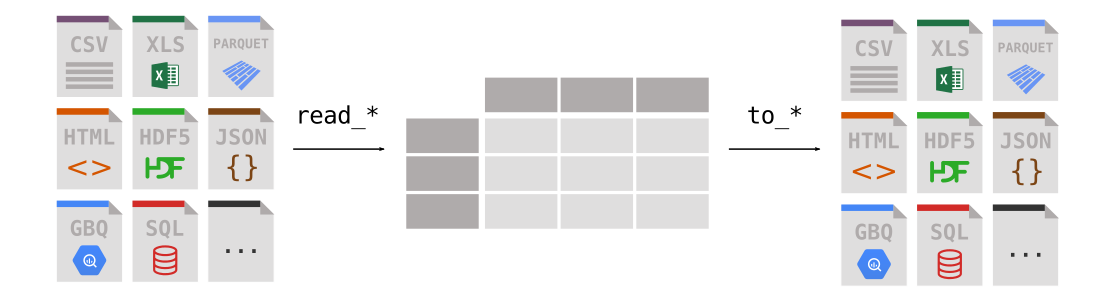
There are a huge range of input and output formats available in **pandas**: Stata (.dta), Excel (.xls, .xlsx), csv (tab or comma or whatever, use the `sep=` keyword), big data formats (HDF5, parquet), JSON, SAS, SPSS, SQL, and more; there's a [full list](https://pandas.pydata.org/pandas-docs/stable/user_guide/io.html) of formats available in the documentation.
Let's set some preliminary settings:
```{python}
import numpy as np
import pandas as pd
import matplotlib.pyplot as plt
# Set pandas max rows displayed for readability
pd.set_option("display.max_rows", 6)
# Plot settings
plt.style.use(
"https://github.com/aeturrell/coding-for-economists/raw/main/plot_style.txt"
)
```
## Reading in data from a file
The syntax for reading in data is usually very similar and of the form `pd.read_` and then the format e.g. `df = pd.read_stata('statafile.dta')` for Stata. And here's a typical example of reading a csv file
```python
import pandas as pd
df = pd.read_csv("data.csv")
```
These examples assume that the data file is in the *working directory* of the Python console, but what if it's not?
If the data are not in working directory, you need to add information about the relative path to the file. Let's say the data were in a folder called 'data' in another folder called 'files'. Different operating systems have different file path conventions: on a Mac or Linux machine, you would open this file using `df = pd.read_stata('files/data/statafile.dta')` but, on Windows, the slashes go the other way. If you're writing code to be *reproducible* you should endeavour, insofar as you can, to make it run happily on all major operating systems. Fortunately, the built-in **pathlib** package can help out with this.
Here's a really typical example of reading in a csv called 'data.csv' whose relative path to the working directory of the code is a folder 'research' and then 'files':
```python
from pathlib import Path
df = pd.read_csv(Path("research/files/data.csv"))
```
**pathlib** takes care of paths on different operating systems: it doesn't mind you using forward slashes, even on Windows, because it will translate the relative path you have entered into whatever the local operating system needs. There are introductory videos to **pathlib** and its use available [here](https://calmcode.io/pathlib/do-not-hardcode.html).
### Reading data from lots of files
Quite often, you have a case where you need to read in data from many files at once. There are two tools that will help with this: glob and concatenate.
Imagine you have a directory full of files with names like 'Jan-2001-data.csv', 'Feb-2001-data.csv', and so on. The `glob()` command can help you grab the names of all of these files. Imagine your files are in 'research/data', then you would use:
```python
p = Path("research/data")
list_of_files = list(p.glob("*-data.csv"))
```
Here, the `*` character is a wildcard that can match to anything (including any number of characters). You can keep it more specific by, for example, searching for a single wildcard character with `?` or any single digit with `[0-9]`.
Okay, so you have a big list of file paths: now what!? Assuming that the files have the same structure (eg the same columns), we can use `pd.read_csv()` in a list followed by `pd.concat()` to collapse these down either by index or by column (typically it's by index):
```python
df = pd.concat([pd.read_csv(x) for x in list_of_files], axis=0)
```
## Writing data to file
The syntax for writing to a file is also very consistent, taking the form `df.to_*()` where `*` might be `csv`, `stata`, or a number of output formats (you can even output to your computer's clipboard!).
In general, you *do* need to specify the file extension though, i.e. when saving data you should specify `df.to_csv('dataout.csv')` rather than `df.to_csv('dataout')`. As with reading in, there are plenty of options for how to output data, and you can find more on outputs in the **pandas** [documentation](https://pandas.pydata.org/docs/user_guide/io.html).
### Formats
You may wonder what file format to use in your work. Note that data formats differ in whether they are text based (csv, JSON) or binary (encoded and compressed, like Python's pickle format). The former tend to be more easy to use with a range of tools, while the latter are usually faster to read/write and take up less space on disk.
There's a lot to be said for plain old csv because it's interoperable between so many different software tools. I highly recommend it for your final results, if they will be shared. Its only trouble is that it's not very efficiency with space, and it's not 'intelligent' about column datatypes. If you want a format for intermediate data within a project, I tend to recommend parquet, which scales well to big data (it is very efficient with disk space) and has excellent read and write speeds. Feather is interoperable between Python and R and may also be a good choice. Depending on the structure of your data, you may find JSON a good option too.
If you're interested in how effective the different data formats are, there blog posts that address this question [here](https://towardsdatascience.com/the-best-format-to-save-pandas-data-414dca023e0d) and [here](https://ursalabs.org/blog/2019-10-columnar-perf/).
It's best *not* to use formats associated with proprietary software, especially if the standard may change over time (Stata files change with the version of Stata used!!) or if opening the data in that tool might change it (hello Excel). It's also good practice *not* to use a data storage format that cannot easily be opened by other tools. For this reason, I don't generally recommend Python's pickle format or R's RDA format (though of course it's fine if your data is completely internal to your project and you're only using one language).
## Reading and writing text, tex, md, and other text-editor friendly file formats
It's frequently the case that you'll want to write an individual table, chunk of text, or other content that can be opened with a text editor to file. **pandas** has some convenience functions for this (there was a short example in the data analysis quickstart). Let's say we had a table:
```{python}
df = pd.read_csv("https://vincentarelbundock.github.io/Rdatasets/csv/dplyr/storms.csv")
table = df.groupby(["month"]).agg({"wind": "mean", "pressure": "mean"})
table
```
Our options for export of the `table` variable (which has datatype `pandas.core.frame.DataFrame`) are varied. For instance, we could use
```python
table.to_markdown()
```
to create data suitable for putting in a markdown file, `table.to_string()` to get plain text, and `table.style.latex()` for latex (note that latex output includes the `.style` part). There's even a `table.to_html()`!
Each of these export options accepts a filepath to write to, eg one can write `table.style.to_latex(os.path.join('path', 'to', 'file.md'))`.
::: {.callout-note}
`.to_markdown()` has a dependency on another package, [**tabulate**](https://github.com/astanin/python-tabulate), which is for pretty-printing tables in Python and on the command line. You can install it using `pip install tabulate`.
:::
If you have a string, bit of tex, or chunk of markdown that isn't coming directly from **pandas**, you can use base Python to write it to a file. Let's say we wanted to take some text,
```python
text = "The greatest improvement in the productive powers of labour, and the greater part of the skill, dexterity, and judgment with which it is anywhere directed, or applied, seem to have been the effects of the division of labour."
```
and write it to file. The command would be
```python
open("file.txt", "w").write(text)
```
## Review
If you know how to read in data and text from file(s), and write out to file too, then you've mastered the content of this chapter!