A Jira and GitHub inspired project tracker for Obsidian — the ease of a GitHub Project with extended features of a Jira workflow. Built entirely out of ordinary markdown notes.
- You vault is the database. No project data is stored in the plugin directory. Everything remains note driven and compatible with vault sync plugins.
- Stock Obsidian. Built from the app's own component library, so it inherits your theme and looks native on desktop and on a phone.
- Simple by design, complexity is op-in. Every new project starts of simple, and can be builded upon as needed.
| Projects | Each project is icon and color coordinated. Projects can be reordered to suite your preference, and optionally pinned using custom docks. |
| Boards | Track progress using Kanban designed boards. Drag to move task status. Optimized view for mobile to ensure you can work from anywhere. |
| Tables | Similar feel to bases. Each view is configurable to show specific data, with sort and group option. Simplified design overrides when viewing from mobile. |
| Automation | Enabled task automation to progress tasks automatically. Example: move from Done to Archive after 30 days. |
| Filtering | All the basic filtering options, as well as smart filtering based on dates. |
| Overdue Warnings | Enable overdue warnings for start or due date, depending on current task status. |
| Prioritization | Simply overarching flag to visually spotlight tasks and use with view sorting or filtering. |
| Custom fields | Per project configured fields that get saved in task notes property front-matter |
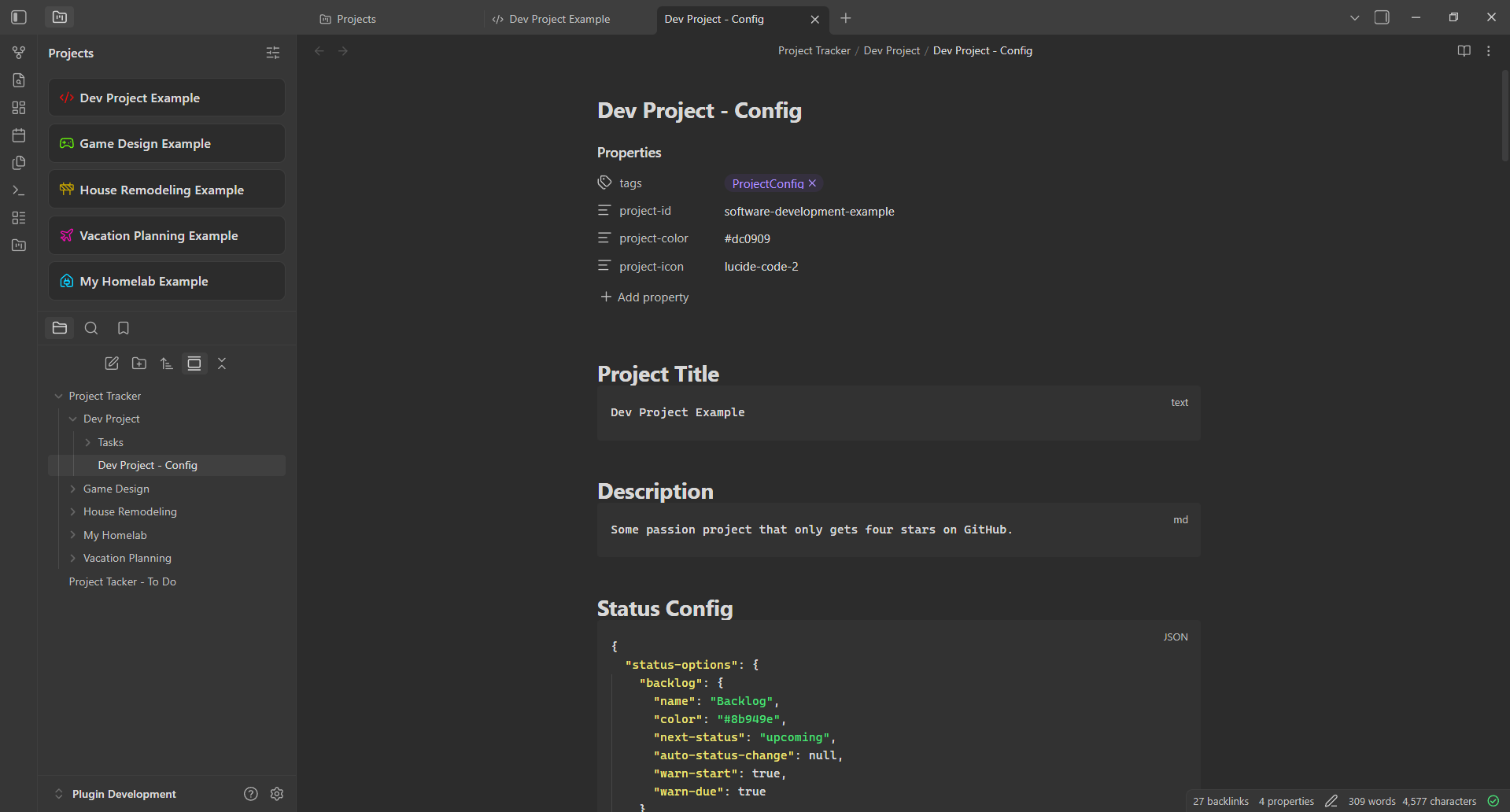
- A project is a folder with a config note tagged
ProjectConfig. Its configuration sits under plain headings — Project Title, Description, Status Config, Label Config, Board Config, Custom Fields — so anything the settings screens write, you can write by hand. - A task is a note tagged
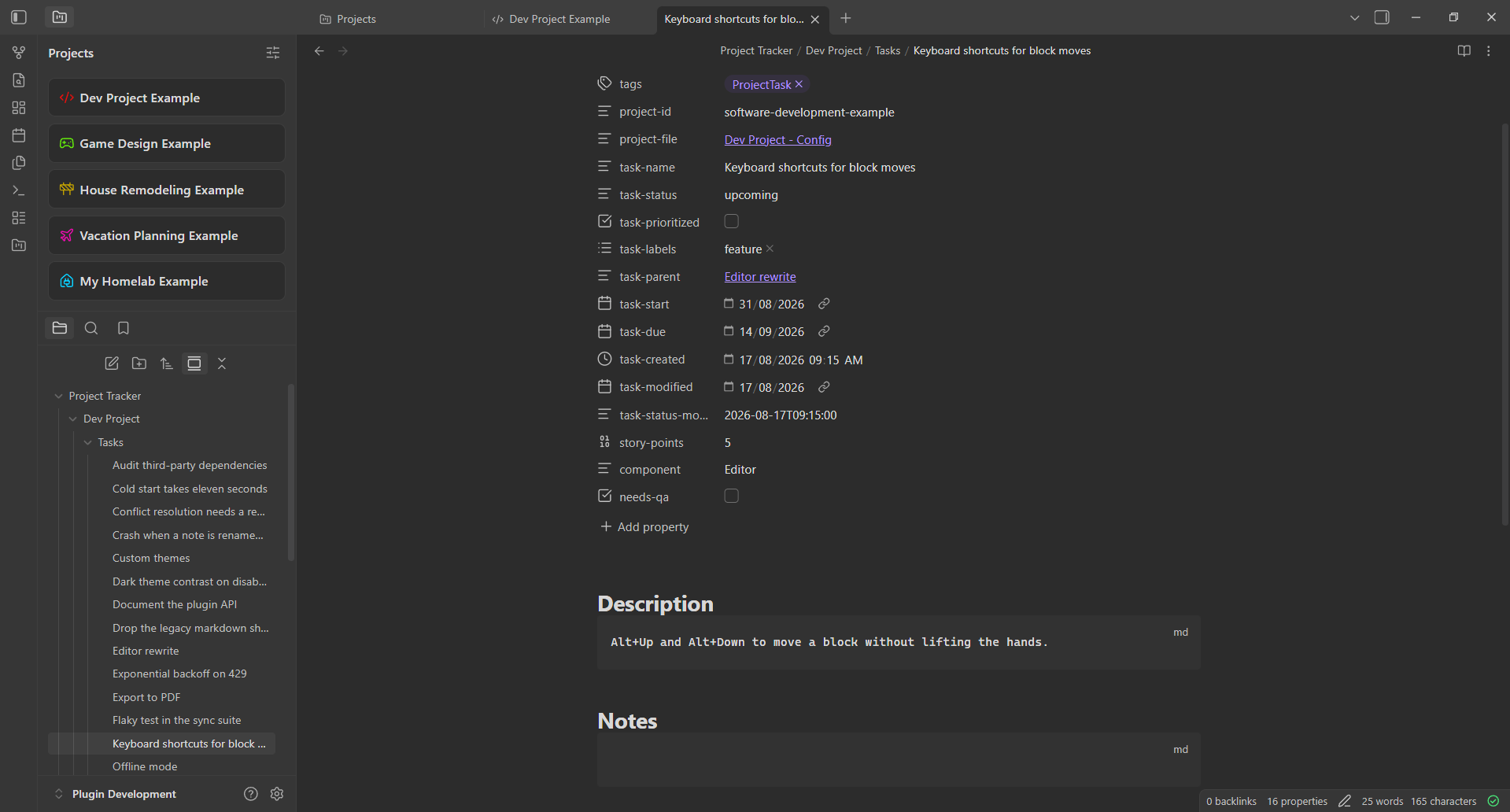
ProjectTaskwith its fields as frontmatter properties, visible to the Properties panel, Bases, Dataview and plain search. - Opt a note out with
ProjectTrackerIgnore, or document the format without indexing it usingProjectConfigIgnore/ProjectTaskIgnore.
Requires Obsidian 1.13.0 or later. Works on desktop and mobile.
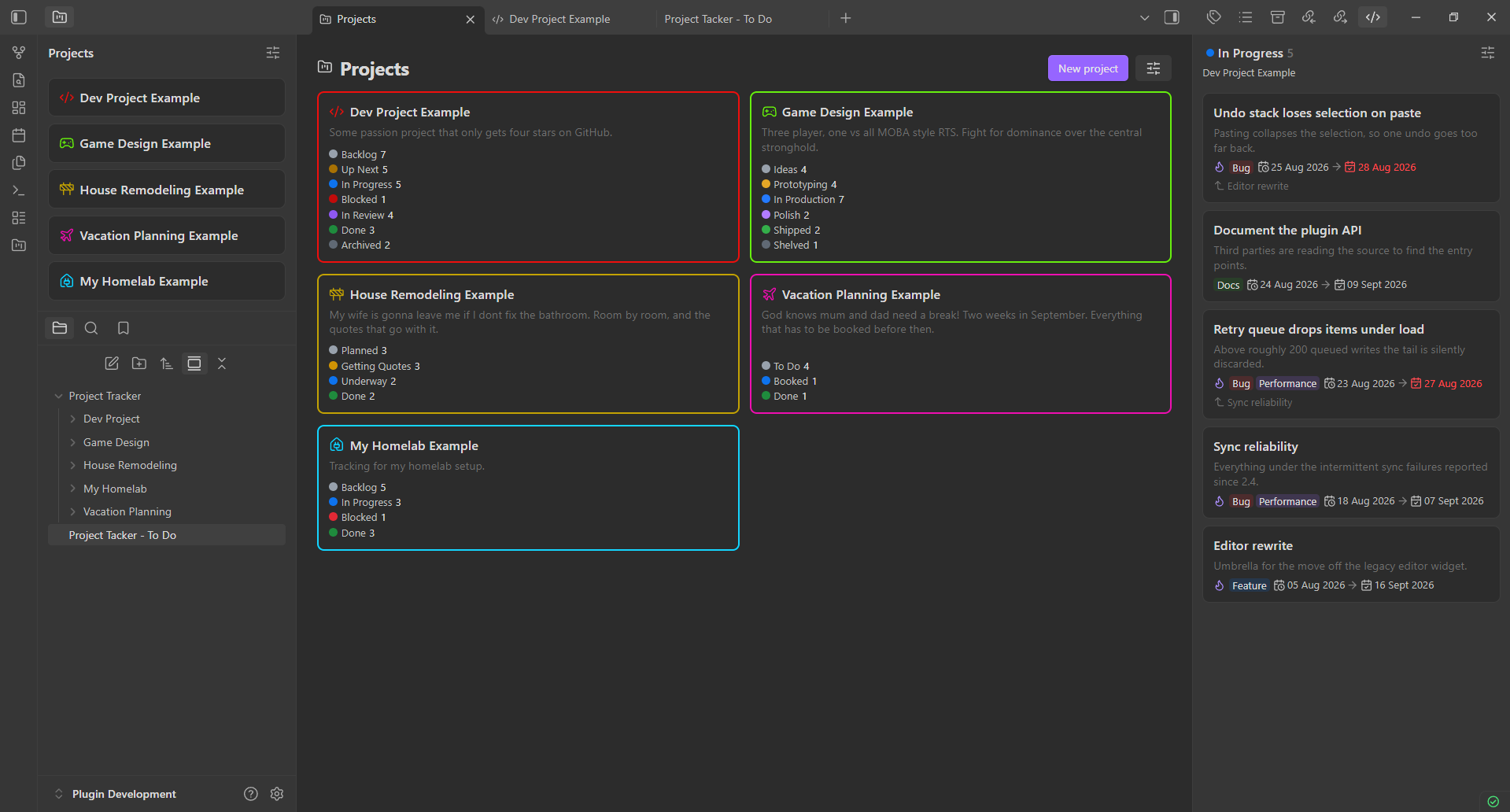
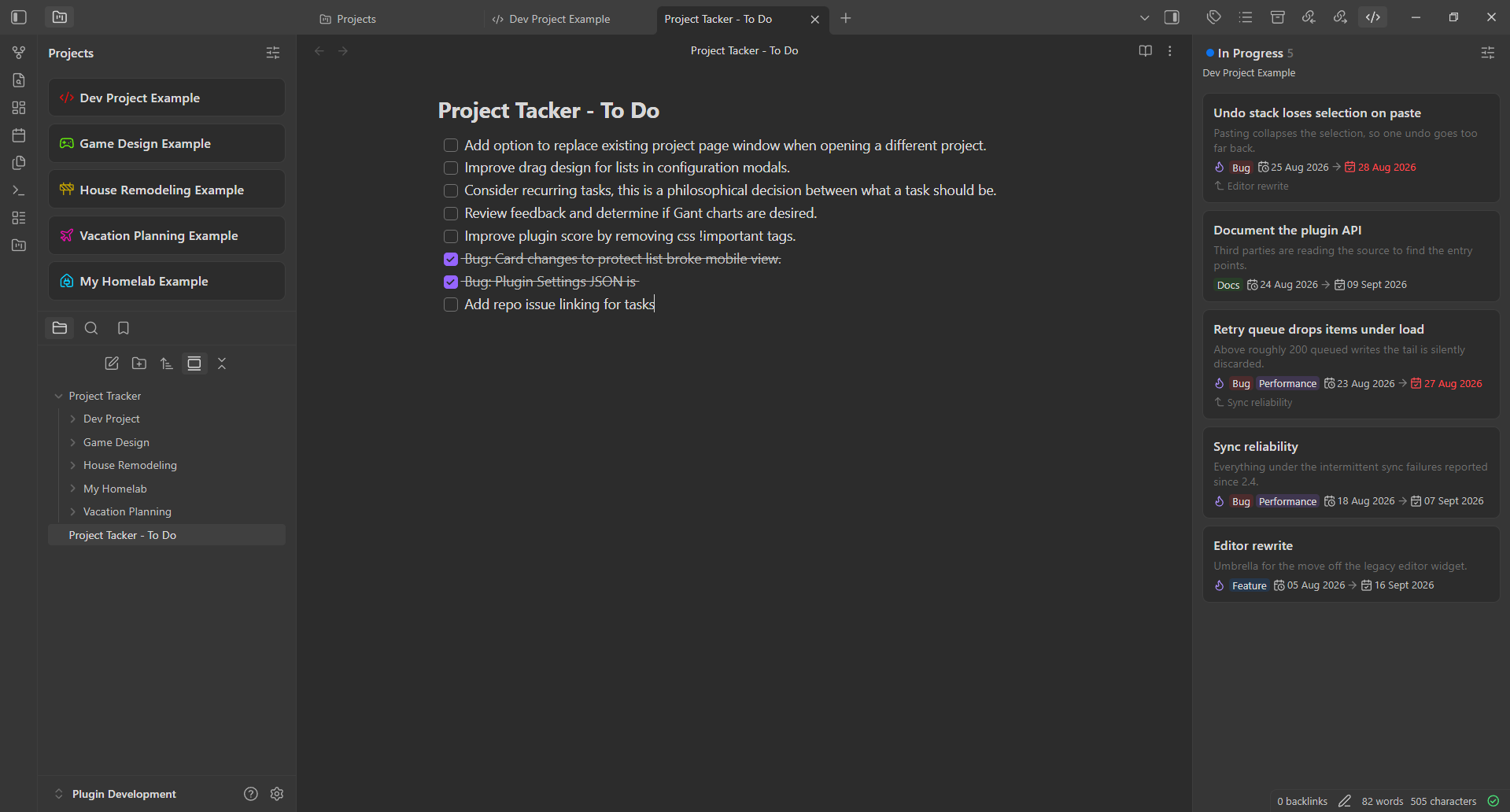
Every project as a card in its own colour and icon, with its description and a live count for each status. Cards drag to reorder, and the ordering carries through to the sidebar dock. On the right, a docked task column pinned to one status of one project.
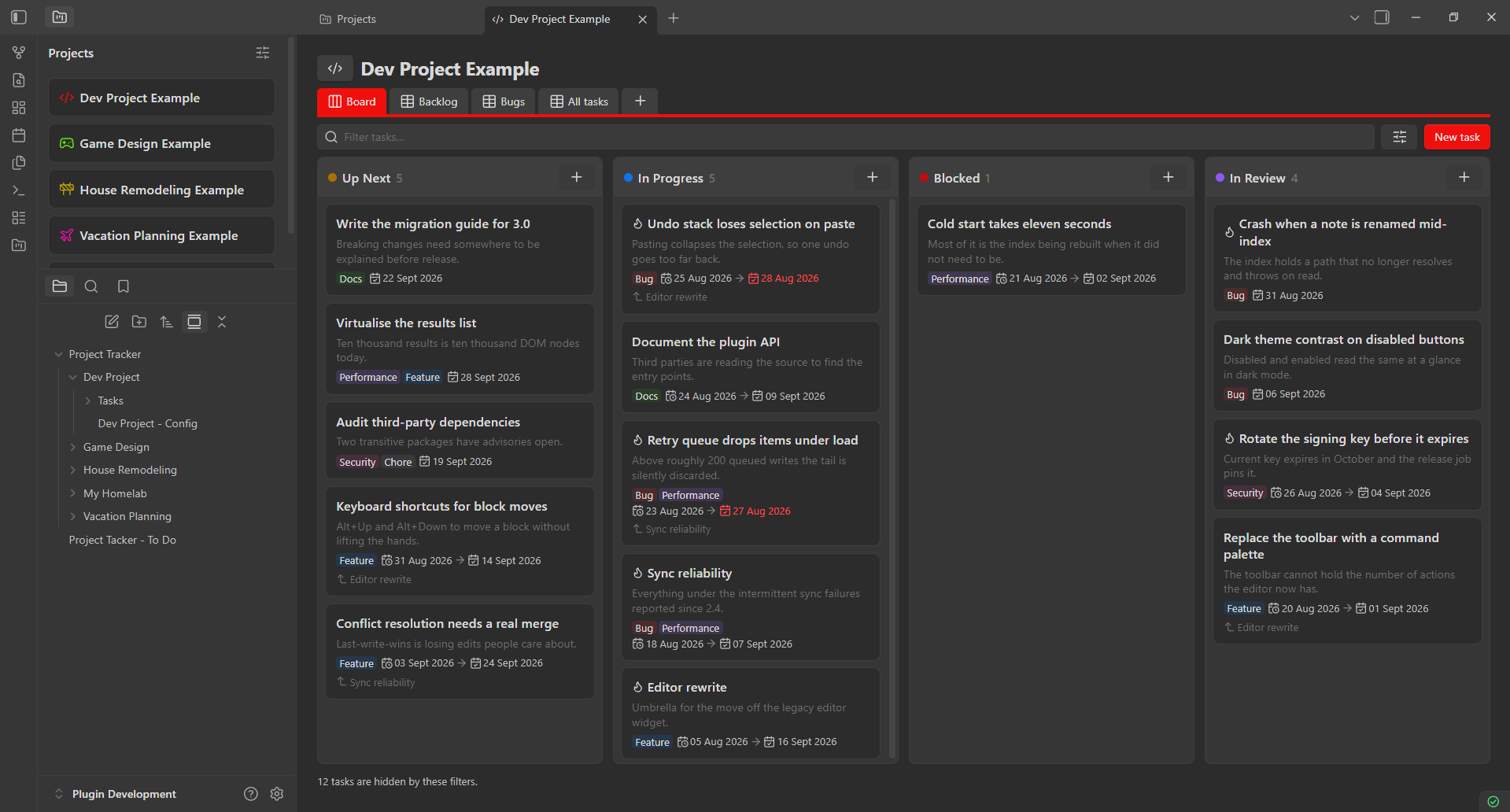
Columns are the project's statuses, in the order you set. Drag a card between them to change its status. Cards carry labels, start and due dates, the parent task and a priority flame — overdue dates in red. Statuses left out of this view stay off the board, and the footer says how many tasks the filters are hiding.
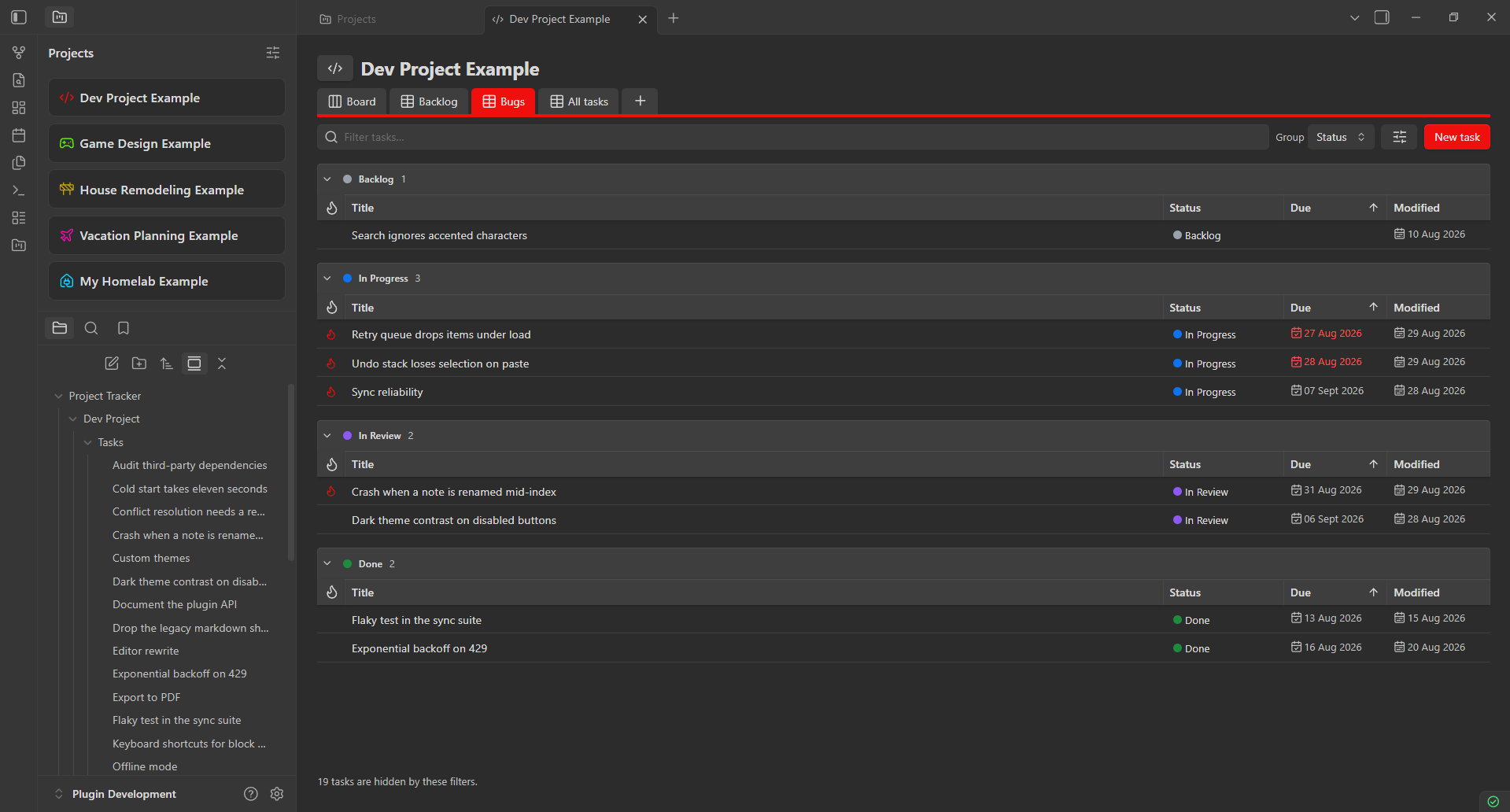
The same project as a saved table view — here a bug list, grouped by status, sorted by due date. Each view picks its own grouping, sort field and columns, so a backlog, a bug queue and an everything list can sit side by side as tabs.
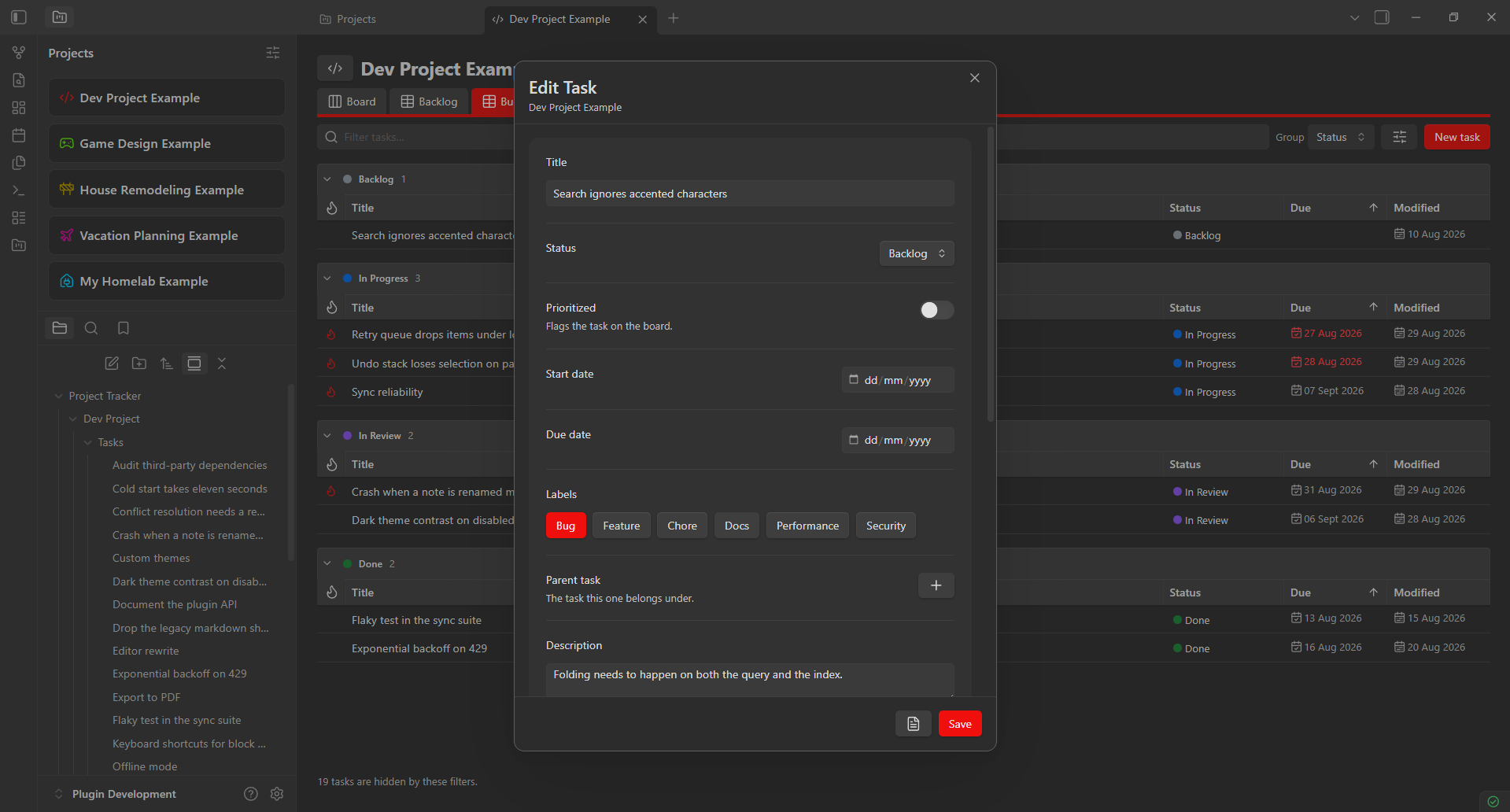
Title, status, priority, start and due dates, labels, parent task and description, plus whatever custom fields the project defines. Saving writes to the note's frontmatter and appends a Change Log entry. The button beside Save opens the underlying markdown note.
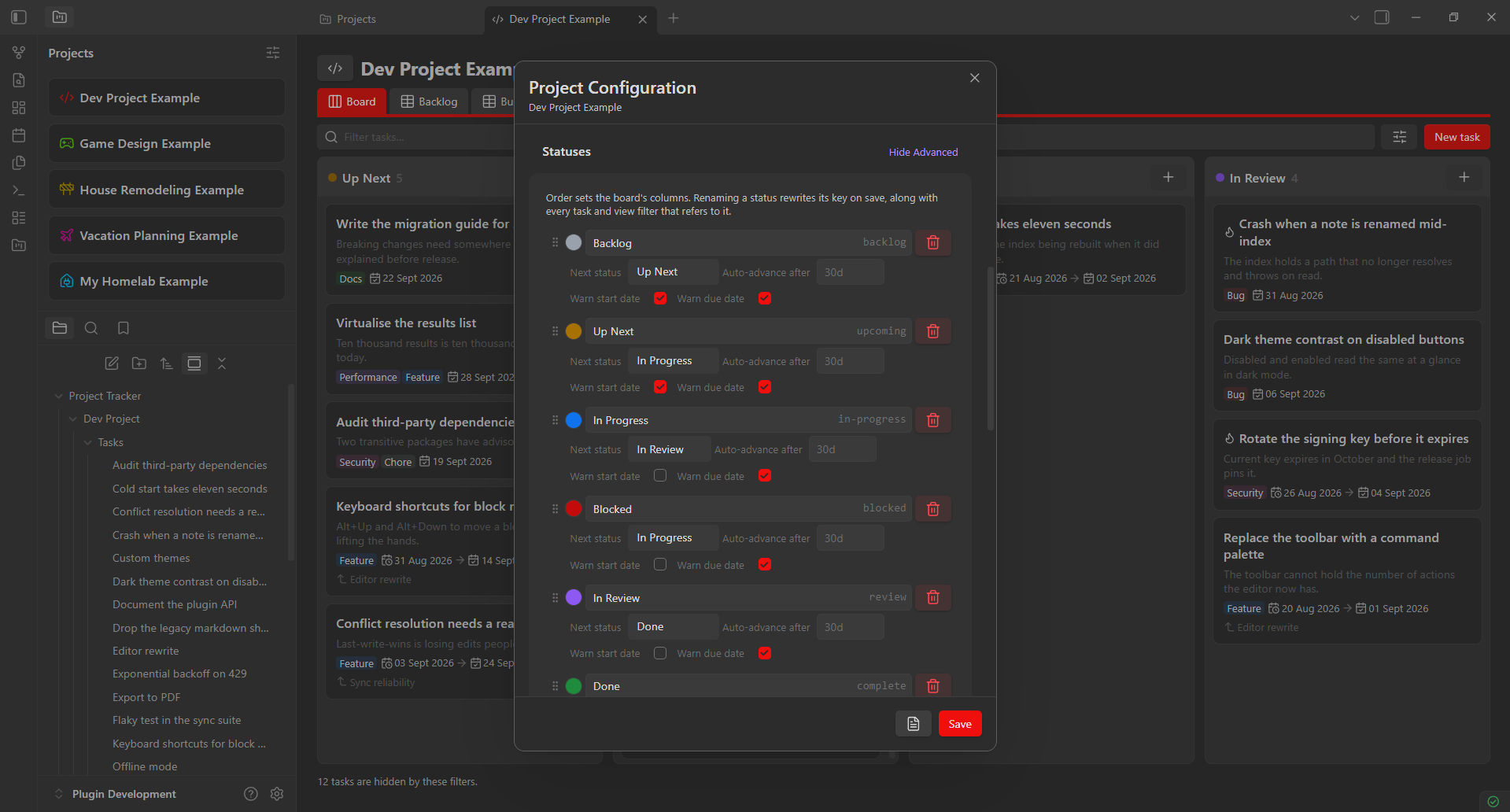
Each status has a name, a colour and a key, and dragging them sets the board's column order. Advanced mode adds the workflow: the next status in the flow, an auto-advance duration, and warnings for tasks whose start or due date has passed while they sit here. Renaming a status rewrites its key across every task and view filter that refers to it.
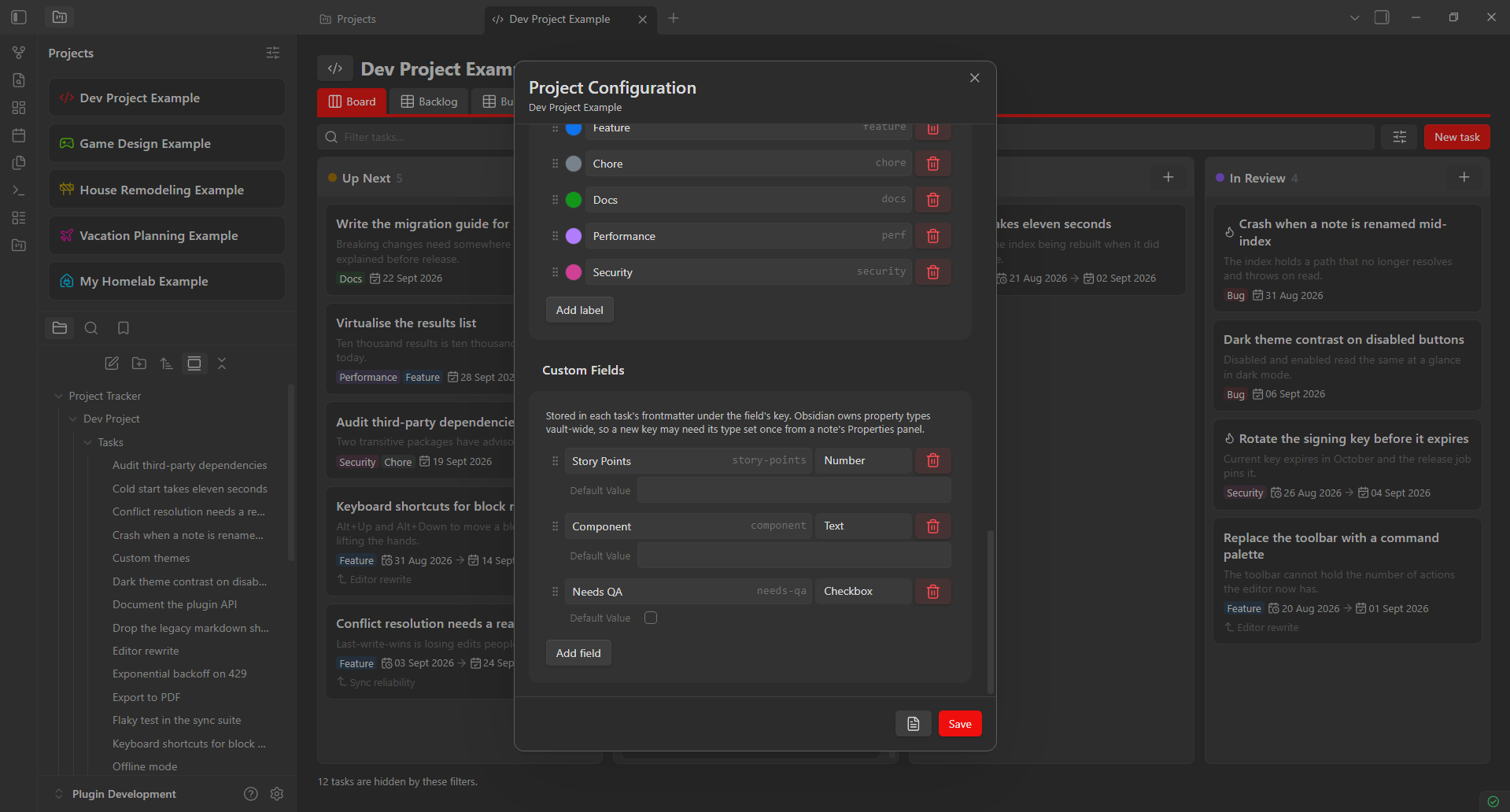
Labels are named and coloured, and a task can carry any number. Custom fields are stored in each task's frontmatter under the key you choose, in one of Obsidian's own property types — text, list, number, checkbox, date or datetime — with an optional default seeded into new tasks.
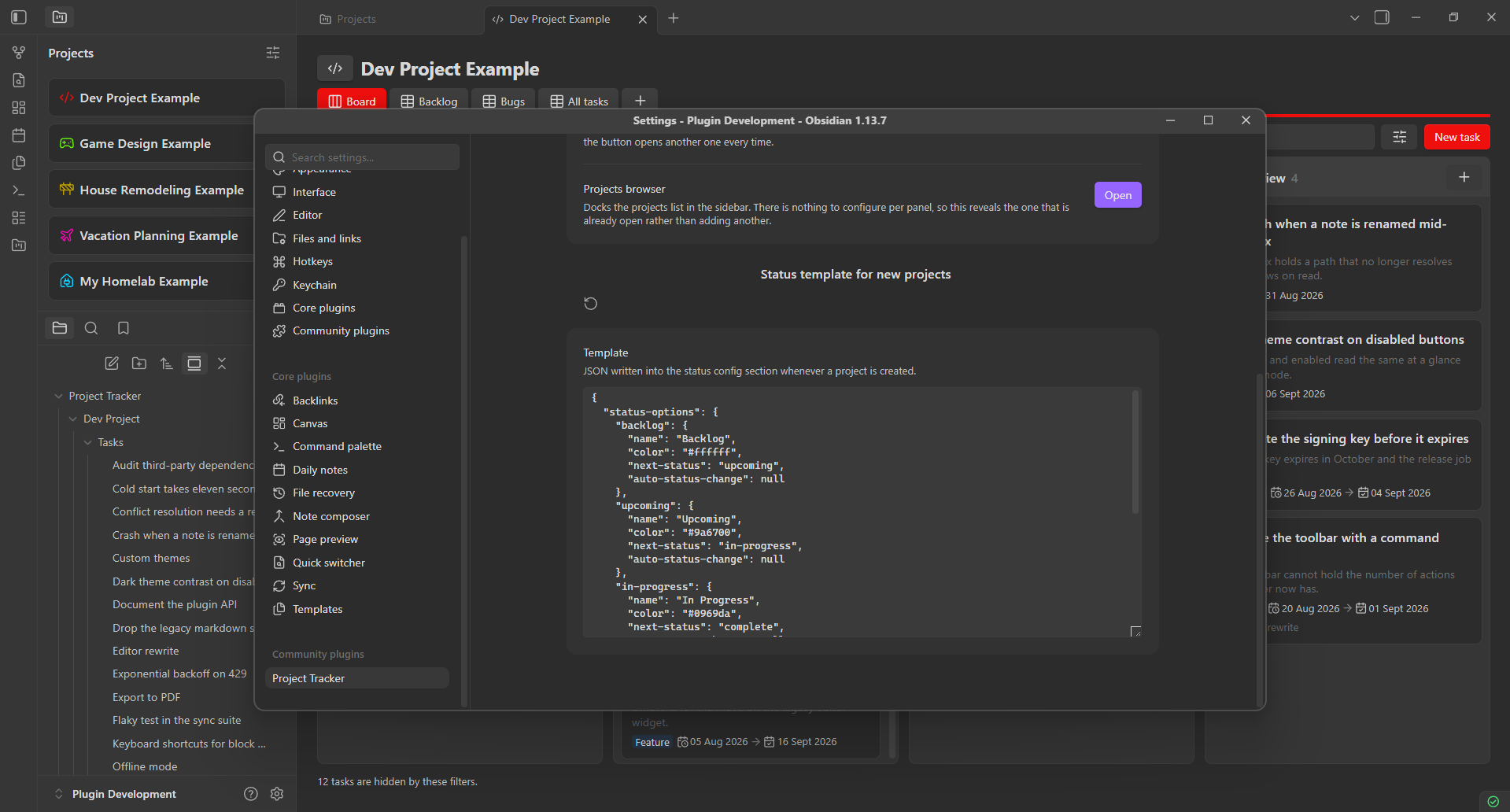
The status template in plugin settings is the JSON written into a new project's Status Config section. Set it once, and every project you create afterwards begins with your statuses, your colours and your transitions rather than the plugin's defaults.
Two docks, both pinnable anywhere Obsidian takes a leaf: the projects browser on the left, and a task column on the right showing a single status of a single project. Each column keeps its own project, status and card settings, so you can open as many as you need and keep an eye on them while you work in a normal note.
The config note behind a project. Identity in frontmatter, and everything else under plain markdown headings. Every configuration screen in the plugin is a nicer way of editing this file, and you can always edit it directly instead.
Every field the plugin tracks is a real frontmatter property, custom fields included, so Obsidian's Properties panel, Bases, Dataview and plain search all see them. Description and Notes are ordinary markdown sections — write whatever else belongs in the task underneath.