
yt-dlna is a lightweight online media gateway used for proxying streaming playlists to DLNA/UPnP clients.
It acts as a bridge between online video platforms (such as YouTube, ARD Mediathek, ZDF and others) and legacy DLNA/UPnP media renderers (like older Smart TVs, media players, or set-top boxes) that no longer have native streaming apps.
To accomplish the "heavy lifting", such as extracting playlists and CDN URLs (and actually for all communication with the video platforms), it - of course - relies on yt-dlp (see Prerequisites and Legal Notices).
- Smart TV gateway: Stream online playlists directly to older Smart TVs (as well as new ones, of course!), using their built-in DLNA/UPnP players, without ads or DASH/HLS demuxing issues.
- Instant start: Proactively pre-caches live stream URLs in the background so video playback starts instantly on your TV.
- On-the-fly remuxing: Automatically remultiplexes the best available high-resolution DASH streams (1080p H.264 + AAC) in-memory via
ffmpegto a highly TV-compatible single-file MPEG-TS stream or fragmented MP4 stream when progressive MP4s are unavailable or below the configured resolution threshold (remux_threshold). - Multi-service & multi-account support: Proxy content from YouTube, ARD Mediathek, and many other platforms (called services in yt-dlna), as long as they are supported by
yt-dlp. Define custom service profiles with different cookie files (e.g. separate YouTube profiles for family members). - Cookie-free public playlists: Access public or unlisted playlists anonymously without needing cookies.
- Cookie-free playback: As long as the videos themselves are publicly visible, no cookie is needed for playback; however, for private videos, you can optionally choose to use one.
- Custom playlists: Create user-curated, hierarchical playlists, e.g. with bookmarks to your favorite web radio stations, to stream them to your DLNA client, or use 'hit' mode to trigger actions in 3rd-party systems. This way, you can even use your UPnP/DLNA client to control your Smart Home system!
- Web Administration Dashboard: Manage playlists, streaming service profiles, cookies, and system settings via an embedded web dashboard (
http://host:5001). - Low hardware requirements: Optimized specifically for older and low-powered single-board computers, performing well even on a hardware as old as a Raspberry Pi 1.
- On-demand DLNA refresh: Trigger a playlist resync directly from your TV menu using virtual
[Click to Refresh]items.

More Screenshots...
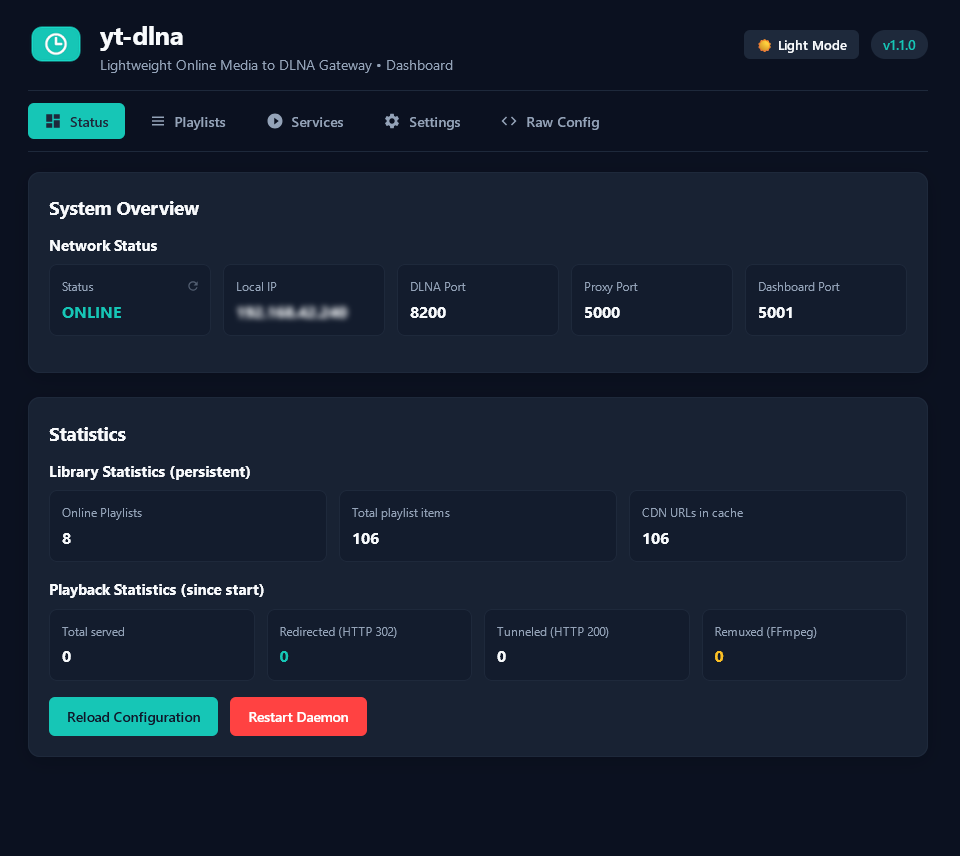
Dashboard Overview:
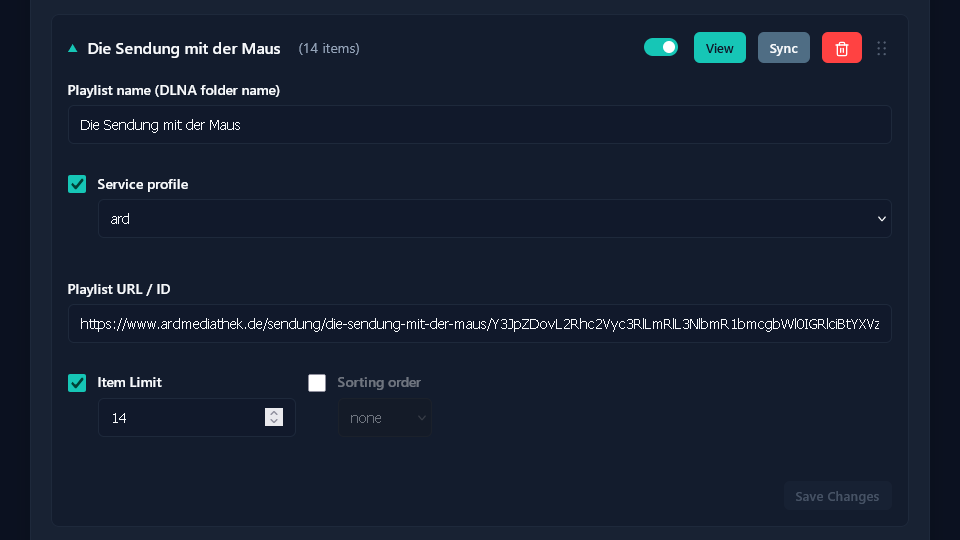
Example of configuring an Online Playlist:
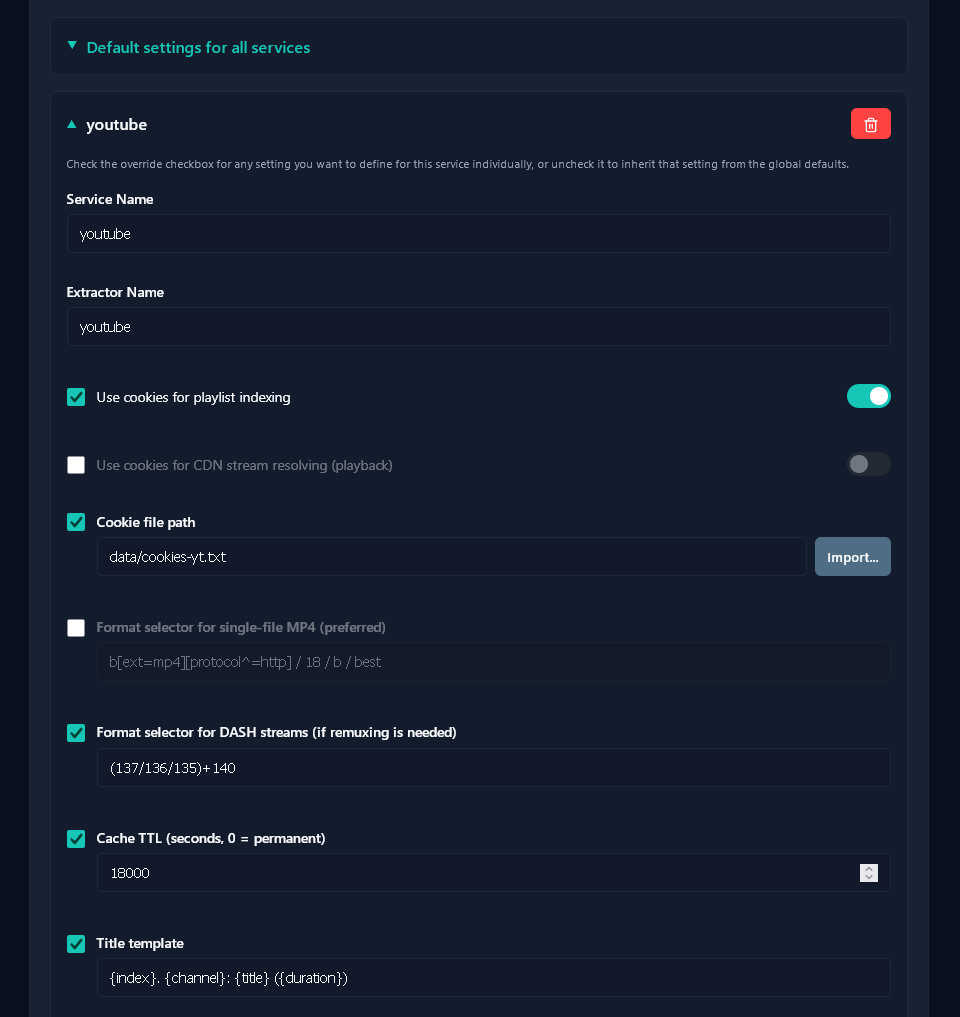
Example of configuring a Service:
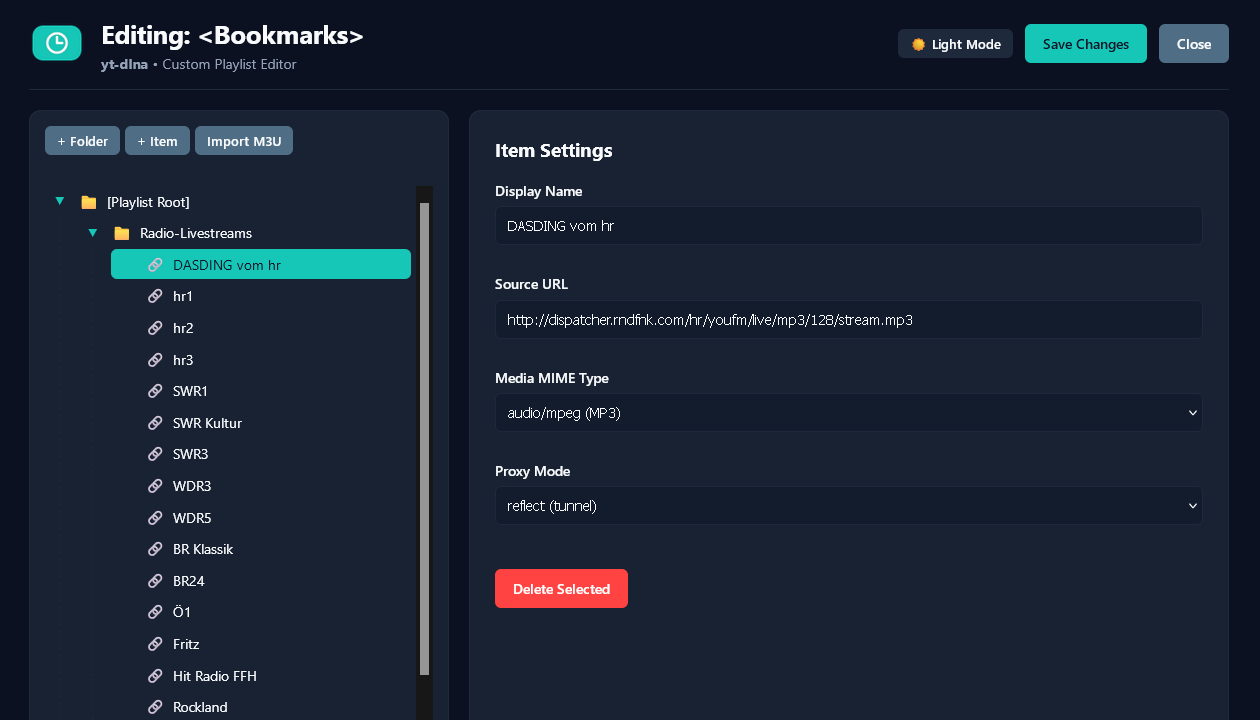
Custom Playlist Editor:
- OS: Platform-independent; Linux (Raspberry Pi OS, Debian, Ubuntu, etc.) recommended
- Python: 3.10 or higher
- Dependencies:
yt-dlp,flask,requests(optional:ffmpegfor on-the-fly remuxing) - Permissions: yt-dlna needs to create and write to
yt-dlna.confin its own script directory, and create adata/directory and write to it
In short, these are the core components which go hand in hand to accomplish the task to present your online video playlists as DLNA views on your TV:
- Sync Engine (
sync.py): Periodically indexes configured playlists usingyt-dlp, extracting raw metadata (titles, channels, durations) and optionally pre-caching direct CDN URLs. - DLNA Engine (
dlna_server.py): Broadcasts SSDP discovery beacons and serves a virtual folder tree to your TV via UPnP. - Proxy Engine (
proxy.py): Receives play requests from your TV and instantly issues HTTP 302 redirects (or streams bytes) directly to the media CDN. - Dashboard Webserver (
dashboard.py): This is completely optional and serves the Web UI on port 5001 by default; it can be disabled if desired.
See section Metadata and content data flow for a deep-dive in how streams are handled and what the different proxy operating modes mean.
-
Install dependencies via
pip:pip install -r requirements.txt
And optionally (if you want to use the remultiplexing mode):
sudo apt install ffmpeg
-
Clone the repository:
git clone https://github.com/fabianswebworld/yt-dlna.git cd yt-dlna -
Start it!
python3 yt-dlna.py --serve
Open your TV's Media player (sometimes called "DLNA" or "UPnP") — yt-dlna Media Server will appear in your device list, and some example playlists will appear and start to populate (please allow for some minutes to sync the playlists, especially on lower-end hardware)!
Since everything can be configured via the Web Dashboard starting with version 1.1.0, there's no need to edit the configuration beforehand (although you can still do this). If no configuration file is present, it will be created from the example file automatically, and you can go to the Web UI (the Dashboard) right away! Simply point your browser to
to access it.
-
Configure your playlists: Configure your favorite playlists via the Web UI or the configuration file (documentation see below and inside the file itself). Or, simply enable some of the included example playlists (they're mostly German TV news shows, as I am from Germany... sorry for that local bias 😉)
-
Add cookies (optional for private playlists): If you want to access private playlists like YouTube's "Watch Later" (
WL):- Export your session cookies in Netscape format using a browser extension (e.g. 'Get cookies.txt LOCALLY').
- Save the file to
data/cookies_yt.txt(or the path defined inyt-dlna.conf).
Note on YouTube Cookies:
YouTube cookies may expire periodically due to Google security policies. As a stable alternative for family sharing, you can create a Public or Unlisted playlist on YouTube. Unlisted playlists do not require cookie files and will not expire. -
Enjoy!
Just enjoy watching your favorite videos on your UPnP-compatible TV.
-
Install as Service (optional):
See below for instructions on how to install yt-dlna as a service so it automatically runs as a background daemon.
If your Smart TV refuses to play the videos on your first attempt, fear not, and first try to change the Default operating mode in the Proxy settings section on the Settings tab of the Web UI from redirect to proxy (or change the mode setting in the [proxy] section of yt-dlna.conf from redirect to proxy). This will increase CPU and network load on the system yt-dlna is running on (as the streams will have to physically go into and out of the system's network interface), but it improves the chance that it will work on your TV. Just try!
If you don't like the quality of YouTube videos (360p) which are delivered using the default settings, you can enable the Enable on-the-fly remuxing with FFmpeg option on the Settings page. Note this will increase CPU and memory load even more, and is not guaranteed to work at all with your client (which is why it is disabled by default). If the original Remux target format of MPEG-TS doesn't work for your client, you can also try the MP4 setting, which works better in some clients (but not at all in most other, which again is why MPEG-TS is the default).
yt-dlna.conf is fully documented with in-line comments. It is divided into the following main sections:
[general]: General settings like log verbosity.[proxy]: Controls HTTP bind IP/port, proxying mode (redirectvsproxy), customized proxy routes, and CDN URL caching parameters.[dlna]: Controls UPnP server name, bind parameters, and icon paths.[dashboard]: Configures the Dashboard Web UI.[sync]: Controls automatic sync intervals and proactive CDN URL pre-caching.[yt-dlp]: Configures how to load, and where to find,yt-dlp(via import, or as an external binary)[ffmpeg]: Configures and where to findffmpeg(required only for remuxing) and which custom extra options to pass to it[services:...]: Configures individual streaming extractors, format selectors, title templates, and cookie paths.[playlists:...]: Defines the source playlists (online playlists) which are then served as virtual DLNA folders to your clients (target URLs, item limits, sort criteria, individual sync intervals etc.).[custom_playlists:...]: Defines custom, locally-curated, hierarchical playlists (JSON files) that can be edited by you at any time and may be used e.g. as a "bookmarks" folder for your favorite radio streaming URLs.
If you want to configure manually, please read the in-line documentation.
Starting with version 1.1.0, all the configuration can be done via a web UI (called the Dashboard), which by default is accessible via http://yt-dlna-host:5001. This includes definition and configuration of services and playlists, including reordering them via drag-and-drop, and editing Custom Playlists via a built-in tree editor.
Additionally, the Dashboard shows you statistics of how many videos have been served in which mode, how many CDN URLs are currently in cache, and more.
Everything is heavily optimized for speed and low hardware requirements. For that reason, the decision which extractor to use for a certain video service is not done through the URL, inside yt-dlp, which in that case would have to load all "Information Extractors" every time, but defined in the configuration file for each service.
Just like yt-dlp, yt-dlna has its roots in handling YouTube streams. That's why YouTube (i.e., services defined using the 'youtube' extractor) are handled a little bit different than the others: only for YouTube, you can define playlists with just their playlist id as url in the config; for all others, you need to specify the full web URL of the playlist.
Similarly, YouTube video URLs are treated differently by the proxy service: you can always access URLs like http://yt-dlna-host:5000/play/youtube/{video_id} from inside your network, just providing the YouTube video id.
For all other services than youtube (which is a hard-coded default even if nothing is configured in the configuration file), you will have to provide the full, escaped URL after the /{service}/ part of the URL, e.g. http://yt-dlna-host:5000/play/ard/https%3A%2F%2Fwww.ardmediathek.de%2Fvideo%2Fswr-aktuell-rheinland-pfalz%2Fsendung-19-45-uhr-vom-12-7-2026%2Fswr-rlp%2FY3JpZDovL3N3ci5kZS9hZXgvbzIzMzU4MDk.
Additionally, here's some especially neat things about certain configuration combinations:
- If you create multiple services that all use the same extractor (e.g., 'youtube'), but different
cookie_pathoptions, you can use multiple accounts, e.g. multiple users' "Watch Later" playlists. - If you do not specify any playlist and set
enable_sync = noin the[sync]section, you can effectively use yt-dlna as just ayt-dlp-powered stream proxy, enabling you to watch YouTube or other online videos on any device on your network by just opening e.g.http://yt-dlna-host:5000/play/youtube/{video_id}in the player or browser of your choice (it will take some seconds if that video has never been played before, though - but afterwards, it will be available until the CDN URL expires, which is usually 6 hours for YouTube).
usage: yt-dlna.py [-h] [--verbosity LEVEL] [--version] [--sync [TARGET ...]] [--serve]
                  [--purge-cache] [--purge-library] [--purge-all]

yt-dlna: Lightweight media gateway, proxying streaming playlists to DLNA/UPnP clients

options:
  -h, --help           show this help message and exit
  --verbosity LEVEL    override config verbosity level (0-5)
  --version, -v        show program's version number and exit
  --sync [TARGET ...]  perform immediate sync for all or specific playlists/services
  --serve              launch background proxy, DLNA server, and sync scheduler
  --purge-cache        purge all cached CDN streaming URLs (urlcache.json)
  --purge-library      purge all indexed playlist metadata (playlists.json)
  --purge-all          purge both CDN URL cache and playlist library

examples:
  yt-dlna --serve                launch background daemons and sync scheduler
  yt-dlna --serve --sync         perform initial sync for all playlists, then serve
  yt-dlna --serve --verbosity 4  launch background daemons with verbose logging
  yt-dlna --sync                 perform immediate sync for all playlists and exit
  yt-dlna --sync "Watch Later"   sync a specific playlist by name and exit
  yt-dlna --sync youtube ard     sync all playlists for specific services and exit
  yt-dlna --purge-all            purge both CDN cache and playlist library
  yt-dlna --version              display version information and exit
  yt-dlna --help                 show this help message and exit
To run yt-dlna automatically in the background at boot on Linux:
-
Create a service file
/etc/systemd/system/yt-dlna.service(it is also included in the root of the repository); adapt the paths to suit your installation (the example shows a typical installation on Raspberry Pi, but maybe you want to e.g. use a different python3 binary):[Unit] Description=yt-dlna Media Server Daemon After=network.target [Service] Type=simple User=pi WorkingDirectory=/home/pi/yt-dlna ExecStart=/usr/bin/python3 /home/pi/yt-dlna/yt-dlna.py --serve Environment=PYTHONUNBUFFERED=1 Restart=on-failure RestartSec=5 StandardOutput=journal StandardError=journal [Install] WantedBy=multi-user.target
-
Enable and start the service:
sudo systemctl daemon-reload sudo systemctl enable yt-dlna sudo systemctl start yt-dlna -
View live logs via
journalctl:journalctl -u yt-dlna -f
Due to the very nature of the UPnP/DLNA protocol and especially limitations of older clients (such as TVs), yt-dlna needs to deliver plain, self-contained (pre-muxed) files accessible via HTTP/HTTPS, using codecs supported by most devices. This basically means: MP4 files with H.264 video and AAC audio, which most streaming services still provide - but for some of them, and most importantly, for YouTube, this unfortunately means limited media quality. For YouTube, the only MP4 stream URLs provided by the CDN are 360p MP4 files, which makes watching much less enjoyable. All higher quality streams are only available via MPEG-DASH, which means separate files for audio and video.
For that reason, starting with version 1.1.0, a new remultiplexing mode has been introduced. This needs ffmpeg to be installed, and if it is enabled, it will automatically use it to remux the separate DASH streams to one single, progressive file (either in MPEG-TS or fragmented MP4 format) and deliver it to the client. All this is done on-the-fly and in-memory with zero disk writes, and works well already on very old hardware.
Which remultiplexing target format to choose depends on your clients. Many TVs only accept MPEG Transport Streams for non-seekable stream sources; when given an MP4 file, the assume they can seek it using Range Requests to find a moov atom, which will fail for the fragmented ('boxed') MP4 files yt-dlna's remuxing can provide. So, the remux_target_format = ts will most likely be the right choice; however, if your client struggles with it (e.g. cuts off large portions at the beginning etc.) it might be worth a try to set it to remux_target_format = mp4.
For many other services however, such as the German ARD Mediathek, KiKA, ZDF, and possibly others, this whole mechanism is not needed, as decently high-quality (Full HD, 1080p) video streams are also provided as plain MP4 files via HTTPS, which is perfect for most DLNA clients.
If you enable the remultiplexing mode (enable_remux), remuxing is automatically done for all videos which aren't available in at least the vertical resolution defined in remux_threshold, in which case the format selector defined in the format_dash option for the video's service is used. In other words: for services that do not have such an option set, remxuing is never done, regardless of enable_remux and remux_threshold.
In practice, it is mostly only needed for YouTube as of today, which is why in the example configuration file, enable_remux is enabled by default, and a format_dash string is configured only for YouTube.
If remuxing is not enabled or not necessary (e.g. because an MP4 is available with sufficient resolution), the configured proxy mode (mode) is used, i.e. redirect or proxy (see above).
Starting with version 1.1.0, a new feature called "Custom Playlists" is available. These playlists are saved and curated locally, without syncing from any streaming portal.
These playlists can have a hierarchical structure and are viewed as (sub-)folders on your UPnP client. They are saved as JSON files, by default in the data/ folder, and can be created and edited using the built-in Custom Playlist Editor in the Dashboard web interface.
The built-in editor supports creating and editing items and folders manually; however, for bulk-importing existing bookmark lists, you an also import .m3u/.m3u8 playlist files and Winamp.bm/Winamp.bm8 bookmark files into the selected folder.
Items in custom playlists will never be resolved to CDN URLs via the built-in proxy. Instead, one of three specific modes are used for them (configurable for each item, or each folder, or the whole playlist, where the setting will be inherited to the next sub-item if set to "inherit" there):
- bounce mode, which is like the redirect mode but without CDN resolving (i.e. it will do a 302 redirect directly to the source URL defined in the Custom Playlist) - the client will see a proxy URL with a
/bounce/route and will receive a HTTP 302 from there. - reflect mode, which is like the proxy mode but without CDN resolving (i.e. it will tunnel the bytes through the proxy thread) - the client will see a proxy URL with a
/reflect/route and will receive the source bytes from there. - hit mode, which will just "hit" the source URL from the backend (and will serve a silent dummy audio file to the client) - ideal for triggering actions in your home automation system (see below).
- direct mode, which will just insert the plain source URL into the DLNA listing (for clients that allow media from outside the local network).
While the web UI will only allow for creation of Custom Playlist files inside the data/ folder, manual editing of the playlist_file option for that Custom Playlist will allow for .json files from outside there.
Due to that feature's very flexible nature, it is even possible to use .json files dynamically created by a third-party process, like a home automation (Smart Home) system.
The home automation system could, for example, regularly update and store readings and values to that file (e.g., temperature sensor readings), which would then be presented as virtual "Item Titles" in a DLNA folder, while other items showing the state of a device ("Living Room Lights - on") could even have "hit" mode URLs that could trigger actions such as "Lights on/off" - the possibilities are endless... 😉
An example implementation of a helper module for the FHEM home automation system (98_ytdlnaCustomPlaylistFrontend.pm), to enable dynamic generation of such "interactive" Custom Playlist files, is available in this separate repository.
With yt-dlna version 1.2.0, the sync scheduler has been completely reworked and now supports different sync invervals for individual playlists, and allows for excluding individual playlists from scheduled sync altogether.
The old scheduler only had one single sync interval, and this started always at the point the daemon was started. So, when reloading the daemon several times (when maybe experementing with different settings), each time a complete sync run was triggered. Also, the fact that one sync run always synced all playlists, this meant a long CPU spike at regular intervals on slower hardware.
The new scheduler avoids this, by letting you set playlists that do not frequently change to a higher sync interval. Moreover, it persistently stores the last sync time for each playlist, so that if you stop the daemon and restart it later, it will only catch up sync for those playlists where it is necessary, instead of triggering a full sync run even after a short interruption of the service (e.g. daemon restart or system reboot).
However, this has a few implications in comparison to the old sync scheduler: Even if several (or all) playlists use the same interval, it will not mean that they will sync at the same time. Instead, due to the duration of the individual sync operations, the sync times can get scattered over time, especially when running the daemon over a very long period of time.
Only if you trigger a "Sync all Online Playlists" action from the Web UI (or via yt-dlna.py --sync), those schedule times will be aligned again.
If you prefer a behavior that (almost) matches the old scheduler's behavior, you can choose to include the --sync argument together with the --serve argument in your service file, which is now supported.
Moreover, due to a rework of the JSON save operations, it is now possible to issue --sync commands as separate processes while the daemon is running without any risk of file corruption. This means that you could even create your own, complex sync schedule using cronjobs.
Especially for playlists that update only seldomly, but always at a fixed day of week on a specific time (e.g. weekly episodes on a TV show), this is the way better approach than setting the sync interval to 604800 (1 week) for those playlists, because depending on when you started the daemon, this can mean that the playlist is updated weekly, but on a different day than the new episode is released, meaning you will not have the new episode available when you need it.
A simple cronjob configured to run e.g. every Wednesday at 19:00, when the episode usually is released, and which runs /usr/bin/python3 /home/pi/yt-dlna/yt-dlna.py --sync "My TV Show" is the ideal solution for this.
If you want to use this approach, it is recommended to disable yt-dlna's own sync scheduler altogether.
On a regular basis, yt-dlna will sync your favorite playlists from the video services to a local playlists.json file, and then present that file as virtual DLNA/UPnP "folders" to your Smart TV. The key point is that the entries themselves will not point to any external URL, but instead to virtual URLs provided by an internal proxy service, under which a specific video will always be available inside your local network. Here's how the metadata flow looks:
[Streaming Service] ◄─── (yt-dlp) ── [yt-dlna UPnP server] ◄─ (UPnP) ── [Client]
(YouTube, ARD, etc.)   Get entries   (Raspberry Pi, Linux)              (TV)
The moment a client selects a video from a playlist, it will hit the corresponding proxy URL, which will then more-or-less immediately redirect it to the actual CDN URL. Here's what the content flow in the default configuration (mode = redirect) looks like (the numbers are the steps in which the actions are performed):
[Streaming Service] ◄──── (yt-dlp) ──── [yt-dlna Proxy] ◄── (HTTP) ─── [Client]
(YouTube, ARD, etc.)    Get CDN URL  2  (Raspberry Pi, Linux)       1  (TV)
            │                                                          3 ▲
            │                                 302 Redirect to            │
            │                                 CDN URL                    │
            └────────────────────────────────────────────────────────────┘
For older TVs that do not support HTTP redirects for UPnP media and/or do not resolve external hostnames, there's another mode (mode = proxy) available in the configuration which instead tunnels the actual data bytes for the video streams from the CDN to the client. Note that this will increase load on the system, but even this mode has been successfully tested on an old Raspberry Pi 1 even for Full HD videos (~ 3 Mbit/s). In that mode, the content flow looks like this:
[Streaming Service] ◄──── (yt-dlp) ──── [yt-dlna Proxy] ◄── (HTTP) ─── [Client]
(YouTube, ARD, etc.)    Get CDN URL  2  (Raspberry Pi, Linux)       1  (TV)
            │                                   3 ▲
            │                                     │ Active tunneling of
            │                                     │ bytes through proxy
            └─────────────────────────────────────┘
In both modes, the proxy will optionally pre-fetch the actual CDN URLs proactively and cache them, so the user will not have to wait for yt-dlp to complete its job (which is especially slow on old hardware) on first hit of a new playlist item.
Additionally, a third mode of operation is automatically selected (if enabled by (enable_remux = yes)) if there is no single, self-contained MP4 video file available on the CDN that meets a certain quality threshold. Particularly, YouTube does not serve any progressive MP4 files better than 360p resolution. In that case, remultiplexing comes into play, and the content flow looks like this:
[Streaming Service] ◄──── (yt-dlp) ──── [yt-dlna Proxy] ◄── (HTTP) ─── [Client]
(YouTube, ARD, etc.)    Get CDN URL  2  (Raspberry Pi, Linux)       1  (TV)
            │  │                                3 ▲
            │  │                                  │ Remuxing to single stream
 DASH audio │  │ DASH video                       │ (MPEG-TS or MP4) via FFmpeg
            └──┴──────────────────────────────────┘
For this remuxing mode to work, ffmpeg must be installed on the system. Remarkably, even this mode runs smoothly on a Raspberry Pi 1, at least if you don't attempt to stream multiple videos in parallel. You can select whether the remuxed stream should be in fragmented MP4 format or an MPEG Transport Stream (TS).
Currently, this has been successfully tested against VLC Player and my 2023 Panasonic TV (TX-55MZT1506). More testing is welcome - as are issue reports, or even pull requests to improve on compatibility. In fact, of course all sorts of useful pull requests are always welcome! 😉
This project (yt-dlna) is an experimental proof of concept developed solely for educational and personal interoperability research purposes. It functions as a local network coordination layer and does not directly interface with, scrape, or extract media from any third-party streaming platform.
All external media resolution relies entirely on the third-party utility yt-dlp. Users are explicitly advised that utilizing automated extraction tools to stream or bypass platform native interfaces may conflict with YouTube's Terms of Service and End User License Agreements (EULA).
The author of this software assumes absolutely no responsibility or liability for how users choose to deploy this script, any potential account restrictions, or violations of third-party platform policies. This software is provided "as-is," without warranty of any kind, and its installation and operation are entirely at the discretion and sole risk of the end-user.
DLNA® is a registered trademark of the Digital Living Network Alliance. "yt-dlna" is an independent, non-commercial open-source project. It is not affiliated with, endorsed by, or certified by DLNA or any of its member organizations.
This software uses open UPnP AV standards to stream media to compatible renderers. It does not claim to be "DLNA-compliant"; however, it has been tested to work on several TV models. Usage of the term "DLNA" throughout this work is solely for documentary purposes.
This project is licensed under the MIT License - see the LICENSE file for details.
For questions, suggestions, or bug reports regarding yt-dlna, please open a GitHub Issue or submit a Pull Request.
Please note that this project is an experimental proof of concept, and I cannot provide individual technical support. In particular, please refrain from submitting inquiries about unexpected playlist sort orders or layout issues on specific streaming services, as these extraction behaviors are handled entirely upstream by yt-dlp and I cannot do anything about it. 😉
For general inquiries, feel free to visit my website at fabianswebworld.de (German) or check out my social media profiles.