Dot-files and system configuration for Python developers on macOS with Apple Silicon hardware.
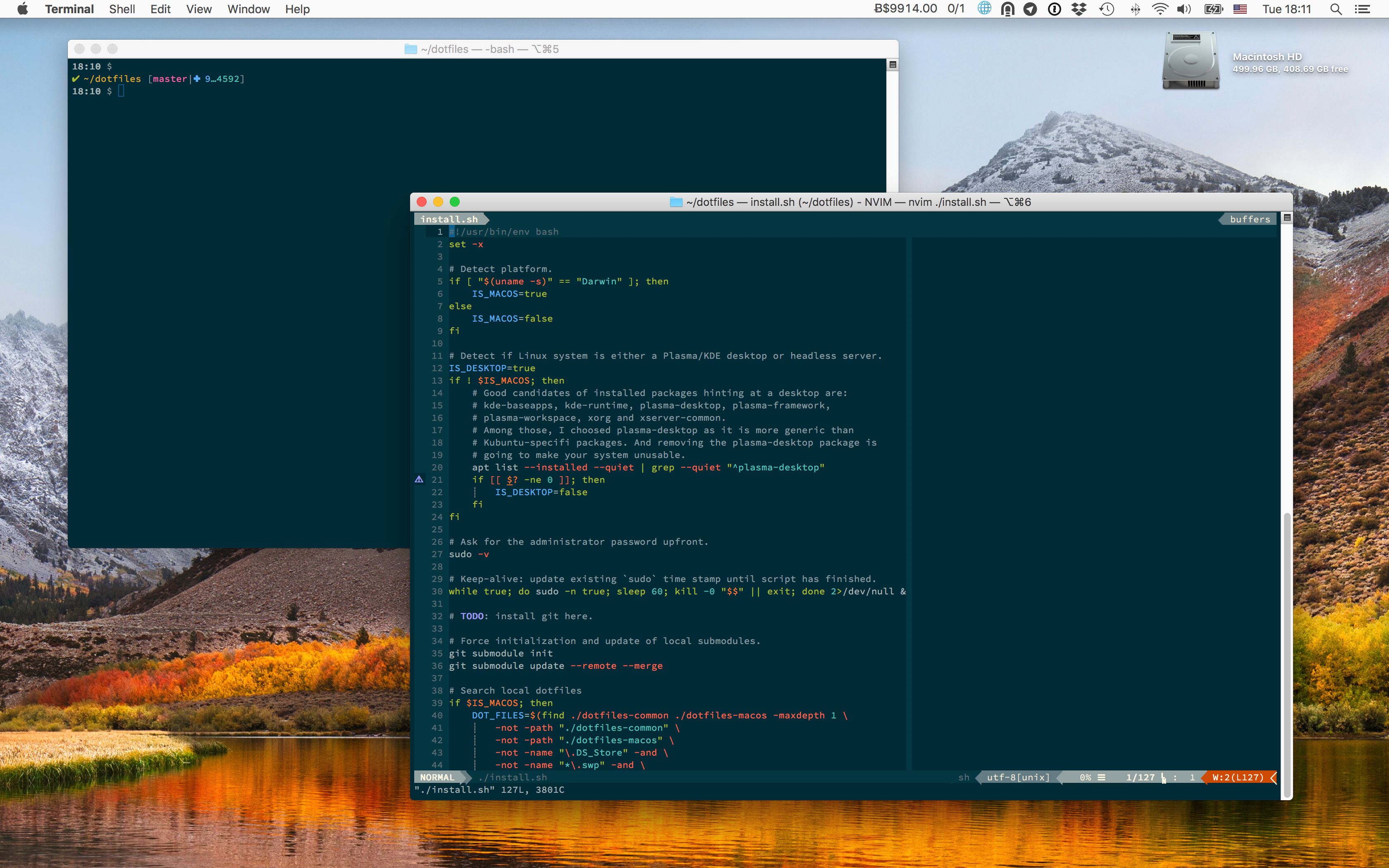
- Aimed at Python programmers using
NeovimandVisualStudio Code. - Targets
ZSHshell (now the default since Catalina). - Produce colored output for most of shell commands.
- All color schemes are based on
Monokai.
The terminal uses the
Monokai Soda
variant instead of the
official Monokai Pro terminal themes: all Pro
variants
map orange to the ANSI blue slot,
which breaks any tool relying on blue semantically (
lsdirectory listings,git diffheaders,manhighlights,dircolors). Monokai Soda keeps purple in the blue slot and has higher contrast on dark backgrounds. - Terminal and coding font is Source Code Pro.
- Keeps macOS fast, lean and secure.
We will reinstall macOS from scratch.
-
Download macOS from the
App Store.app. -
Plug a USB drive to your machine, format it with the Disk Utility app, double-check it is mounted at
/Volumes/Untitled, and finally flash it with the macOS image:$ sudo /Applications/Install\ macOS\ Tahoe.app/Contents/Resources/createinstallmedia --volume /Volumes/Untitled --nointeraction -
Reboot your machine, reinstall macOS, create a user.
-
Login to your new user, and launch
System Preferences.app. -
Go to
Security & Privacy→Privacy→Click the lock to make changes, and then unlock with touch ID or password: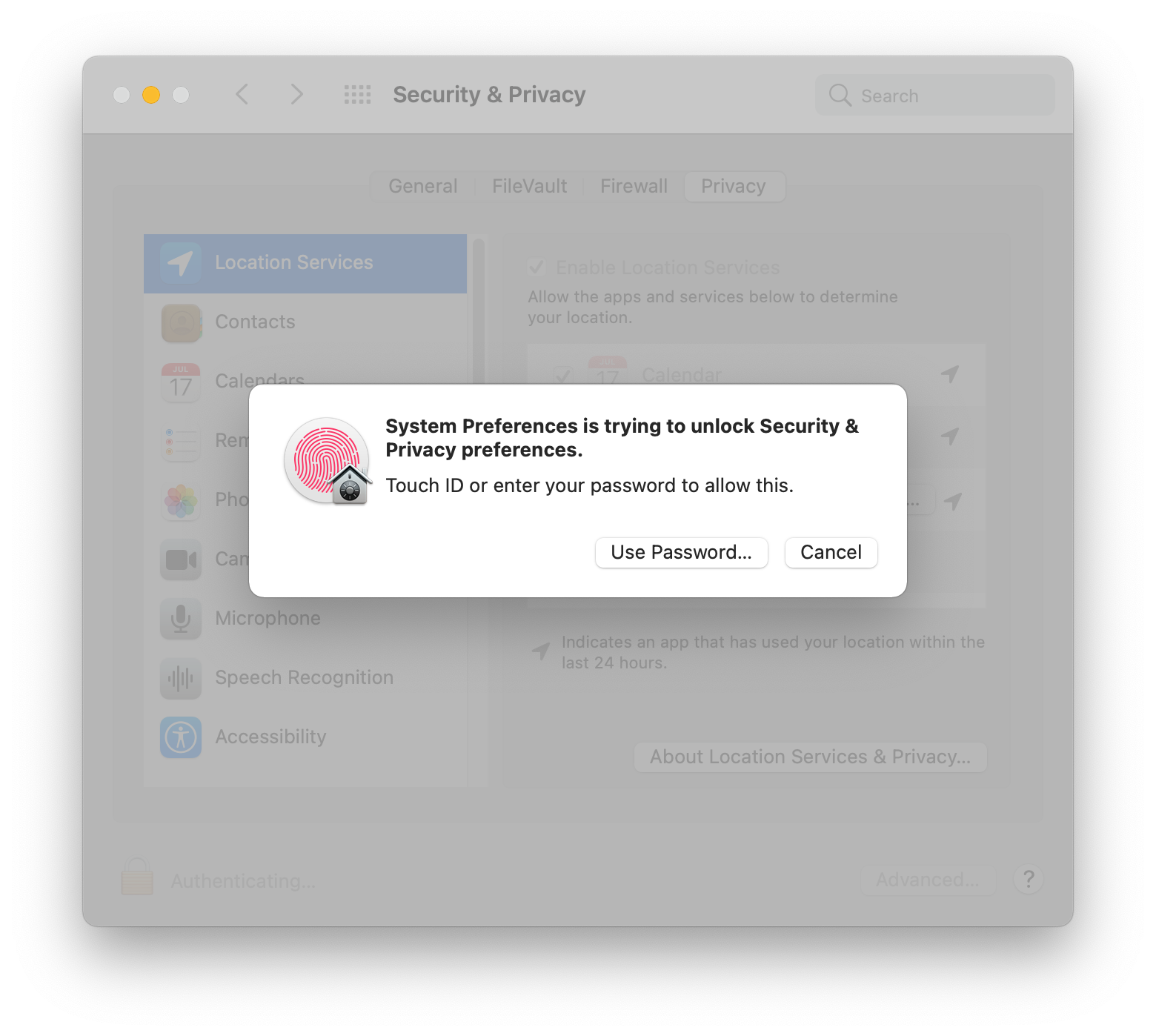
-
Go to
Full Disk Access, click the+button, go toApplications→Utilities, and chooseTerminal.app: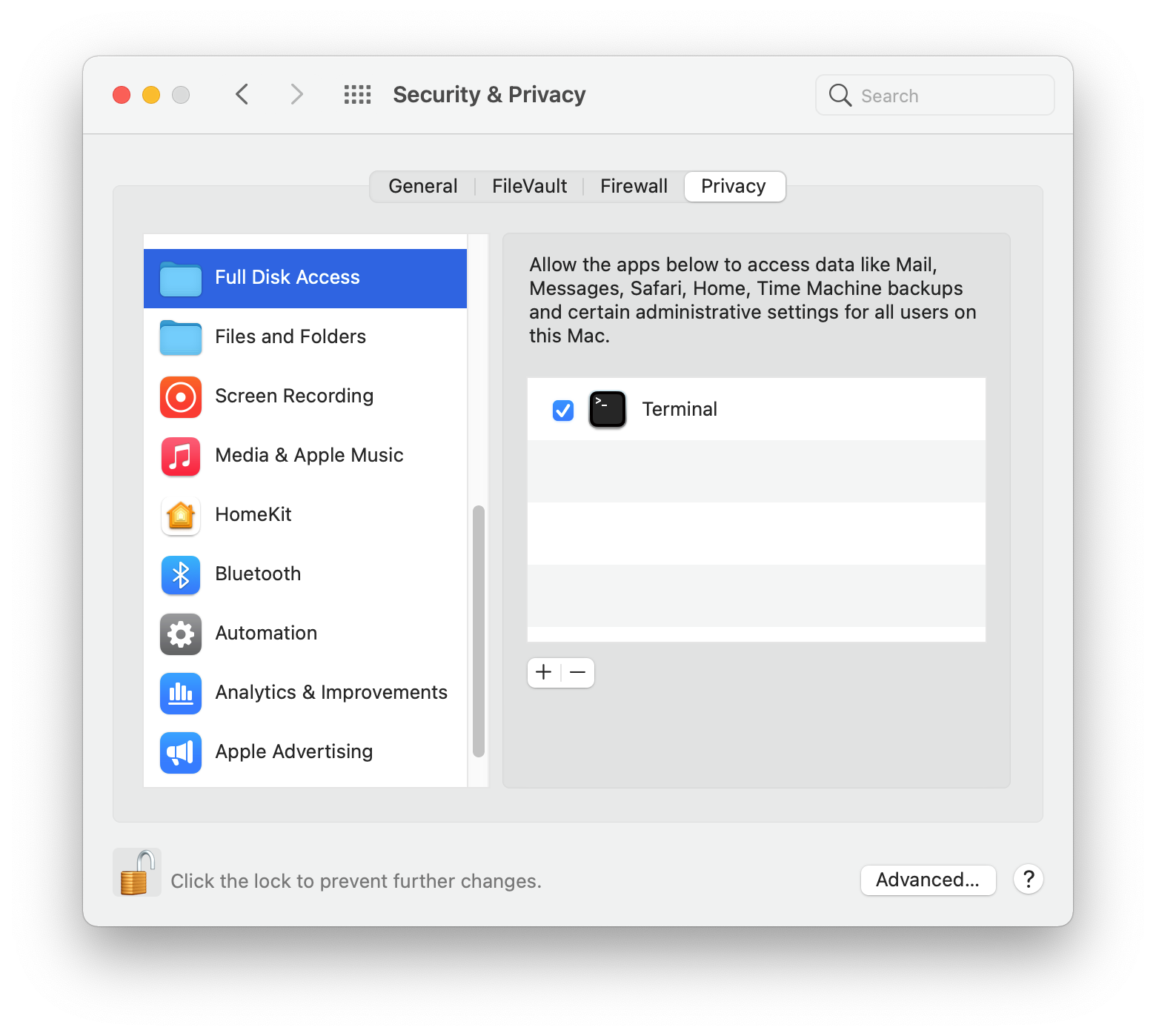
-
First, you need a local copy of this project.
If you're lucky and have
gitalready installed on your machine, do:$ cd ~ $ git clone --recursive https://github.com/kdeldycke/dotfiles.gitIf you don't have
gityet, fetch an archive of the repository:$ mkdir ~/dotfiles $ cd ~/dotfiles $ curl -fsSL https://github.com/kdeldycke/dotfiles/tarball/main | tar --strip-components 1 -xvzf - -
Now you can install the dotfiles on your system:
$ cd ~/dotfiles
$ /bin/zsh ./install.sh 2>&1 | tee ./install.log
The install procedure is decomposed into stages, executed in this order on a full run:
| Stage | What it does |
|---|---|
links |
Symlink the dotfiles into the home folder. |
packages |
macOS updates, Homebrew bootstrap, and full package restore from packages.toml via mpm. |
shell |
Zsh plugins (zinit) and shell completions. |
apps |
Mac App Store packages and per-application setup (QuickLook, SwiftBar, Tor Browser, IINA, Neovim). |
cleanup |
Package caches and orphans, Trash, DNS cache. |
snapshot |
Record the versions of installed packages into packages.toml. |
config |
Apply the whole macos-config.sh. Kills Terminal.app at the end. |
Each stage can be run on its own, or combined with others in the order given:
$ ./install.sh links
$ ./install.sh cleanup snapshot
./install.sh --list prints the available stage names.
Manual setup required to finish up the perfect configuration.
This is a list of manual post-installation steps required to fully configure the system. Haven't found any way to automate them all.
-
In
Displays, set external monitor scale: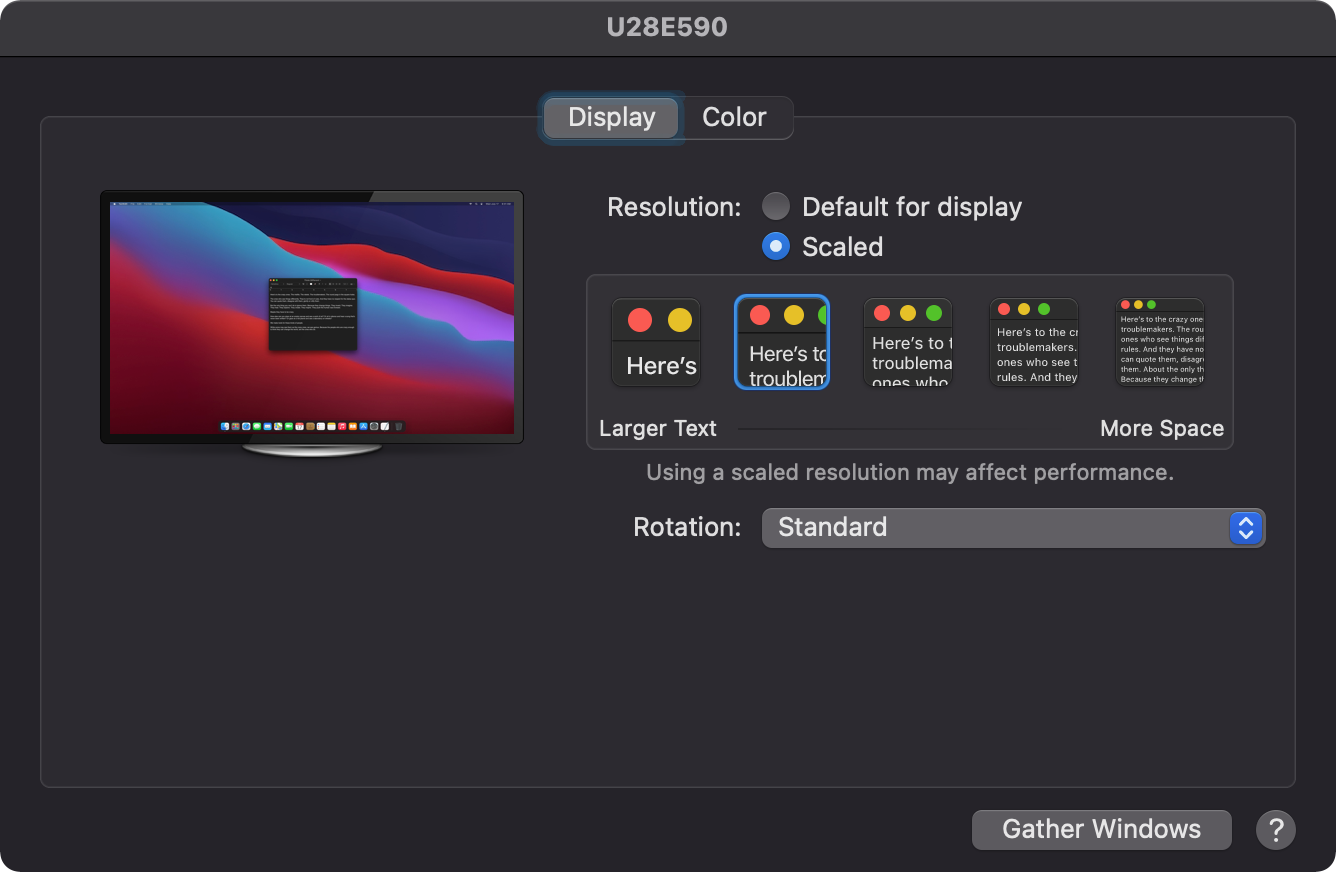
-
In
Touch ID→Add other fingerprints. -
In
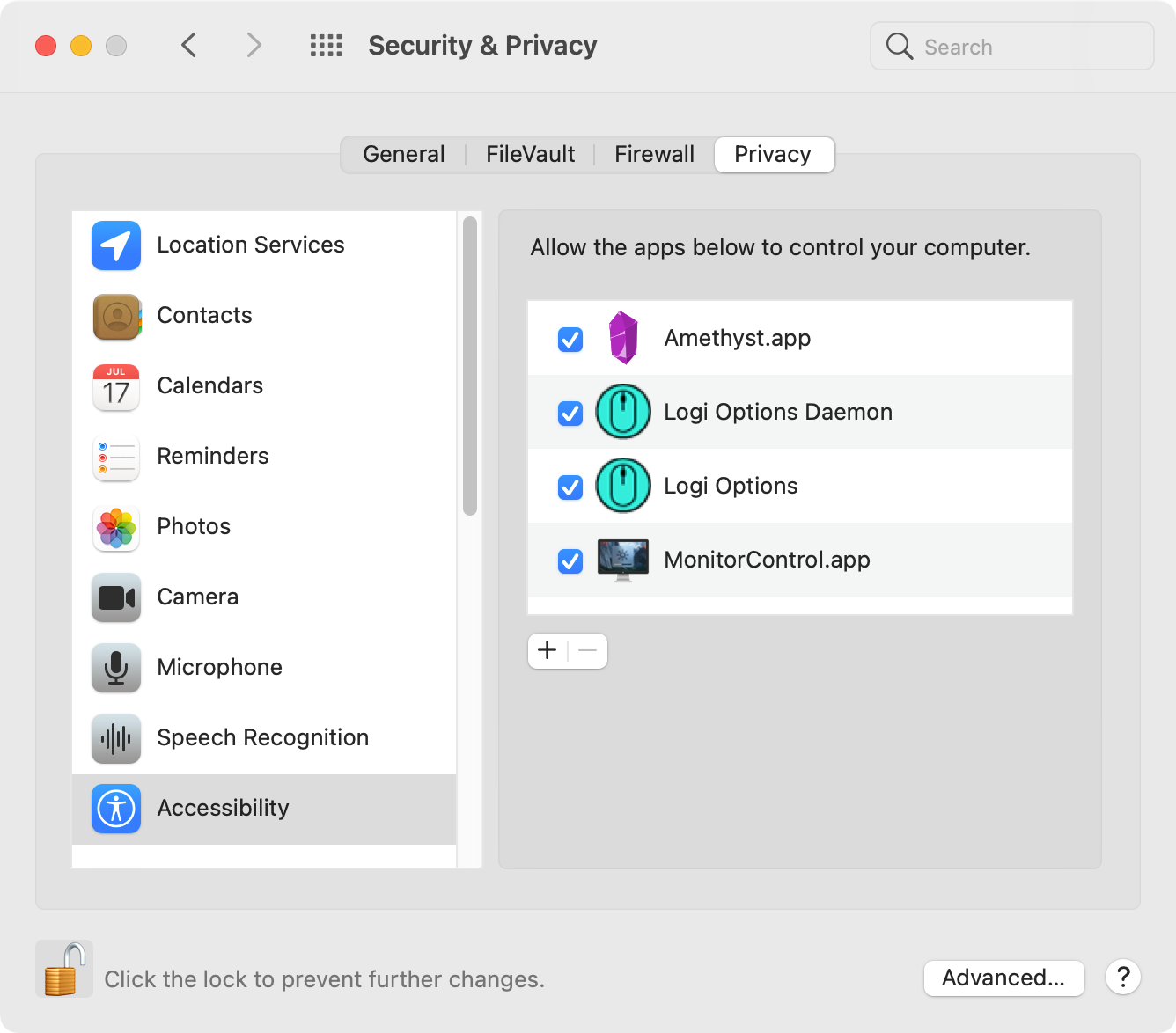
Security & Privacy→Privacy→Accessibility, activate:Amethyst.appLogiMgrDaemon, found atLogi Options.app/Contents/Support/LogiMgrDaemon.appMonitorControl.app
-
In
Security & Privacy→Privacy→Full Disk Access, click the+button. Then go toApplications→Utilities, to add:BlockBlock.appKnockKnock.app
-
In
Security & Privacy→Privacy→Analytics & Improvements: uncheck all options to disallow analytics sharing.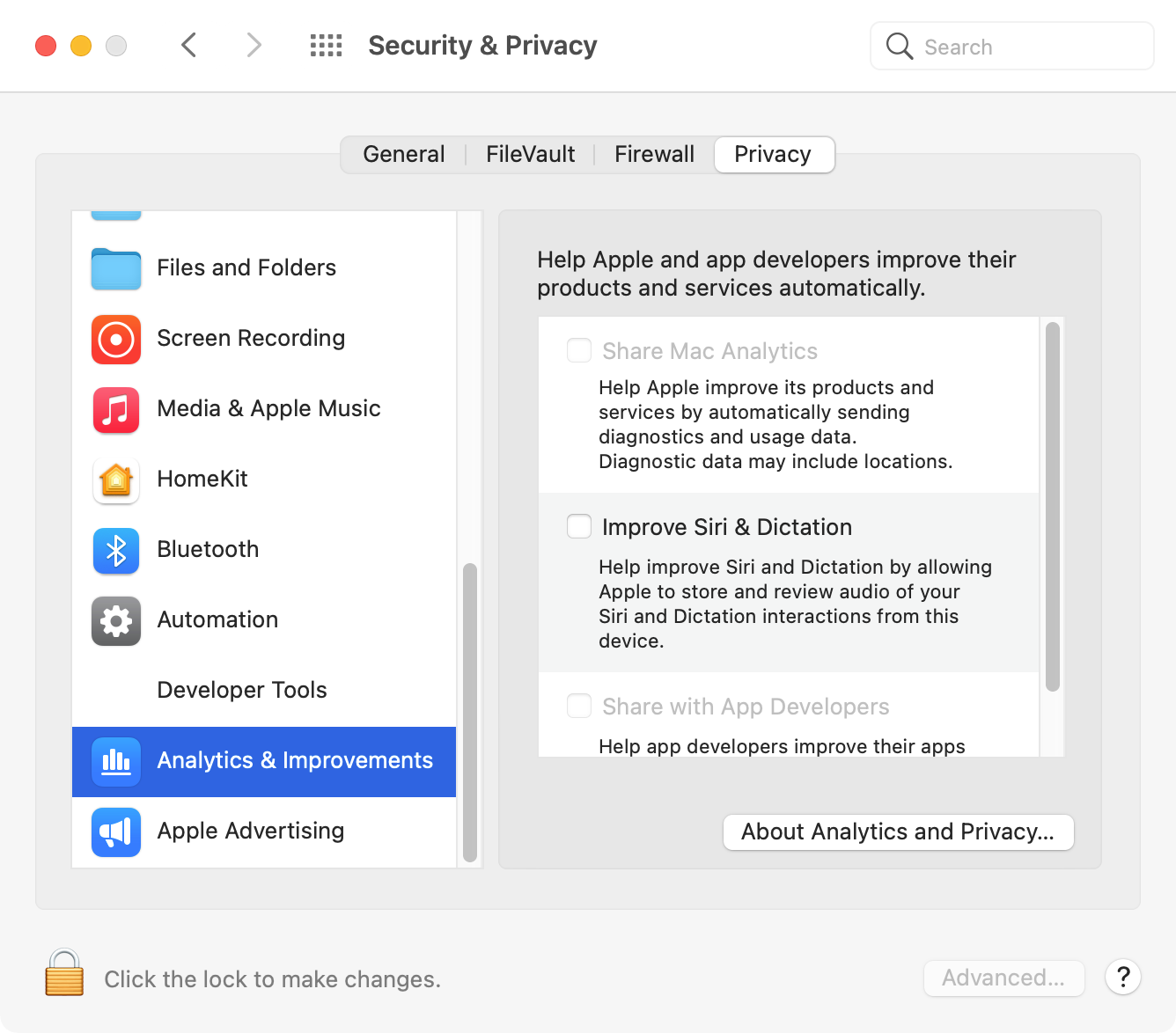
-
In
Security & Privacy→Privacy→Apple Advertising: uncheckPersonalized Adsoption.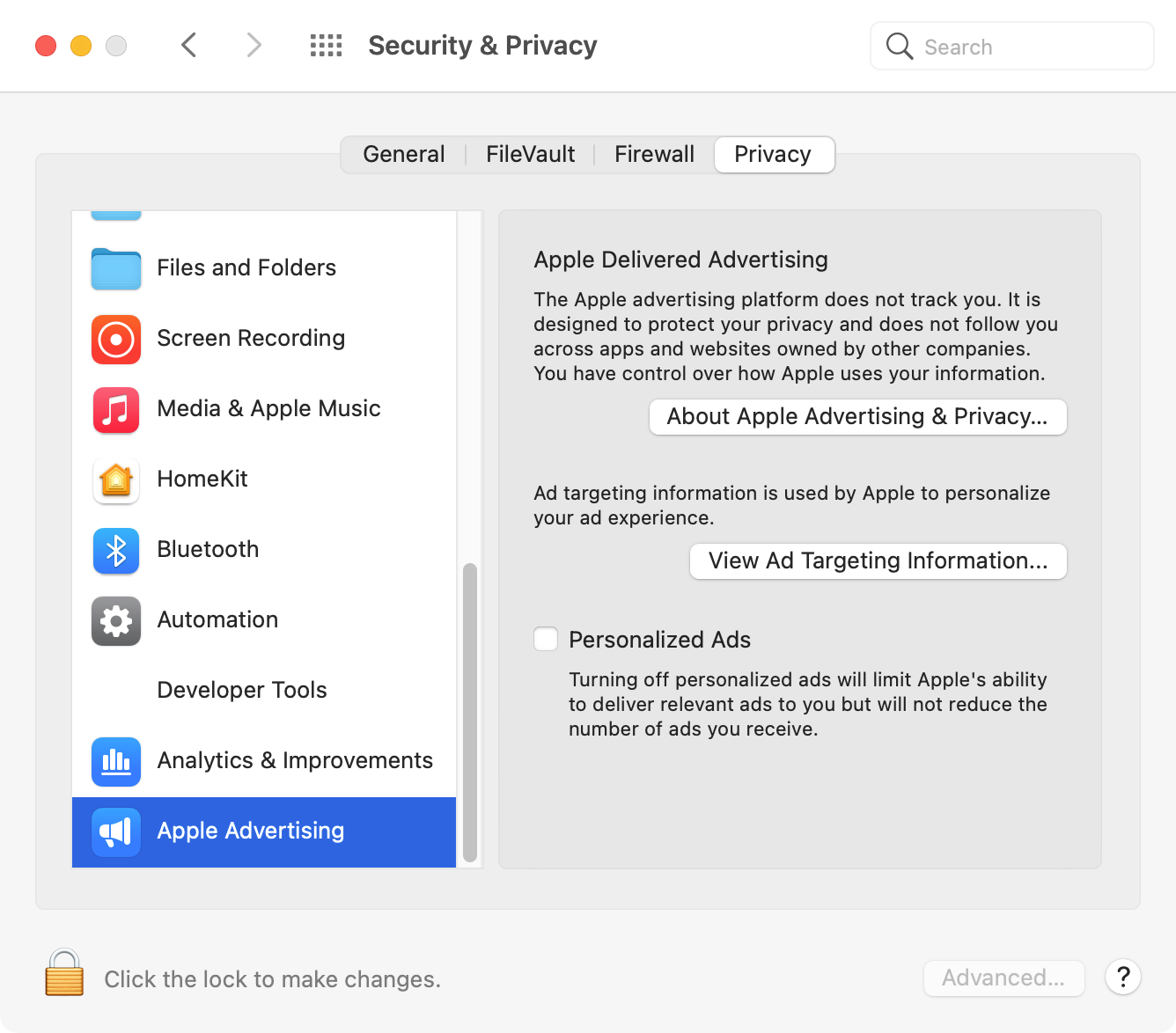
-
In
Security & Privacy→Privacy→Developer Tools, activateTerminal: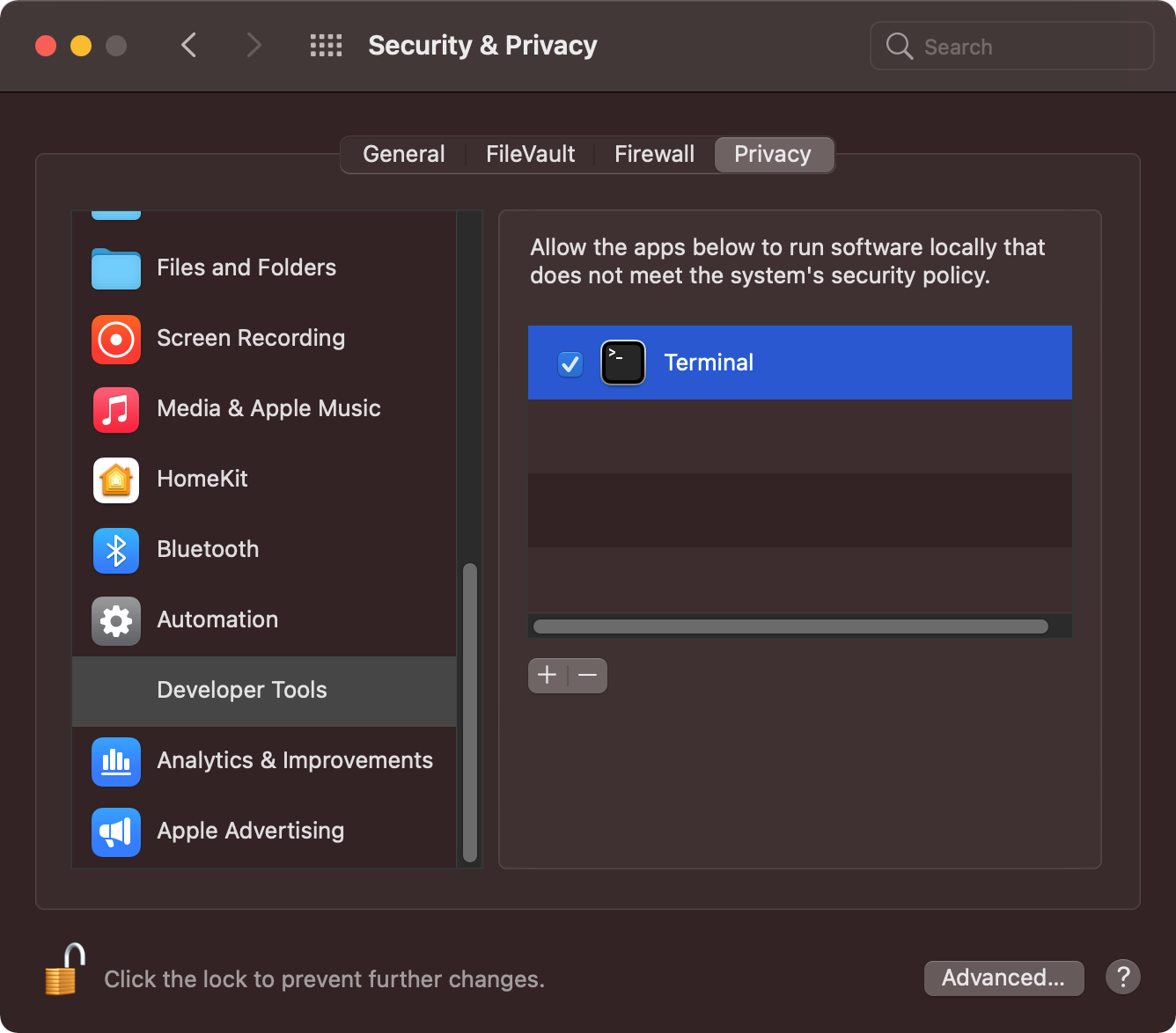
Copy the SSH folder (./dotfiles/dotfiles/.ssh/) from Time Machine backups. After restoring, add the public key to GitHub as both an "Authentication key" and a "Signing key" at https://github.com/settings/keys.
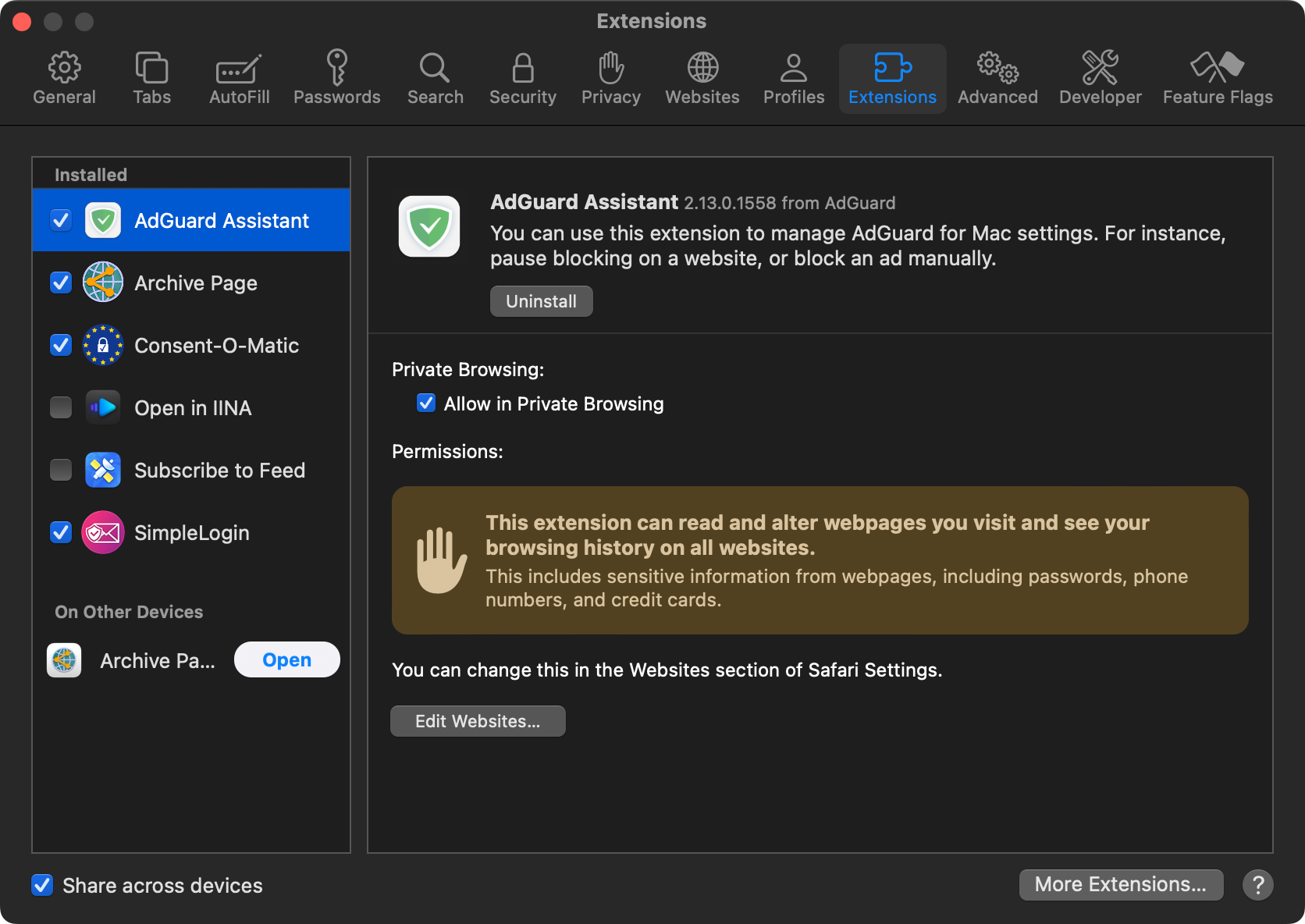
In Preferences... → Extensions, activate:
AdGuard AssistantArchive PageConsent-O-MaticSimpleLogin
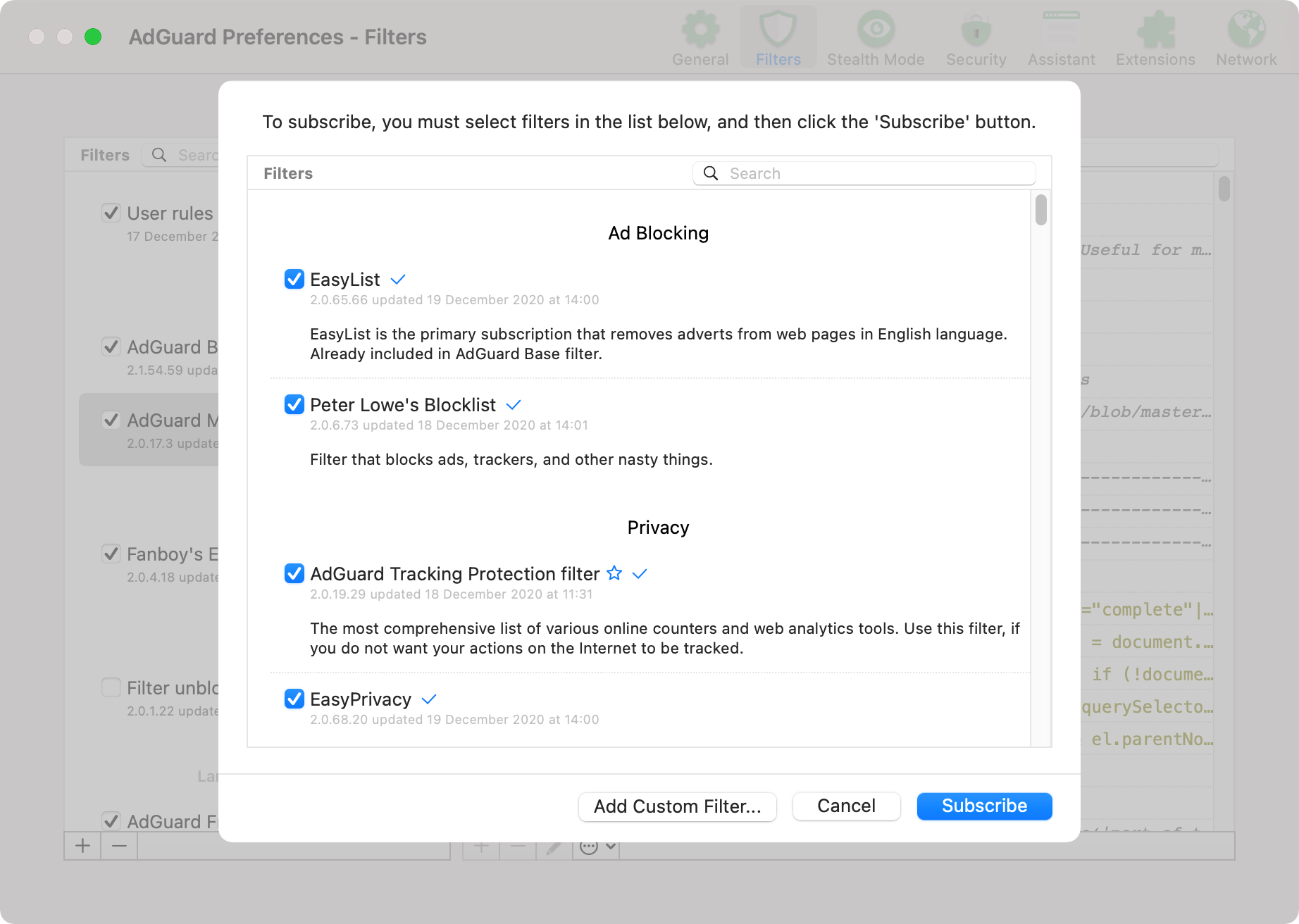
In Preferences... → Filters, click the + button and subscribe to all
filter lists:
~/.claude/settings.json is symlinked to this repo and committed. There is no global settings.local.json: ~/.claude/settings.local.json is not a supported file.
enableWeakerNetworkIsolation: true is set in the sandbox config to work around a macOS sandbox limitation: the sandbox blocks Security.framework IPC to trustd, breaking TLS certificate verification for all CGO-compiled Go binaries (gh, terraform, tofu, etc.) and Keychain access. SSL_CERT_FILE does not help because these binaries use Security.framework directly and ignore file-based certs (anthropics/claude-code#34876).
Claude Code reads skills and agents from the filesystem (~/.claude/skills/ and ~/.claude/agents/, symlinked to this repo), but Cowork and the Desktop chat resolve them from the account-level deployment store and cannot read local files (anthropics/claude-code#76724, anthropics/claude-code#84611). A plugin is what reaches those surfaces, and two catalogs cover my skills:
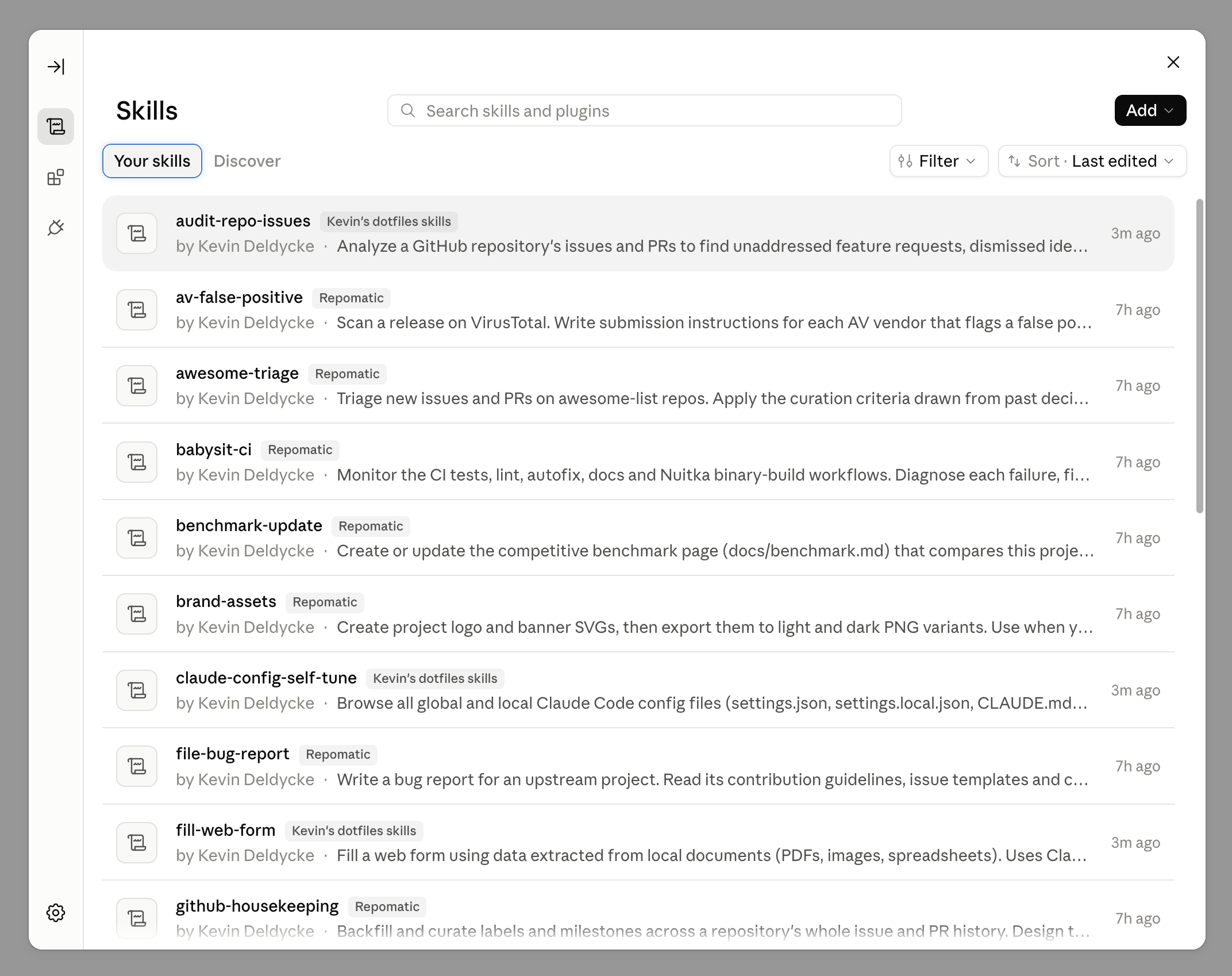
kdeldycke/repomaticcarries the 17 skills and 3 agents that repository owns, which is their canonical source.kdeldycke/dotfilescarries the 6 that live only here:audit-repo-issues,claude-config-self-tune,fill-web-form,pr-triage,rename-with-datesandsession-title.
Add each in the Claude Desktop app under Settings → Customize → Plugins, through Add → Add marketplace → Add from a repository, then install its plugin from the Discover tab. Both verified on 2026-08-29 against Claude Code 2.1.236 and Desktop 1.37937.3. Every skill then appears once, tagged with the catalog it came from:
This repository's own plugin declares its six skills by path, and its root is the repository itself, so an install carries every other file here too: 106 of them, assets and workflows included. Scoping that payload would mean moving the plugin root down to dotfiles/.agents, where skills/ sits at the location the spec scans and all 23 skills would likely be discovered, including the repomatic ones this catalog must not republish. The wasted files are the cheaper of the two.
Adding a public catalog and installing from it needs no GitHub App. Keeping it current on every push does, and that app grants read and write on code, workflows, issues and pull requests, so it is worth a thought before installing. Without it a plugin still updates on request, and the app polls every 20 minutes anyway.
Uploading a release archive by hand still works offline and stays the fallback: download the repomatic-claude-plugin.zip asset of the latest kdeldycke/repomatic release and use Add → Upload plugin. It costs an upload per release, since such a plugin reports its source as Uploaded from file, shows no version and offers no update check. Keep that filename version-free: the app derives the plugin name from it, and a versioned name installs a duplicate instead of updating (anthropics/claude-code#20697).
Diagnose any of this from ~/Library/Logs/Claude/main.log, never the dialog, which reports a bare "Marketplace sync failed" naming no cause. Findings are tracked in kdeldycke/repomatic#2540.
/wrapup-session (the shared skill) closes out a session: loose ends, then lessons worth persisting. Claude Code cannot quit after a turn, so run it by hand before exiting; a SessionEnd hook prints a reminder when an interactive exit skipped it.
~/.pi/agent/settings.json is symlinked to this repo and committed. Session logs, auth tokens and model caches stay local to the machine.
/bye (from the bye.ts extension) runs the shared wrapup-session skill as a final turn, then quits once it settles. A plain /quit or Ctrl+D prints a one-line reminder instead.
For productivity, setup custom trackball shortcuts with macOS desktop management tools and Amethyst windows commands.
Page-up button assignment → Smart zoom:
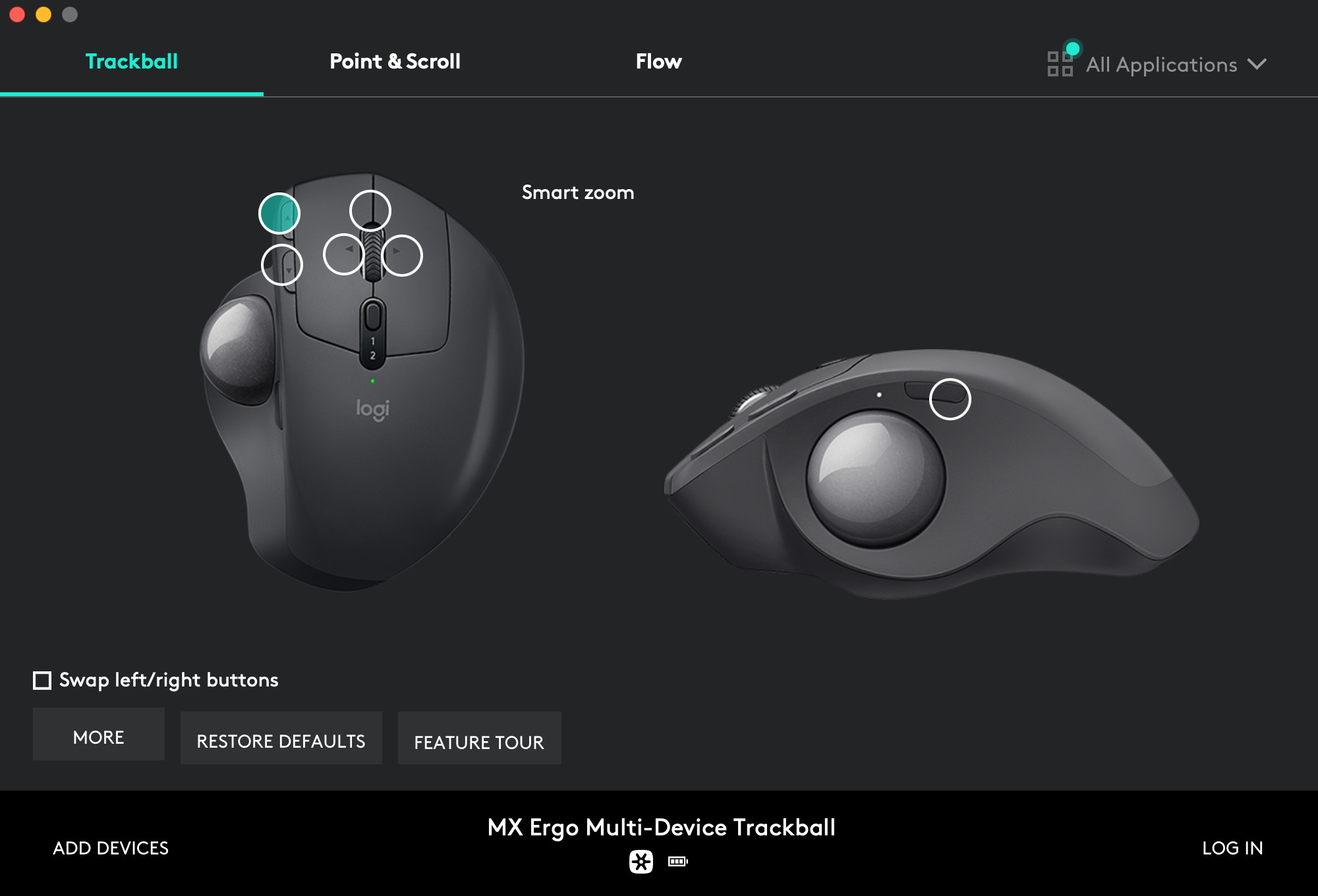
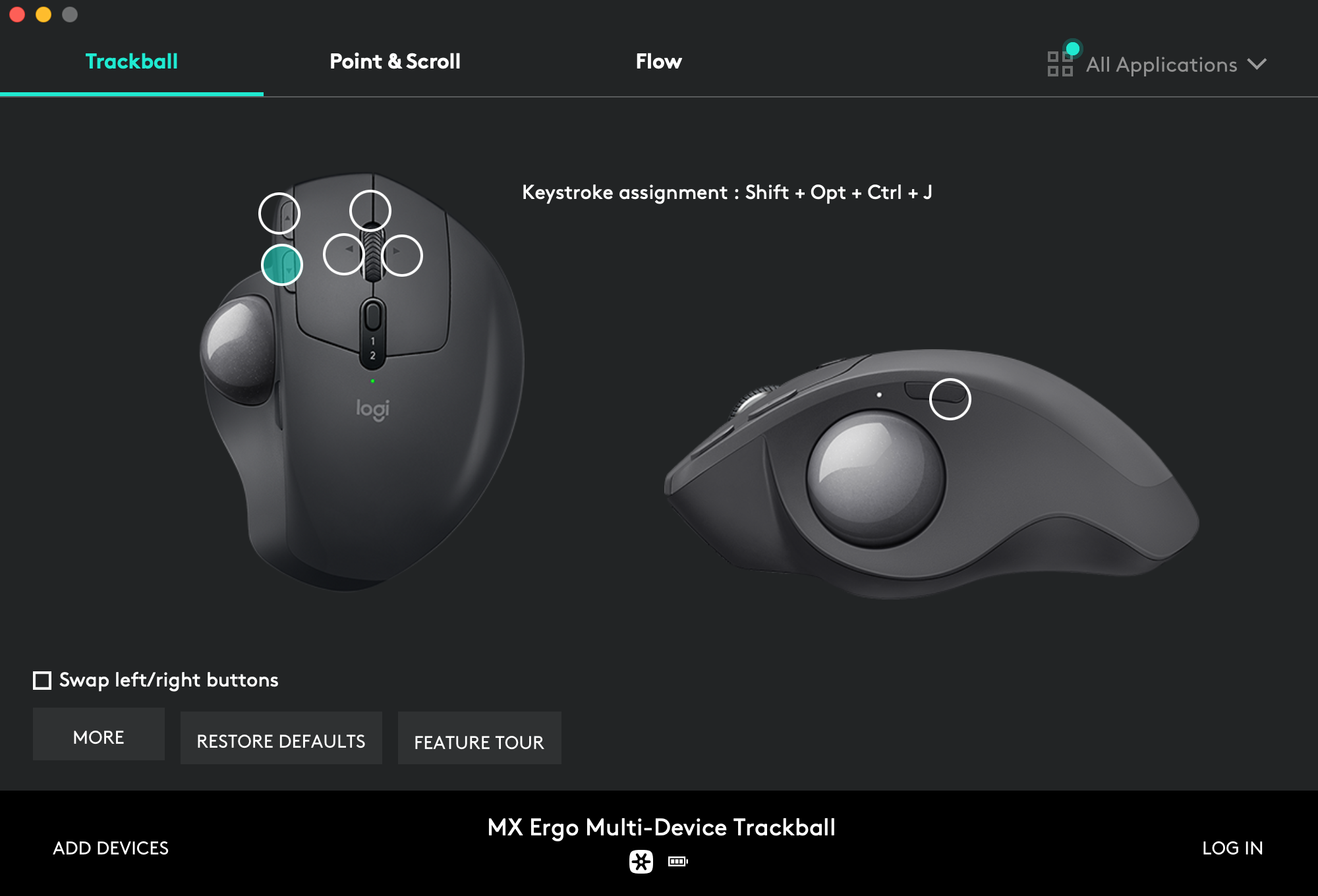
Page-down button assignment → Shift + Opt + Ctrl + J:
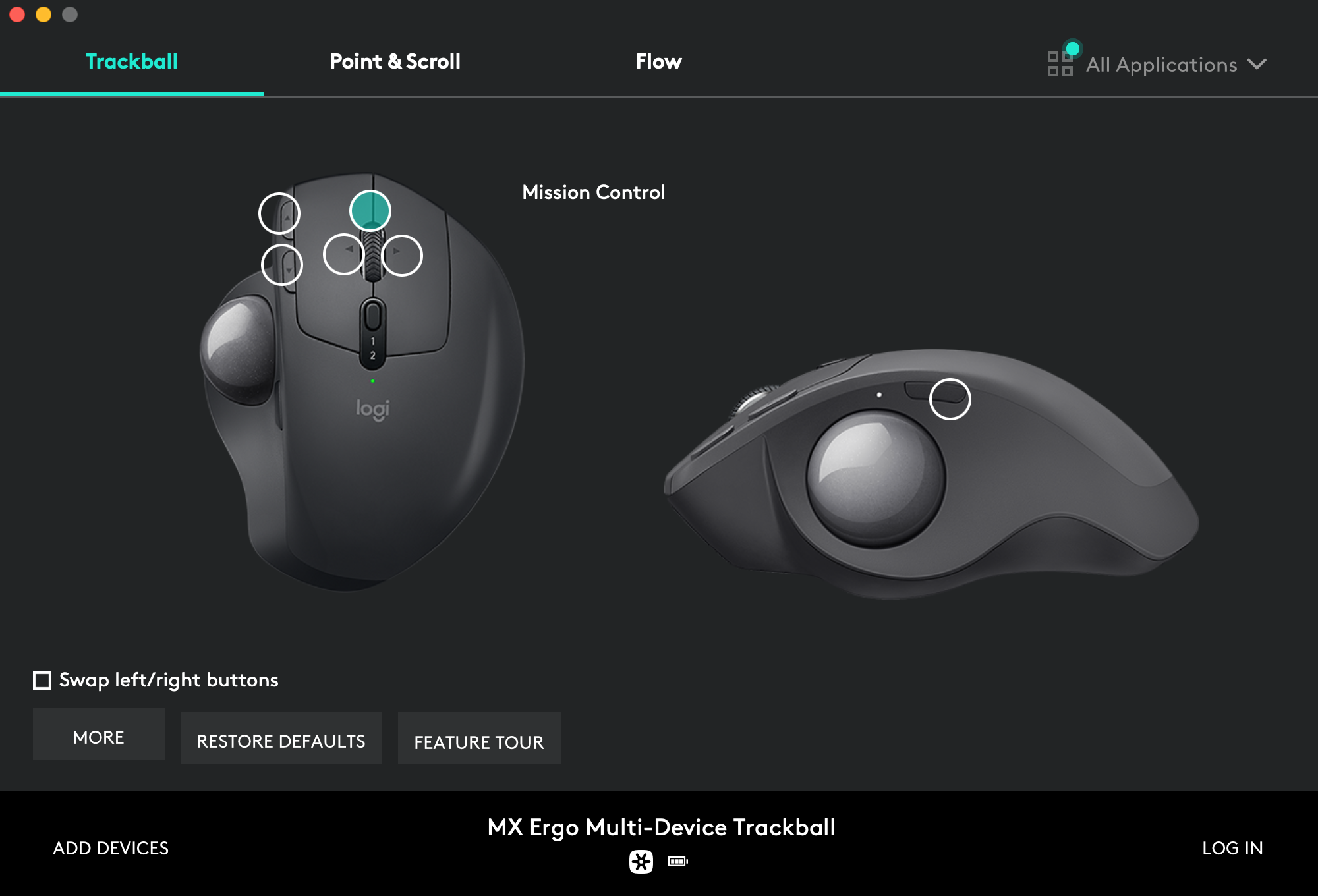
Wheel click button assignment → Mission Control:
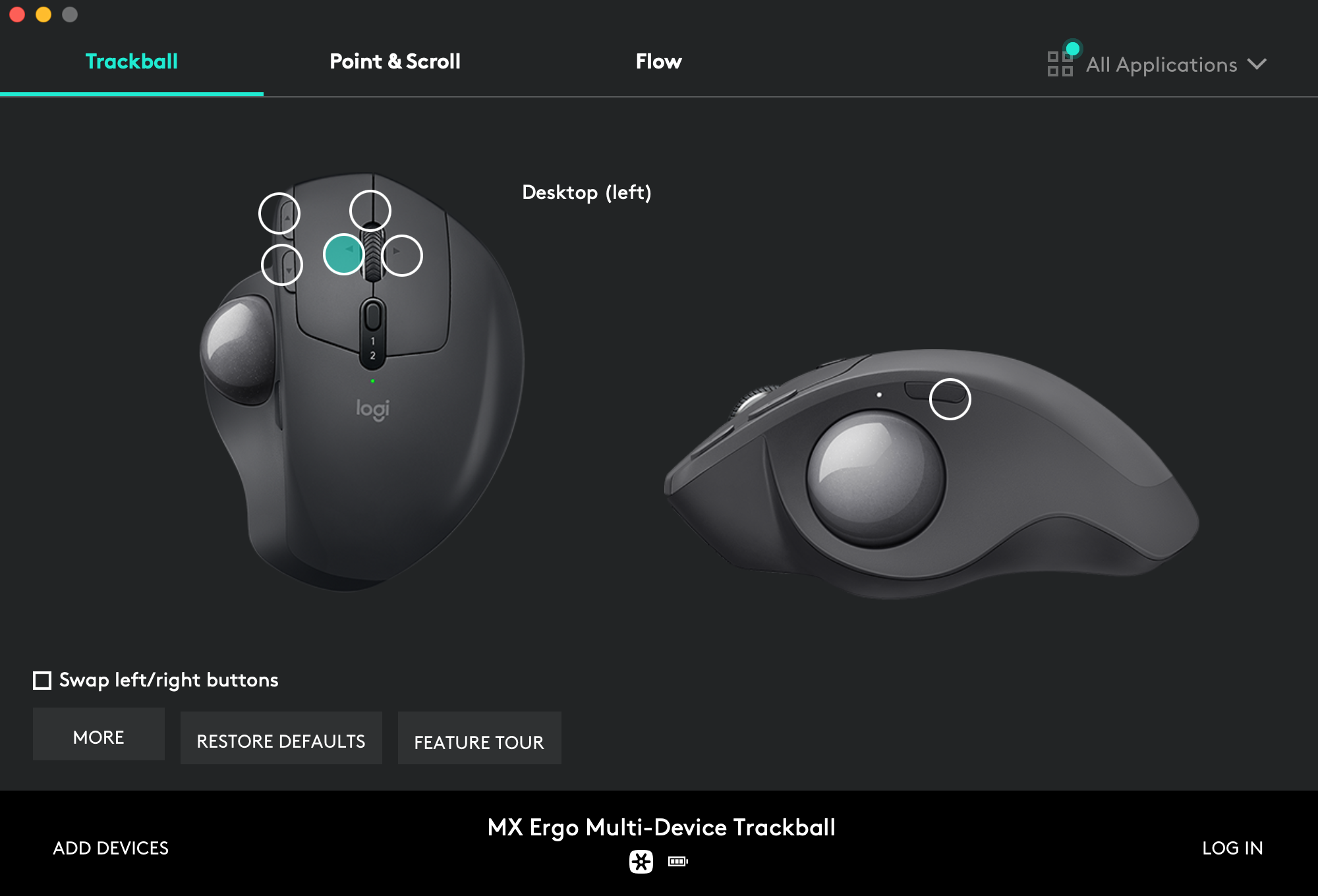
Wheel left click assignment → Desktop (left):
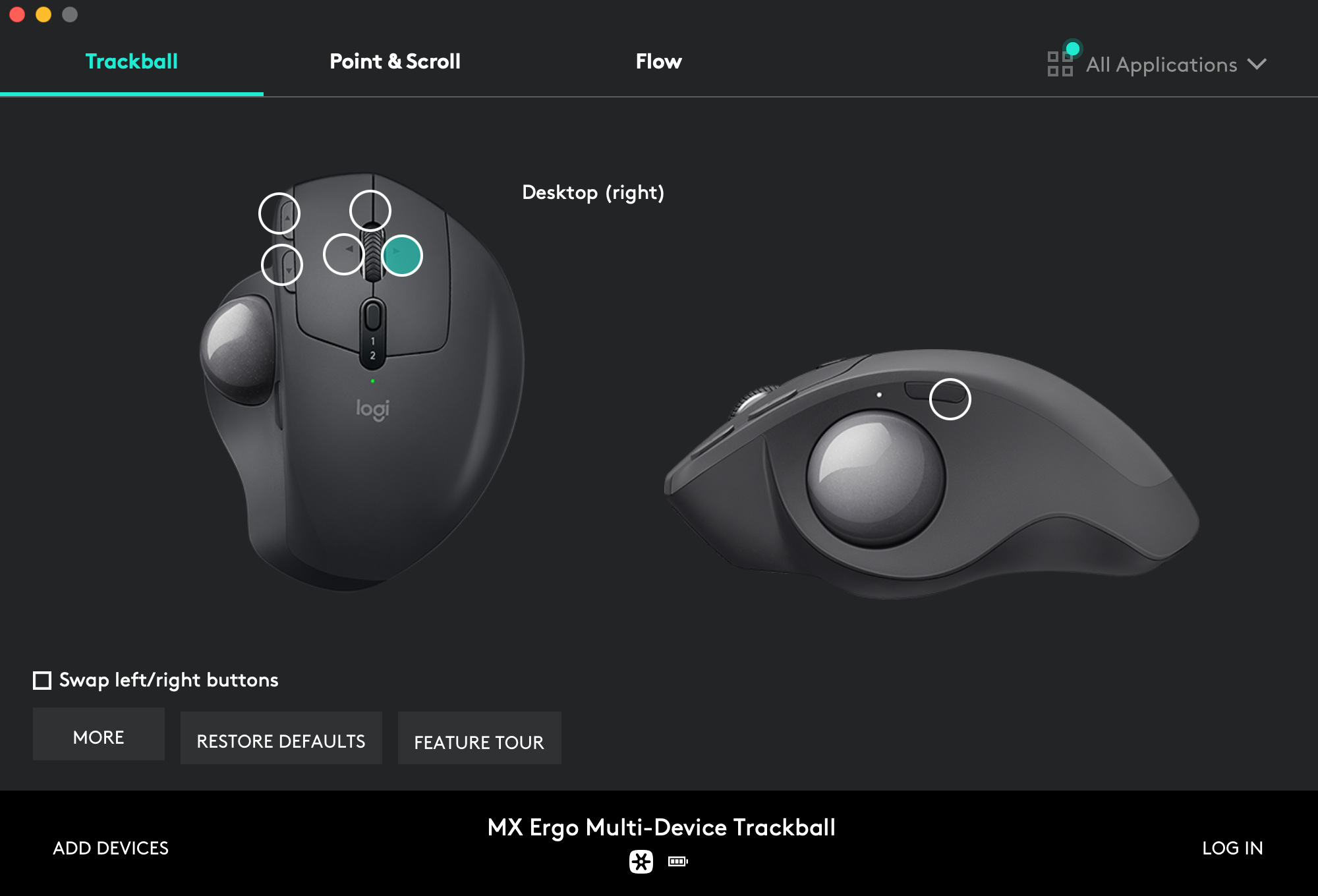
Wheel right click assignment → Desktop (right):
Side button assignment → Shift + Opt + Space:
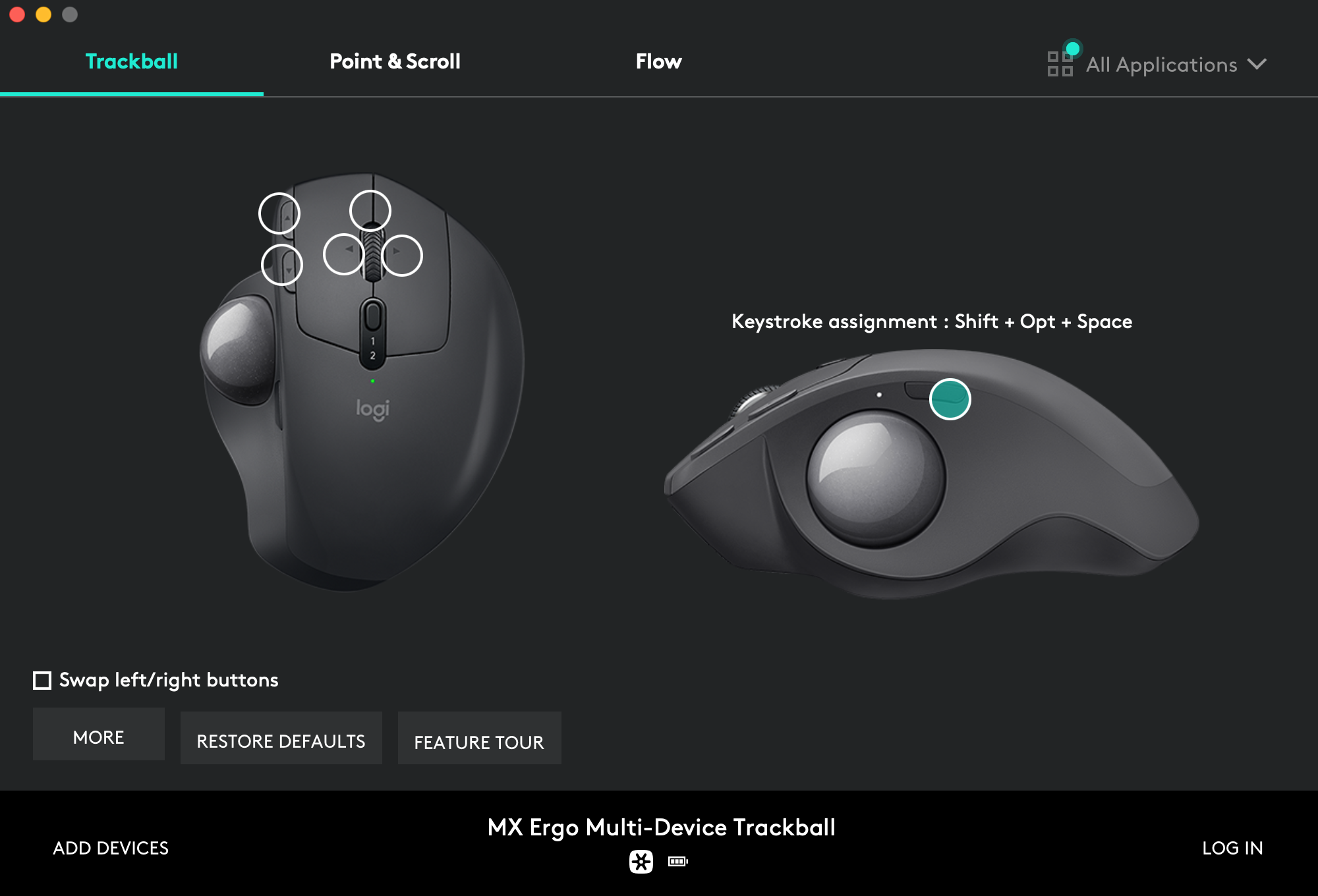
Side button assignment → Shift + Opt + Space:
I'm trying to make the install procedure idempotent so you'll just have to call the script again to upgrade your system:
$ ./install.sh 2>&1 | tee ./install.log
To refresh only a part of the system, call the corresponding stage, like ./install.sh packages to upgrade packages without touching the rest.
It mainly consist in refreshing some assets at every macOS major release:
-
Regenerate
Monokai Soda.terminalprofile. -
Keep list of packages up-to-date:
$ ./install.sh snapshot -
Update screenshots. 😖
-
Run the security audit below.
At every macOS major release, I audit macos-config.sh against the NIST macOS Security Compliance Project (mSCP) to catch security settings that the new release moved, renamed or retired. Security-related lines in the script are tagged with their stable mSCP rule id (like system_settings_firewall_enable) so a failing rule maps straight back to the line to update.
-
Clone the mSCP branch named after the macOS release (
tahoefor macOS 26,sequoiafor macOS 15, and so on):$ git clone --branch tahoe --depth 1 https://github.com/usnistgov/macos_security.git $ cd macos_security -
Build a tailored CIS level 1 baseline. The interactive prompts let me exclude the deliberate exemptions listed below and set my own organization-defined values (like the 600 seconds screen saver timeout, the 30 days audit retention, or
time.euro.apple.comas time server):$ uv run --with-requirements requirements.txt scripts/generate_baseline.py --keyword cis_lvl1 --tailor -
Generate the compliance script from the tailored baseline and run it in check-only mode:
$ uv run --with-requirements requirements.txt scripts/generate_guidance.py --script build/baselines/cis_lvl1.yaml $ sudo zsh build/cis_lvl1/cis_lvl1_compliance.sh --check $ sudo zsh build/cis_lvl1/cis_lvl1_compliance.sh --stats -
Reconcile every failing rule: port the rule's
fixcommand intomacos-config.sh(tagged with its mSCP rule id), or add the rule to the exemption list below. Then re-runmacos-config.shand check again: macOS upgrades silently reset some settings (launchd service overrides andpmsetvalues in particular), and re-running the script is the intended remedy. Rules marked "implemented by a Configuration Profile" have no CLI equivalent: generate the profiles with--profiles(or--consolidated-profile) and import them viaSystem Settings.app→Privacy & Security→Profiles.
Deliberate exemptions, to exclude when tailoring the baseline:
os_airdrop_disable: AirDrop stays enabled, on all interfaces.os_gatekeeper_enable: Gatekeeper assessments stay on, but I disable theLSQuarantineprompt, and theSIP_DISABLEDbranch of the script adds a Developer Tools bypass for Terminal.os_handoff_disable: Handoff between my devices stays enabled.os_loginwindow_adminhostinfo_disabled: I show the hostname at the login window on purpose.pwpolicy_*: no password lockout, history or rotation policy on a personal machine.system_settings_firewall_enableandsystem_settings_firewall_stealth_mode_enable: enforced withsocketfilterfwinstead of a configuration profile, so the check (which reads the managed preference) can report a false failure while the firewall is actually on.
Rules that stay check-only without an MDM, to carry into the generated configuration profile instead of macos-config.sh: os_mail_summary_disable, os_notes_transcription_disable, os_notes_transcription_summary_disable, os_on_device_dictation_enforce, os_software_update_deferral, os_writing_tools_disable, system_settings_external_intelligence_disable and system_settings_external_intelligence_sign_in_disable. A few others (Siri, AirPlay receiver, Internet Sharing) are set by macos-config.sh through their real preference keys, but only the corresponding profile payload prevents re-enablement. system_settings_time_machine_encrypted_configure stays manual: encryption is picked when selecting the backup disk.
Only the current default main branch is supported and actively maintained.
Older branches are available for archive.
- macOS 26 (Tahoe) (current)
- macOS 15 (Sequoia)
- macOS 14 (Sonoma)
- macOS 13 (Ventura)
- macOS 12 (Monterey)
- macOS 11 (Big Sur)
- macOS 10.15 (Catalina)
- macOS 10.14 (Mojave)
- macOS 10.13 (High Sierra)
- macOS 10.12 (Sierra)
Former support of Kubuntu and Ubuntu Server Linux distributions has been dropped. You can still find these as dedicated branches, but all are quite ancient (2016).
For convenience, some third party code and assets are hard-copied in place. These particular items have their own license and copyright:
The rest of the content is configuration and code I accumulated over years. Some was heavily inspired by other dotfiles repositories. But each time I borrow something, I try to credit the author and/or point to the source. You should be able to trace back the origin of things by looking at the commit history.
If you can't find any clue about an external source, then assume it is original content I produced, which I released under the BSD 2-Clause License.