Firmware for the M5Stack T-Lite (SKU K126), a thermal camera built from an M5StickC Plus and an MLX90640 Thermal HAT.
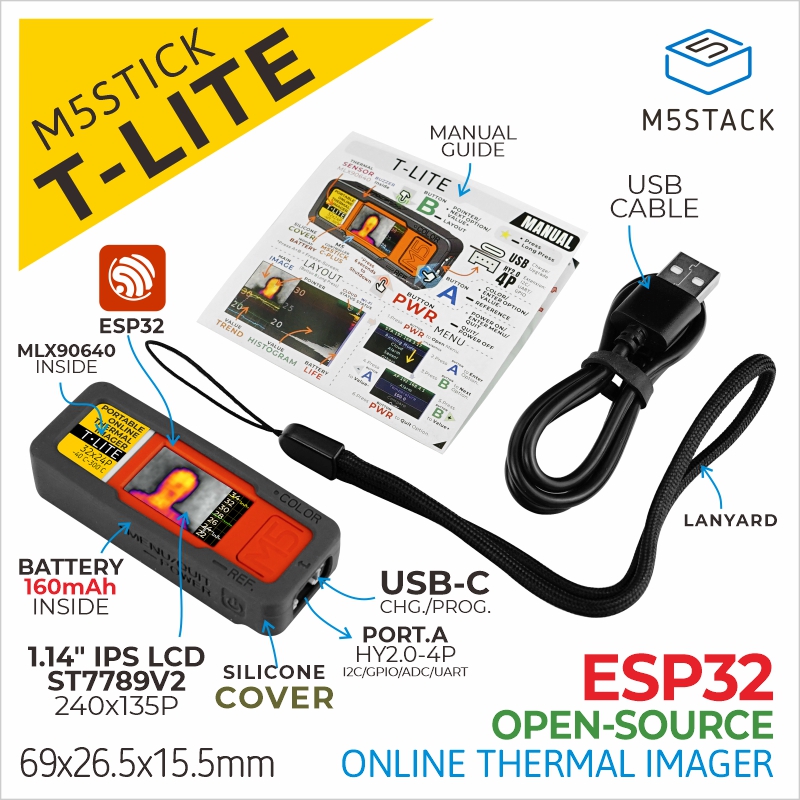
| Main unit | Thermal sensor |
|---|---|
| M5StickC Plus | MLX90640 Thermal HAT |
| M5StickC Plus SE | MLX90640 Thermal HAT |
The same firmware image runs on both main units. T-Lite does not use the internal IMU, which is absent from the Plus SE.
- Thermal image display with multiple layouts and color palettes
- Temperature range, refresh rate, noise filter, and emissivity settings
- Wi-Fi setup from a phone using an access point and QR codes
- Browser control, temperature data, and MJPEG streaming over the local network
- Access by IP address or mDNS hostname
- Battery level and charging status in the upper-right status row
- Runtime heap, task stack, and Wi-Fi diagnostics at
/health
- On T-Lite, open Network > WiFi Setting > AP mode.
- Scan the displayed Wi-Fi QR code with a phone. To connect manually, select
T-Lite_xxxxand enter12341234as the password. - After the phone joins the T-Lite network, scan the new QR code or open
http://192.168.4.1/wifi. - Select a nearby network from the SSID list, enter its password, and save.
- Reconnect the phone to the same local network as T-Lite.
If the SSID list is still being populated, wait for the page to refresh or select Refresh networks. When all phones leave the setup access point, T-Lite shows the Wi-Fi connection QR code again.
After Wi-Fi setup, the Network menu provides QR codes for local access.
| Method | Address |
|---|---|
| IP address | The address assigned by the local router |
| mDNS | http://t-lite-xxxx.local/ |
The home page links to browser control, text and JSON temperature data, system health, and the MJPEG stream. If the network or phone does not support mDNS, use the IP address instead.
The mDNS hostname changed from T-Lite_xxxx.local to t-lite-xxxx.local. Update
saved bookmarks created with older firmware.
The battery icon shares the upper-right status row with the Wi-Fi and cloud icons.
| Appearance | Meaning |
|---|---|
| Green | Battery is charging |
| White | Battery is not charging |
| Gray | Charging state is unavailable |
| Dash inside the icon | Battery level is unavailable |
The filled portion represents the estimated battery level and updates about once per second. A USB connection does not always mean that the battery is actively charging.
This project uses PlatformIO. The framework is pinned to Espressif32 6.12.0, which includes Arduino-ESP32 2.0.17.
Build the release firmware:
pio run -e releaseUpload it to a connected device:
pio run -e release -t uploadFor verbose runtime logging, use the debug environment:
pio run -e debugThe application image is generated at .pio/build/release/firmware.bin. It is an
application-partition image for address 0x10000; use the PlatformIO upload command
above when writing a complete device.