



AI Scheduler is an Obsidian plugin that runs your AI tasks automatically in the background — on a schedule, at a set time, or when files in your vault change.
Instead of manually opening a chat sidebar every time, you describe what you want once, set a cadence, and the plugin handles execution for you: running periodic vault reviews, summarizing notes, processing project folders, generating reports, and more — while you work or sleep.
It works with two backends you likely already have installed:
AI Scheduler does not call AI providers directly. It drives Claudian or Copilot — whichever you have configured — and owns only the scheduling and execution layer.
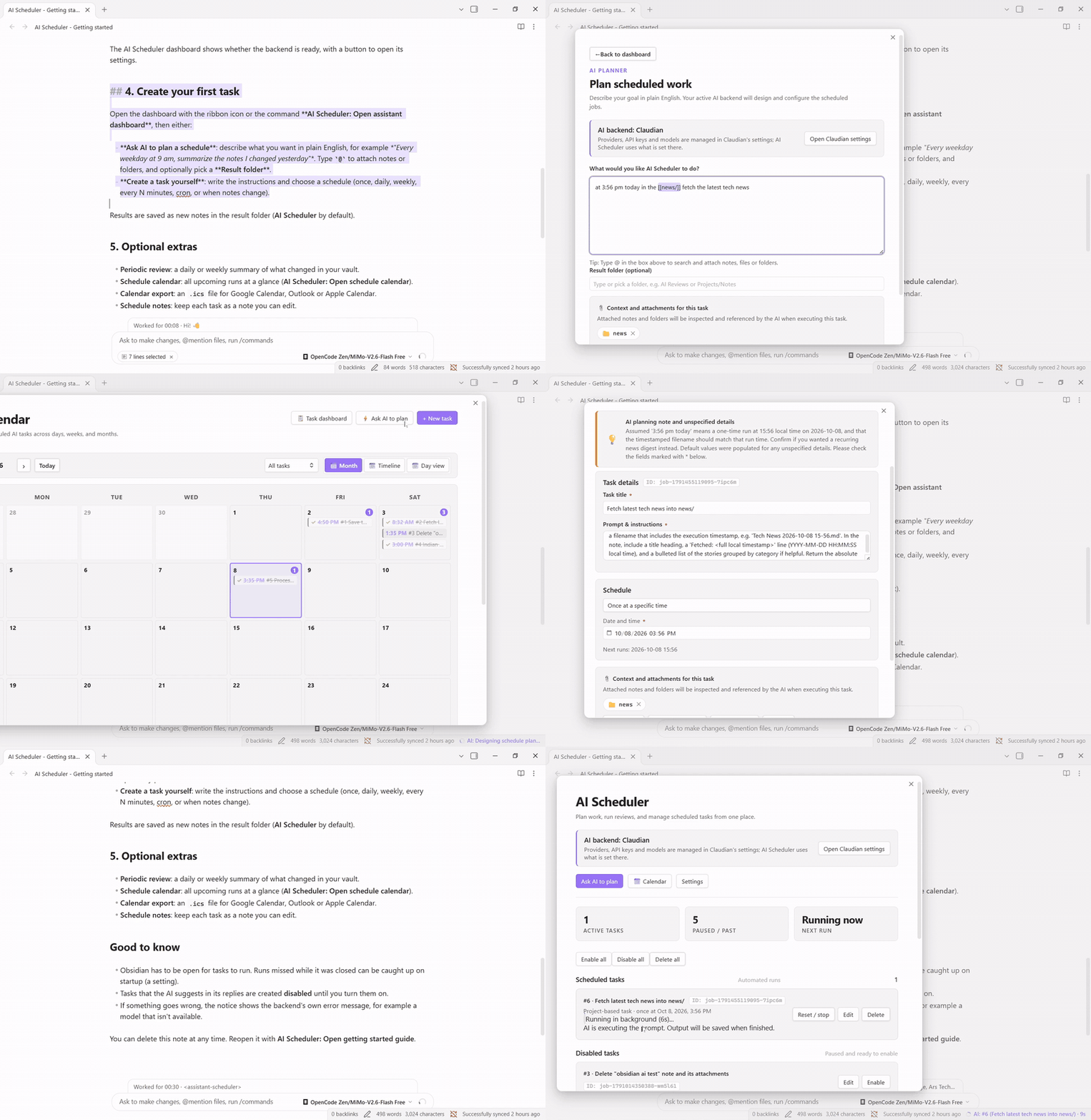
Describe a task in plain English → AI Scheduler plans it, schedules it and runs it.
Scheduled tasks — Create jobs that run on any cadence: every morning at 9 AM, every 30 minutes, on specific weekdays, or with a full 5-field cron expression. Set a prompt once and let it run repeatedly.
Periodic review — Daily, weekly, every N days or every N hours, the plugin gathers the notes you changed since the previous review, sends them to your AI backend for analysis, and saves a structured report (key progress, open loops, recommendations) as a Markdown file in your vault.
Event-driven triggers — Run a job when a note in your vault is modified or created (the plugin's own output, review and schedule folders are ignored). The job fires at most once per cooldown period you choose, and the AI is told which file changed.
Natural language planner — Type a goal like "every Friday afternoon, summarize this week's project notes and write a brief to the AI Reviews folder" and the planner converts it into a properly configured scheduled job.
Vault-synced schedule notes — Optionally mirror every task as a Markdown note with YAML frontmatter. Edit the note in Obsidian or edit the dashboard UI — both stay in sync.
Calendar export — Keep an .ics file of upcoming runs up to date and import it into Google Calendar, Outlook or Apple Calendar (or subscribe to it, if you sync the file somewhere with a public link). One-way: the plugin only writes the file.
Trash & restore — Deleted tasks go to a trash section. You can restore them individually, restore all at once, or permanently delete them.
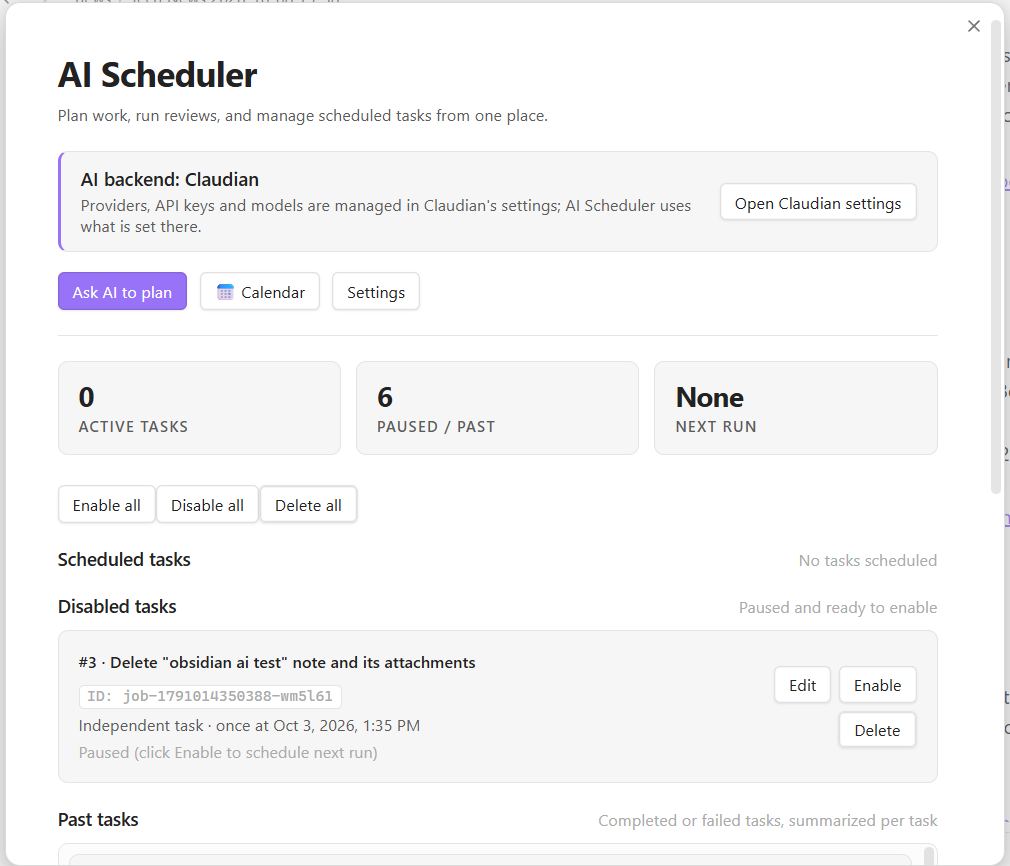 Dashboard: backend status with a shortcut to its settings, task counts, and every task in one place. |
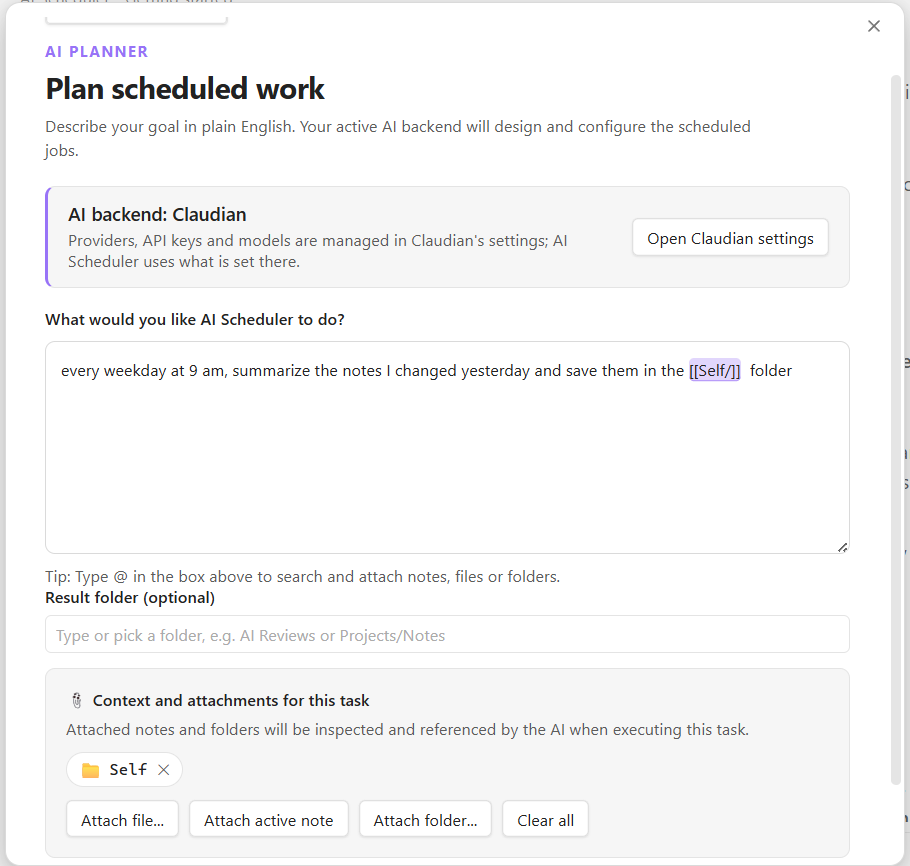 AI planner: describe the task in plain English; @ attaches notes or folders, shown as highlighted links. |
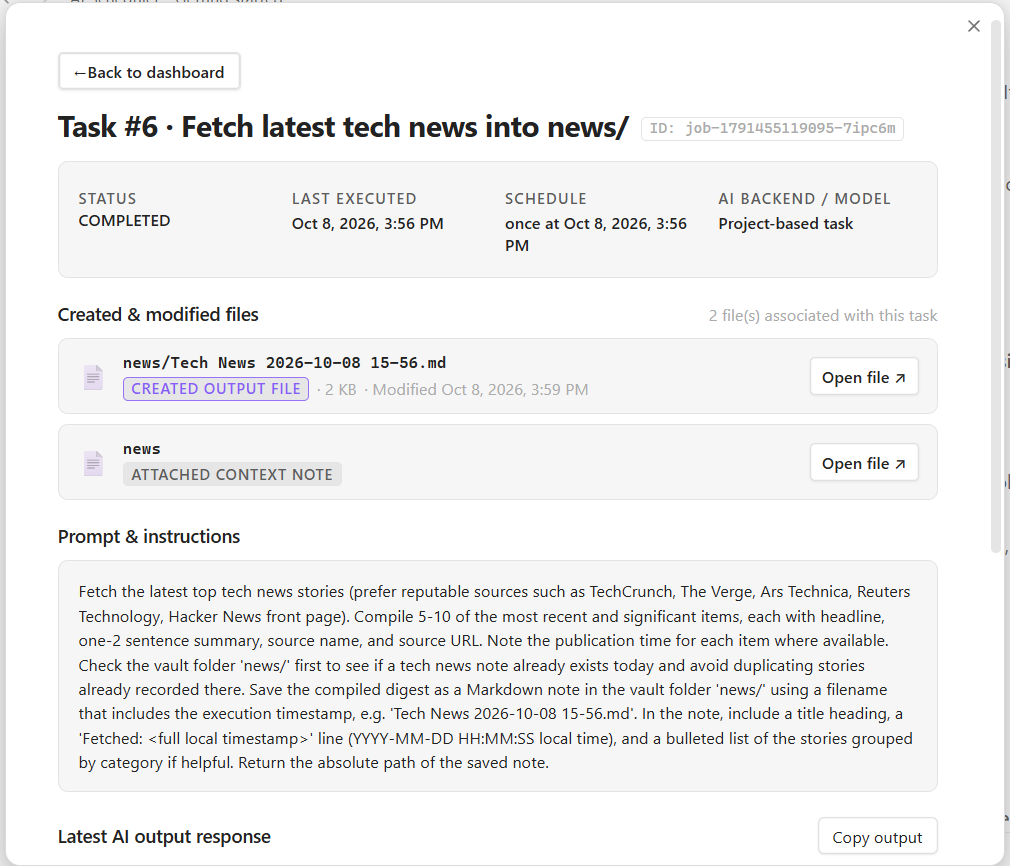 Task details: status, schedule, the files it created, and the full prompt. |
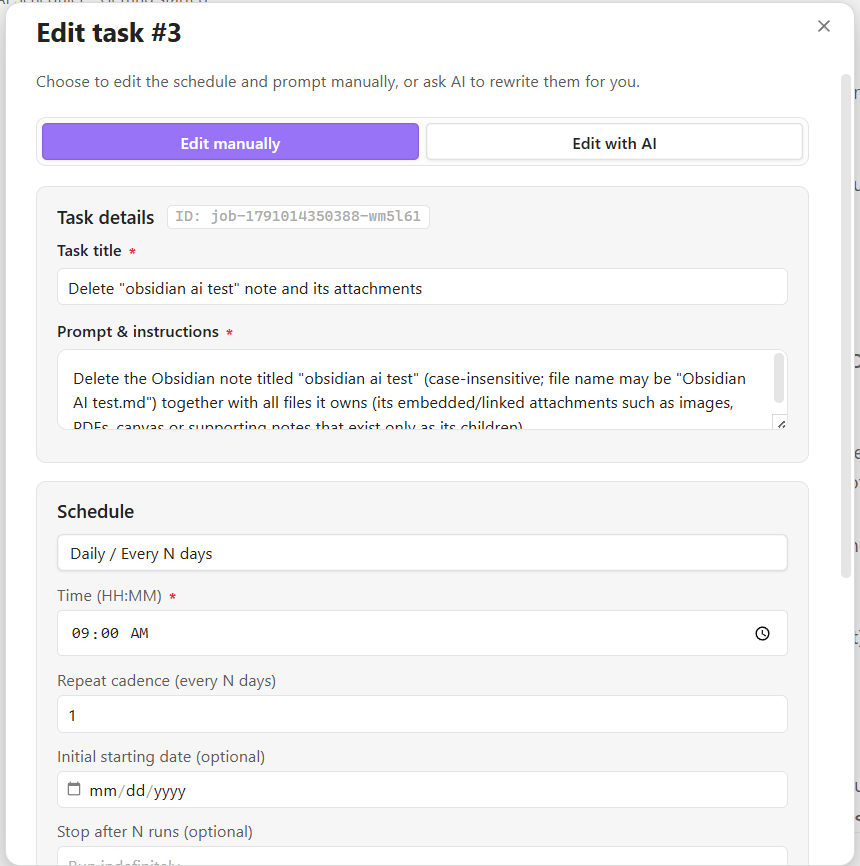 Task editor: edit the prompt and schedule yourself, or ask the AI to rewrite them. |
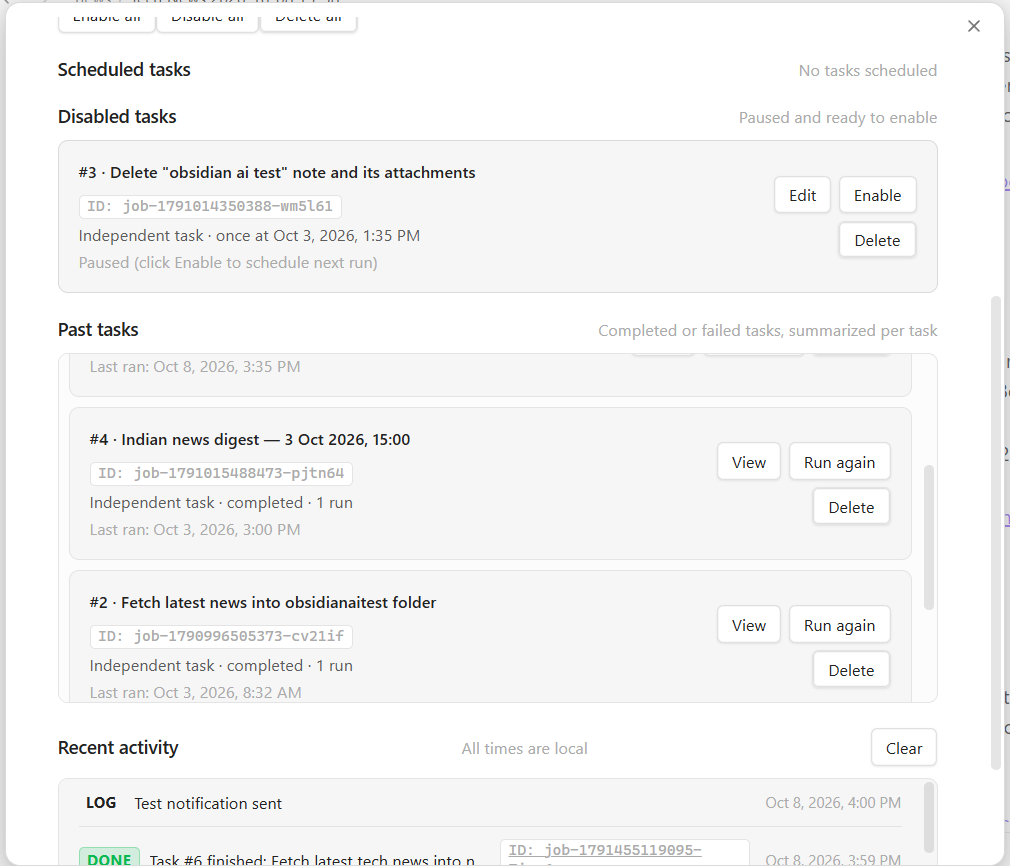 History: past runs with view / run again, and a recent-activity log. |
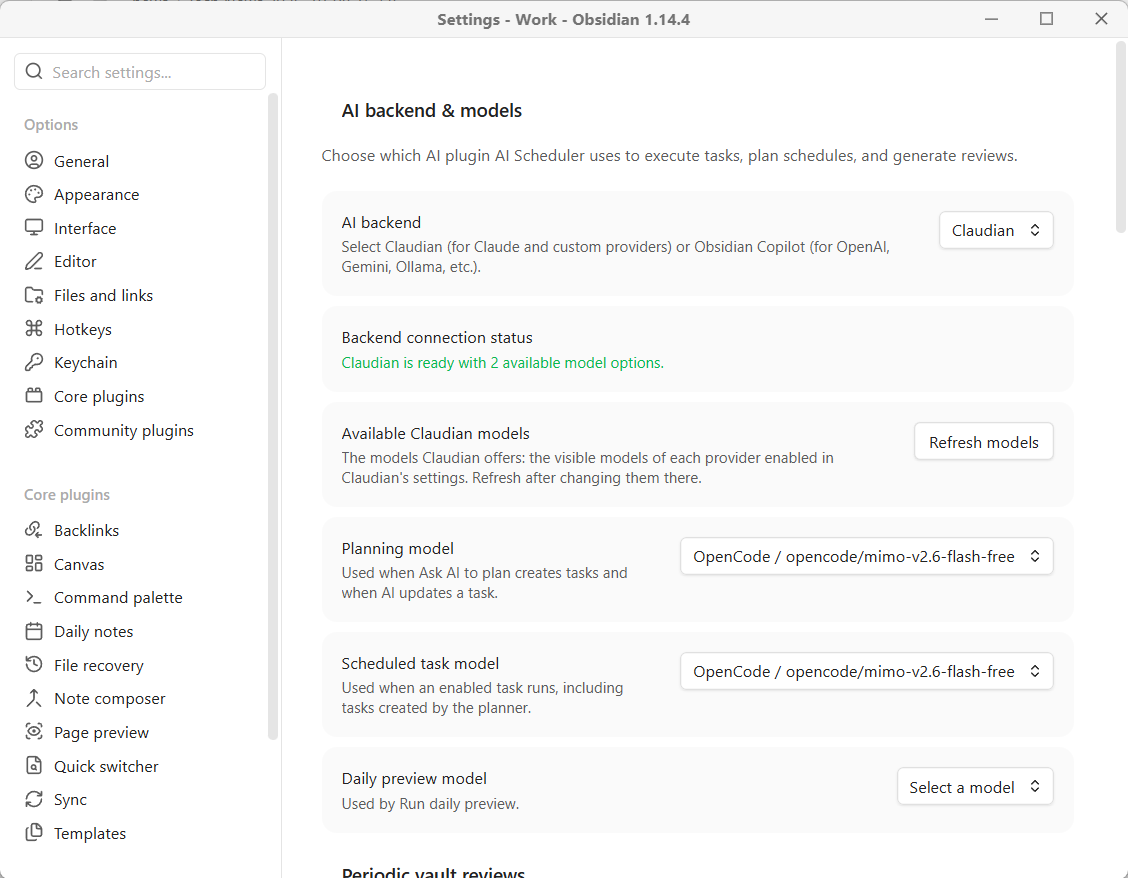 Settings: pick the backend and the model for each kind of work. |
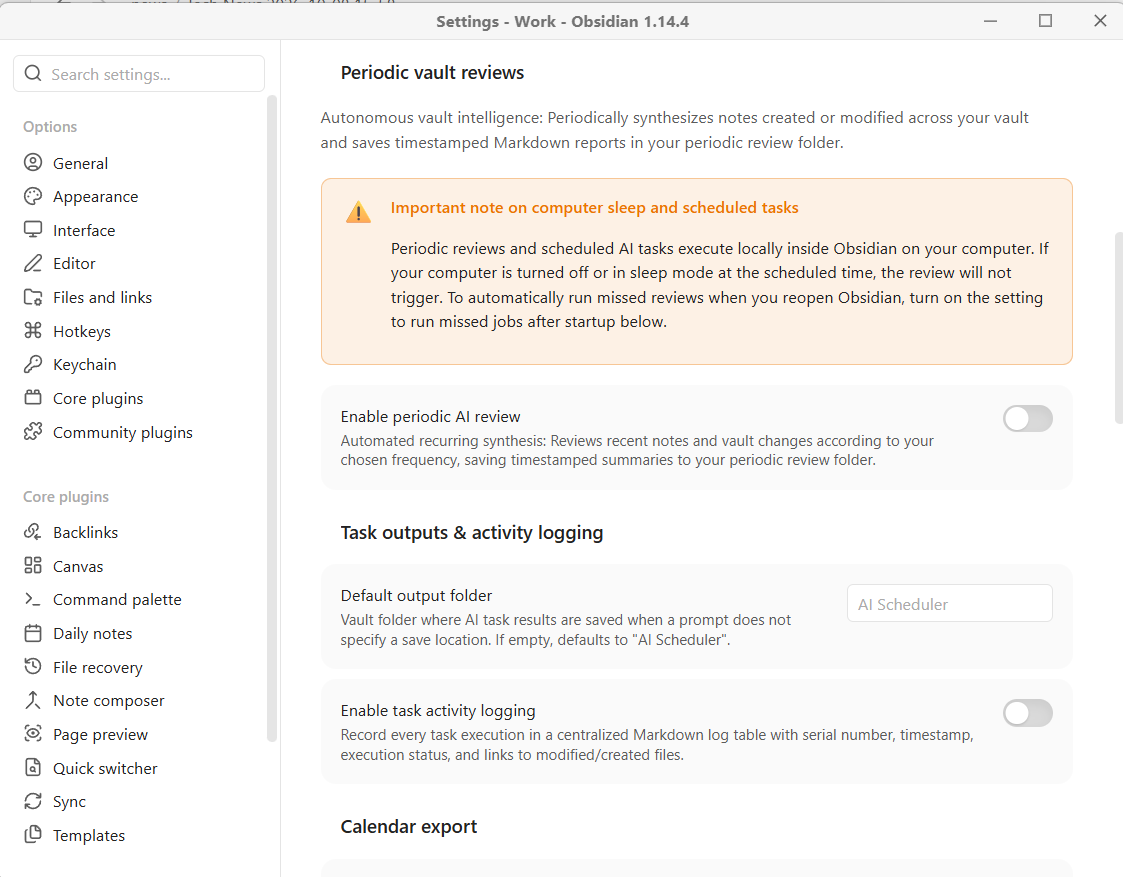 Periodic reviews and outputs: recurring vault summaries and where results are saved. |
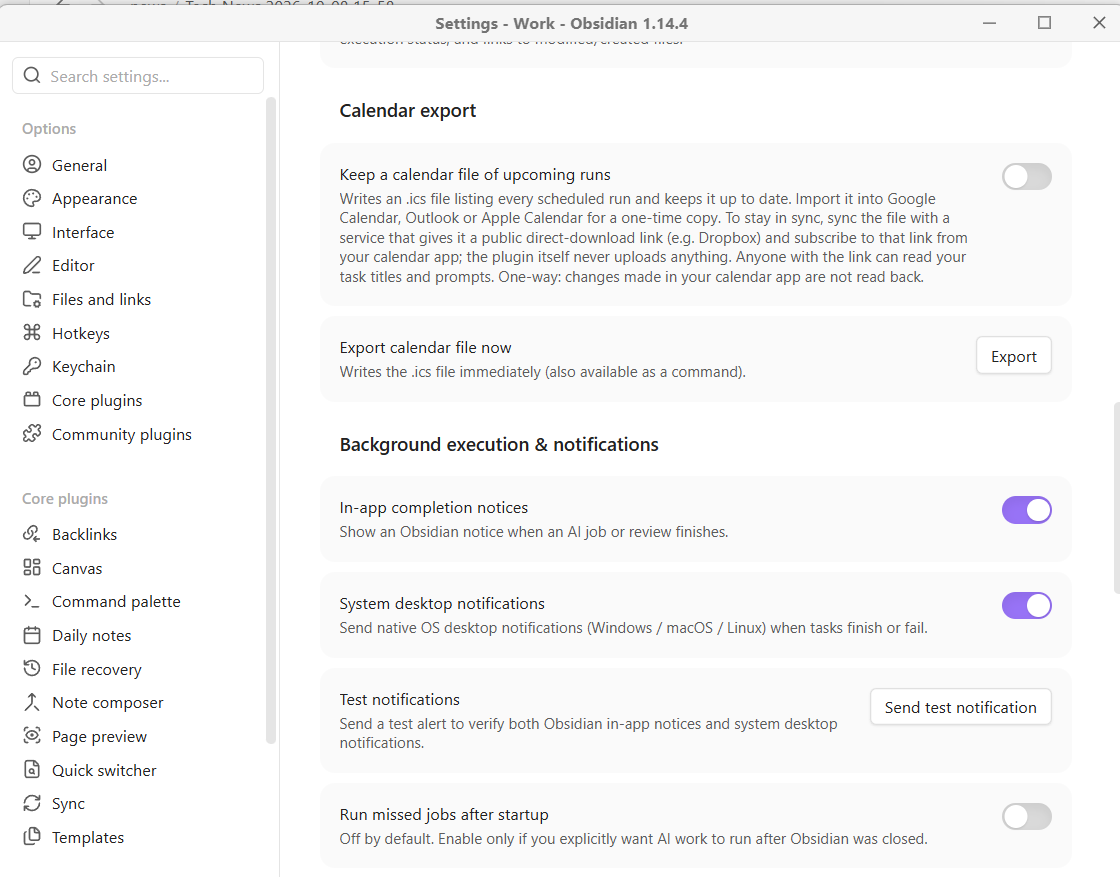 Calendar export and notifications: an .ics feed of upcoming runs, plus in-app and desktop notices. |
| Type | What it does |
|---|---|
| Daily | Runs every day at a set time (22:00) |
| Weekly | Runs on chosen weekdays at a set time |
| Every N days / weeks / months / yearly | Extended recurring cadences |
| Interval | Runs every N minutes or hours |
| Cron | Full 5-field cron expression (0 9 * * 1-5) |
| Multi-rule | Multiple weekday + time combinations in one job |
| Once | Runs once at a specific future date and time |
| Vault event | Runs when any note in the vault is modified or created (with a cooldown) |
All schedule types support an optional max iterations limit — the job stops automatically after N runs.
From the Obsidian Community Plugin store (recommended):
- Open Obsidian Settings → Community plugins.
- Turn Restricted mode off if it is on.
- Click Browse, search for AI Scheduler, and install it.
Manual installation:
- Download the latest release:
main.js,manifest.json,styles.css. - Create the folder
.obsidian/plugins/ai-scheduler/inside your vault. - Copy the three files into that folder.
- In Settings → Community plugins, reload plugins and enable AI Scheduler.
AI Scheduler needs one of these backends installed and working first. Install it from the community plugin store, then set up your providers and models in its own settings:
Then in Settings → AI Scheduler:
- Pick your Active backend (Claudian or Obsidian Copilot).
- Choose models for Planning model, Scheduled task model, Daily preview model and Periodic review model.
- Optionally enable Schedule notes to mirror tasks as vault Markdown files.
- Optionally enable Periodic AI review, choose its cadence and time, and pick a review folder.
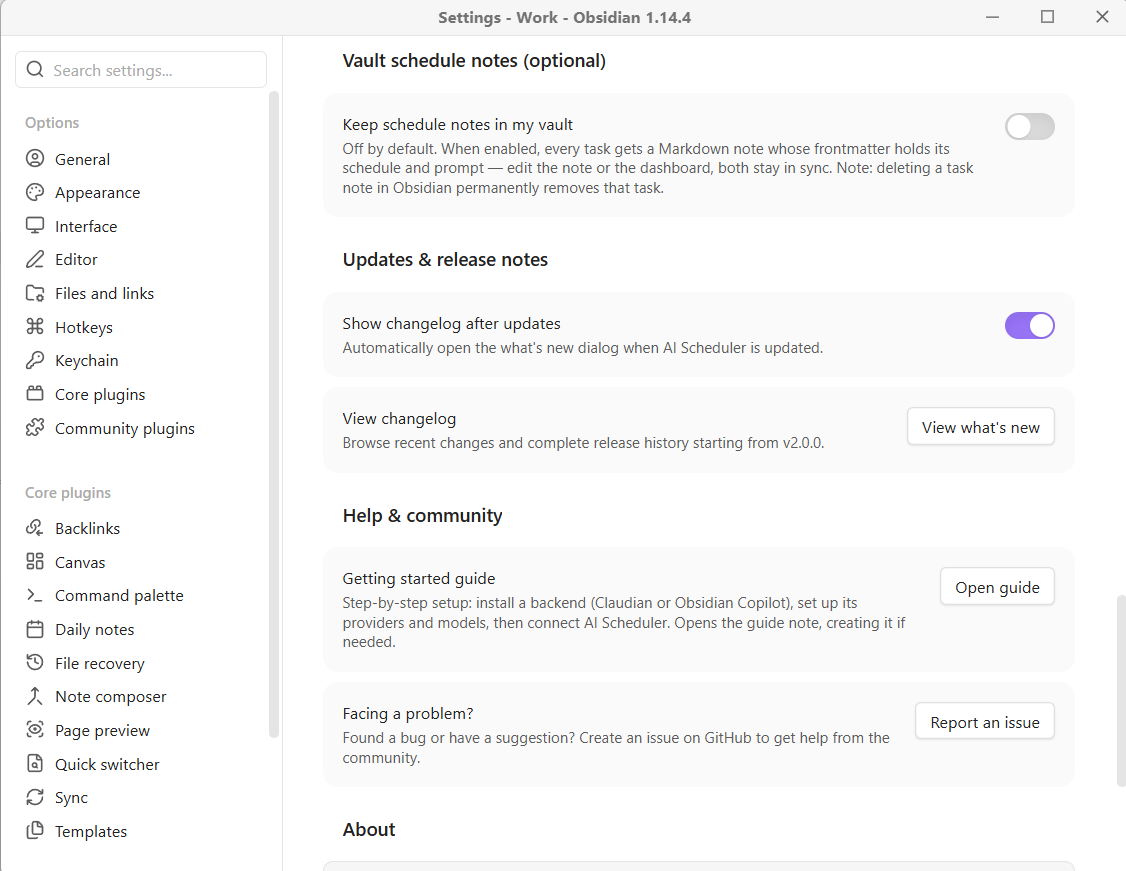
On first install the plugin creates a short AI Scheduler - Getting started note with these steps; reopen it any time with AI Scheduler: Open getting started guide or from Settings → AI Scheduler → Help & community. The dashboard, planner and task editor always show your backend's status with a button to open its settings.
Click the brain icon in the ribbon or run AI Scheduler: Open assistant dashboard from the command palette.
The dashboard shows:
- All scheduled tasks with their next run time and status
- Running tasks with a live elapsed timer
- Recently completed tasks and their output
- Disabled and deleted (trash) tasks
- Recent activity log
From here you can create tasks, edit them, run them on demand, pause, restore from trash, or open the AI Planner.
Run AI Scheduler: Open schedule calendar to see every task's runs in a month grid, an agenda list, or a full-page day view with a timeline. Past runs show as completed only when the task actually ran; you can create, run, pause and resume tasks directly from the calendar.
Turn on Settings → AI Scheduler → Calendar export. The plugin then keeps an .ics file (by default AI Scheduler/AI Scheduler.ics) listing your upcoming runs, and rewrites it whenever your tasks change. There are two ways to use it:
Import (one-time snapshot). Import the file in your calendar app (Google Calendar: Settings → Import & export). This copies the runs listed at that moment; later changes need another import.
Subscribe (stays up to date). Calendar apps can follow a calendar from a web address and re-download it periodically. The plugin itself never uploads anything — you give the file a public link with whatever already syncs your vault:
- Make sure the
.icsfile is synced to a service that can share a direct download link — for example the Dropbox desktop app, or a plugin such as Remotely Save syncing to Dropbox. (Change the end of a Dropbox share link from?dl=0to?dl=1.) Sync services without public links (Obsidian Sync, iCloud, Syncthing) can't be used for this, and OneDrive / Google Drive share links usually open a web page rather than the file. - Subscribe to that link:
- Google Calendar: Other calendars → + → From URL
- Outlook: Add calendar → Subscribe from web
- Apple Calendar: File → New Calendar Subscription
Good to know:
- Updates aren't instant. Your calendar app decides when to re-download the file; Google can take several hours to a day. Outlook and Apple usually refresh sooner.
- Anyone with the link can read the file, which includes task titles and prompts. Treat the link like a password and don't share it.
- One-way. Events edited or deleted in your calendar app don't change your tasks.
All commands are available from the command palette (Ctrl/Cmd + P):
| Command | What it does |
|---|---|
Open assistant dashboard |
Opens the scheduling dashboard |
Open schedule calendar |
Opens the month / agenda / day calendar of upcoming runs |
Ask AI to plan a schedule |
Opens the natural language planner |
Run AI daily preview |
Runs today's preview report immediately |
Run AI periodic review now |
Runs the periodic review immediately |
Enable periodic AI review |
Turns on recurring periodic reviews |
Disable periodic AI review |
Turns off recurring periodic reviews |
Toggle periodic AI review |
Toggles the periodic review on/off |
Enable all scheduled tasks |
Resumes all paused tasks |
Disable all scheduled tasks |
Pauses all tasks |
Restore last deleted task |
Restores the most recently deleted task |
Sync schedule notes now |
Reconciles vault notes with active schedules |
Export schedule to calendar file (.ics) |
Writes upcoming runs to the calendar file |
Open getting started guide |
Opens (or recreates) the setup guide note |
View changelog / what's new |
Opens the release history |
- No third-party servers, no telemetry, no analytics.
- Prompts and vault files go only to your configured backend (Claudian or Copilot) and then to whatever AI provider you have set up there.
- Periodic reviews and automated note reading are opt-in.
- Follow-up tasks that the AI proposes in its replies are created disabled — you review and enable them yourself.
- Task output is written as new Markdown notes; the plugin never overwrites a note it did not create, and never writes into hidden or
.obsidianfolders. - You control iteration limits and can pause or delete any task at any time.
The plugin runs a lightweight dispatcher every 15 seconds. When a job becomes due, it sends the configured prompt (with any attached context files) to the active backend plugin. The backend executes the AI agent, and results are written to a vault folder you choose. Recurring jobs are rescheduled automatically; one-time jobs are marked complete.
The cron engine is dependency-free and bundled directly — no external packages, DST-safe, and tested against a full suite of edge cases.
git clone https://github.com/racstan/obsidian-ai-scheduler.git
cd obsidian-ai-scheduler
npm install

npm test        # unit tests (cron engine, schedule math, engine logic)
npm run lint    # ESLint with obsidian-community-plugin ruleset
npm run check   # TypeScript typecheck
npm run smoke   # smoke test against mock Obsidian API
npm run build # production bundlePolyForm Noncommercial License 1.0.0 © 2026 racstan.
This plugin is licensed under the PolyForm Noncommercial License 1.0.0 for noncommercial and personal use.