AI Setup
ArduDeck integrates with large language models to provide AI-powered features throughout the application. Currently used for flight log analysis, with more integrations planned.
| Provider | Model Used | API Key Source |
|---|---|---|
| Claude (Anthropic) | claude-sonnet-4 | console.anthropic.com |
| OpenAI | gpt-4o-mini | platform.openai.com |
| Gemini (Google) | gemini-2.0-flash | aistudio.google.com |
All three providers offer free tiers or trial credits suitable for flight log analysis.
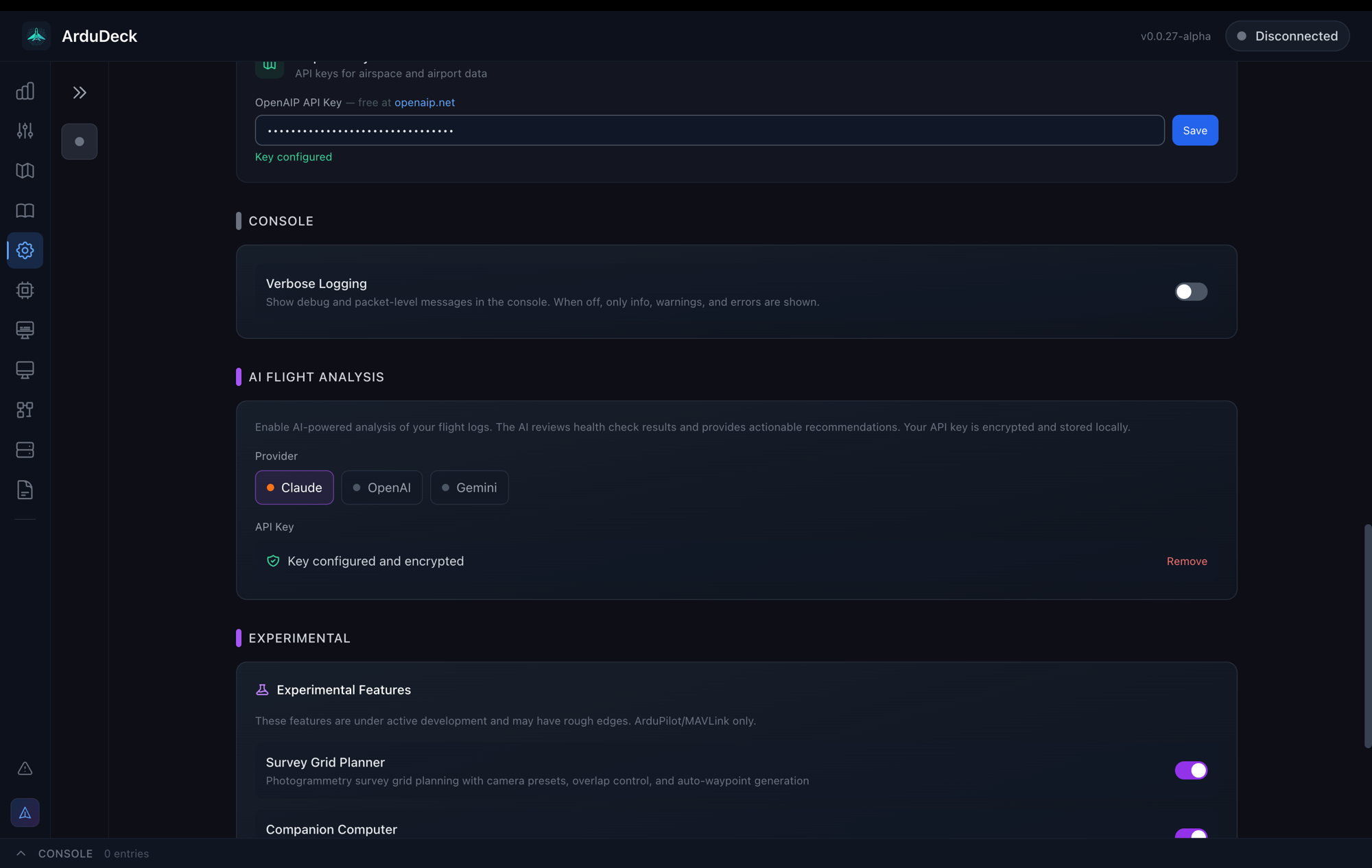
- Go to Settings > AI Flight Analysis
- Select your provider (Claude, OpenAI, or Gemini)
- Paste your API key and click Save
The API key is encrypted using Electron's safeStorage API and stored locally on your machine. It is never sent anywhere except the selected provider's API endpoint.
Your provider selection is persisted across app restarts. You can switch providers at any time without losing saved conversations.
When you use an AI feature, ArduDeck sends relevant context (flight data, health check results, parameter metadata) along with your question to the selected provider. The AI responds within the app, and conversations are saved locally per log file.
All API calls use native fetch directly to the provider's official API endpoint. No data passes through ArduDeck servers or any intermediary.
- API keys are encrypted at rest with OS-level encryption (macOS Keychain / Windows DPAPI / Linux libsecret)
- Flight data is sent only to the provider you select, only when you initiate an AI action
- Conversations are stored locally in
~/.config/ardudeck/log-chats.json(or equivalent OS path) - No telemetry or usage data is collected by ArduDeck
| Feature | Location | Description |
|---|---|---|
| Flight Log Analysis | Flight Logs > AI Analysis tab | Conversational analysis of flight logs with actionable parameter recommendations |
| Flight Log Analysis | Flight Logs > Health Report > "Analyze log with AI" | AI-generated insight cards on the health report |
| Issue | Cause | Fix |
|---|---|---|
| "No API key configured" | Provider selected but key not saved | Go to Settings > AI Flight Analysis and save your key |
| "API error 401" | Invalid or expired API key | Generate a new key from the provider's dashboard |
| "API error 429" | Rate limit exceeded | Wait a moment and retry, or upgrade your API plan |
| AI tab not visible | No provider configured | Select a provider in Settings first |
| Responses cut off | Max token limit reached | Ask shorter, more focused questions |