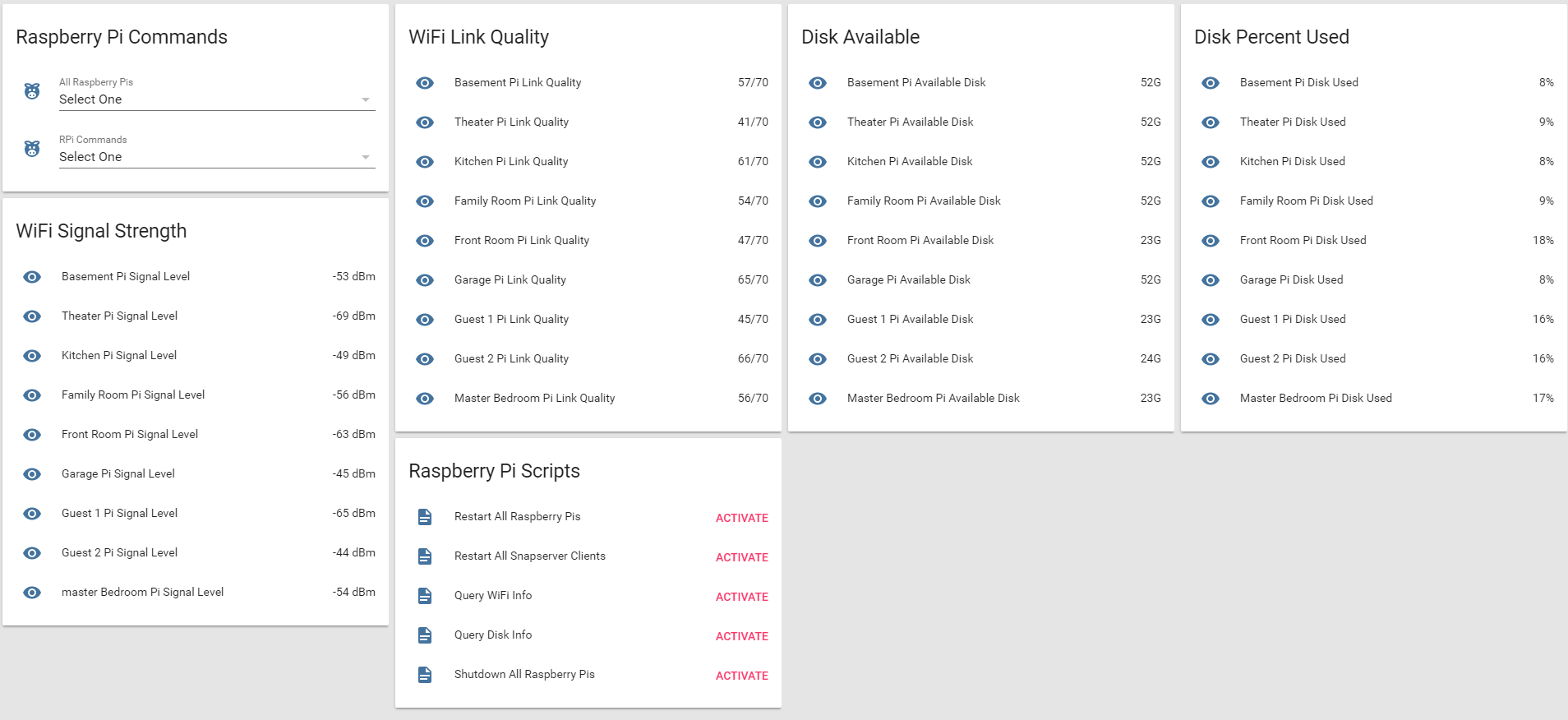
I have one too many Raspberry Pis at home, and I always wanted an easy/lazy way to do some basic management without having to log into each of the Raspberry Pis. This will come in handy for situations where you want to restart all the Raspberry Pis at once, or simply want to restart snapcast client service on all the raspberry Pis...etc This will save you lots of time individually logging into each of the Raspberry Pi, and issue commands. Another big use of this is the automation, which you will find more in my Github Repo
I wrote a basic python program that is deployed to each of the Raspberry Pi (this one happened to be deployed to a raspberry Pi that is located in the Kitchen). The program runs as a Daemon/Service, it runs in thebackground, and automatically starts when the Raspberry Pi is restarted.
What this program does is, it listens for specific commands in MQTT on a topic, called "/server/pi_kitchen". Whatever the command is published to that topic, it executes it... not just any random command, ONLY pre-defined commands - like Restart Server, Shutdown Pi, Restart Snapcast Client, Give me the status of WiFi signal, Give me the stats of disk...etc. You can expand the command list or change to fit your needs.
The same code is deployed to every Raspberry Pi, with the modified topic names - for ex, if the code is deployed to pi_familyroom Raspberry Pi, the topic name would be pi_familyroom instead of pi_kitchen.
Not all commands return data - for ex: Restart Raspberry Pi just simply restarts, whereas Get WiFi Info returns WiFi data in a JSON format. That's pretty much all this code does. The power comes when you integrate this with other automation stuff.
You need Python and Python MQTT libraries for this code to work. To install Paho MQTT - python library for MQTT, run the following command.
sudo pip install paho-mqtt
import os
import time
import json
import subprocess
import paho.mqtt.client as mosquitto

# MQTT Server Address and Port
MQTT_SERVER = "192.168.1.xxx"
MQTT_SERVER_PORT = 1883

# MQTT User name and Password
MQTT_USERNAME = "mosquitto"
MQTT_PASSWORD = "xxx"

# MQTT Topic Names
MQTT_TOPIC = "/server/pi_kitchen"
MQTT_WIFI_TOPIC = "/wifi/pi_kitchen"
MQTT_DISK_TOPIC = "/disk/pi_kitchen"

# create a new MQTT Client Object
mqttc = mosquitto.Mosquitto()

# OnConnect Callback
######################################
def on_connect(mosq, userdata, flags, rc):
    print("Connected with return code: " + str(rc))

# OnMessage Callback
######################################
def on_message(mosq, userdata, msg):
    print(msg.topic + " " + str(msg.qos) + " " + str(msg.payload))
    if (str(msg.payload) == "CMD_RESTART_SNAPCLIENT"):
        os.system('sudo systemctl restart snapclient')
    elif(str(msg.payload) == "CMD_REBOOT_PI"):
        os.system('sudo shutdown -r now')
    elif(str(msg.payload) == "CMD_SHUTDOWN_PI"):
        os.system('sudo shutdown now')
    elif(str(msg.payload) == "CMD_REPORT_WIFI_DETAILS"):
        try:
            data = {}
            return_value = subprocess.check_output("iwconfig wlan0 | grep -i signal", shell=True)
            return_value = return_value.strip()
            str_list = filter(None,  return_value.split(' '))
            data['Link Quality'] = str_list[1].split('=')[1]
            data['Signal Level'] = str_list[3].split('=')[1]
            mosq.publish(MQTT_WIFI_TOPIC, payload=json.dumps(data), qos=0, retain=False)
        except subprocess.CalledProcessError:
            print("Failed to run the command: iwconfig wlan0 | grep -i signal")
    elif(str(msg.payload) == "CMD_REPORT_DISK_DETAILS"):
        try:
            data = {}
            return_value = subprocess.check_output("df -h | grep /dev/root", shell=True)
            return_value = return_value.strip()
            str_list = filter(None,  return_value.split(' '))
            data['File System'] = str_list[0]
            data['Size'] = str_list[1]
            data['Used'] = str_list[2]
            data['Available'] = str_list[3]
            data['% Used'] = str_list[4]
            mosq.publish(MQTT_DISK_TOPIC, payload=json.dumps(data), qos=0, retain=False)
        except subprocess.CalledProcessError:
            print("Failed to run the command: df -h | grep /dev/root")
    else:
        print("Unknown command")

# OnSubscribe Callback
######################################
def on_subscribe(mosq, obj, mid, granted_qos):
    print("Subscribed: " + str(mid) + " " + str(granted_qos))

# OnLog Callback
######################################
def on_log(mosq, obj, level, string):
    print(string)

# Set event callbacks
mqttc.on_message = on_message
mqttc.on_connect = on_connect
mqttc.on_subscribe = on_subscribe

# Uncomment below line to enable debug/console messages
#mqttc.on_log = on_log

# Connect to MQTT using the username/password set above
mqttc.username_pw_set(MQTT_USERNAME, MQTT_PASSWORD)
mqttc.connect(MQTT_SERVER, MQTT_SERVER_PORT)

# Start subscribe, with QoS level 0
mqttc.subscribe(MQTT_TOPIC, 0)

# Continue the network loop, exit when an error occurs
rc = 0
while rc == 0:
    rc = mqttc.loop_forever()

# when the program exits, print the error code
print("MQTT Return Code: " + str(rc))
Note: If you copy the file, make sure you change MQTT Server IP, Port, Username and Password and any other hard coded stuff.
To run the python program as a service on Raspberry Pi, you need to create a file I name this as raspi-client.service in /etc/systemd/system folder.
Run the following command to create that file:
sudo nano /etc/systemd/system/raspi-client.service
Once you are in the nano editor or your favorite editor, add the following contents, save and exit.
[Unit]
Description=Raspberry Pi MQTT Command Listener
After=network.target
Requires=network.target

[Service]
ExecStart=/usr/bin/python /home/pi/pi_mqtt_cmds.py
Restart=on-failure
RestartSec=5

[Install]
WantedBy=multi-user.target
MAKE SURE YOU CHECK THE FILE NAME AND PATH... in my case, I named the python file as pi_mqtt_cmds.py, and it is located in /home/pi/ folder, and the Python runtime is at /usr/bin/python.
To check the location of your python executable, run which python command. THat should give you the full path.
After saving the contents, make sure you reload the daemon config by running the code. This option is better than restarting RPi.
sudo systemctl --system daemon-reload
Make sure you enable the service that was just created by running the command
sudo systemctl enable raspi-client
Then you can start the python program as "Service" using the following command
sudo systemctl start raspi-client
Optionally, you can restart and check status using the following commands. To restart, run this command:
sudo systemctl restart raspi-client
To check the status, run the following command:
sudo systemctl status raspi-client
Now that you have a python program on your Raspberry Pi, that connects to the MQTT and executes commands, it is time to test the code. Go to your MQTT console, and publish a message on the topic specified in the code. Make sure the command is EXACTLY one of these:
CMD_RESTART_SNAPCLIENT -> Restarts Snapcast client running on the RPi
CMD_REBOOT_PI -> Reboots Pi
CMD_SHUTDOWN_PI -> Shutsdown the Pi
CMD_REPORT_WIFI_DETAILS -> Responds back with WiFi information (check /wifi/pi_xxx topic)
CMD_REPORT_DISK_DETAILS -> Gives you some stats about Disk (check /disk/pi_xxx topic)
Now that you have a base framework, you can modify the commands, add/remove and change topic names, whatever suits your needs.
If you check my github repo, I have a package https://github.com/skalavala/smarthome/blob/master/packages/pi_admin.yaml that shows you how to run commands and show WiFi and Disk information and have automations based on the data... If your RPi is running out of disk space, you can get an alert, of if the WiFi signal is too weak... or anything you like!
I also like to point out that there are many wayc of achieving the same. This is just one simple way :)
Good luck!