ENG 02 Installation
Once built, the RpiRoadbook needs a SD with the buildroot-custom linux and the main python program to read roadbooks.
V2.3 is the latest version. It is available :
- as a full disk image for RaspberryPi Zero W : Rpi0W Full image
- as a full disk image for RaspberryPi 3 : Rpi3 Full image
- as a firmware update, for version 2.1+ : Firmware Update. Updates for RaspberryPiZeroW and RaspberryPi3 are the same. Please read the User Manual for firmware update instructions.
Download the chosen zip file. You don't need to uncompress it.
Download and install Etcher from balena.io : https://www.balena.io/etcher/. It is a free open source program for flashing disk images to memory cards. It is available for Windows, Mac and Linux.
Once installed, launch Etcher. You should get the next window :
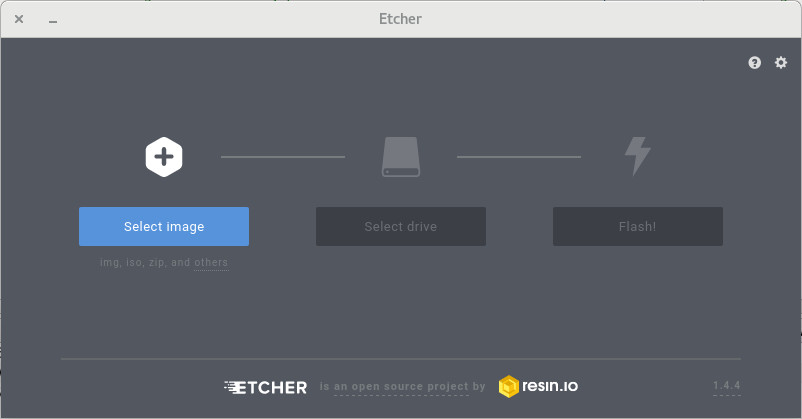
Click on "Select image" and get the previously downloaded zipped disc image.
Select where your SD Card is with "select drive".
Then on "Flash" to burn your copy.
After a few minutes, your SD card is ready. Remove it from your computer and insert it in the Raspberry Pi Zero inside the RpiRoadbook.
When turned on, there should be a splashscreen like this one for a few seconds:

Then a menu with a list of roadbooks to choose.